What bank reconciliation means
Bank reconciliation is the process of comparing your Jeramyl transaction records against your official bank statement. By matching each record in Jeramyl to a corresponding line on your bank statement, you confirm that your books accurately reflect real money movements — nothing missing, nothing duplicated, and no errors left unnoticed.
A reconciled period gives you and your accountant confidence that your Profit & Loss report, cash balance, and expense categories are based on verified data.
Bank Reconciliation is available on the Business plan. You need an active Business plan subscription to access Reconcile in the sidebar. See the Pricing page for a plan comparison.
When to use Bank Reconciliation
Reconcile your records once per month, after your bank statement for the period is available. Most businesses reconcile within a few days of the statement date.
- After your monthly bank statement is ready
- Before running month-end reports
- Before sharing records with your accountant
- Whenever you want to verify that what Jeramyl shows matches what your bank shows
Run Month-end Cleanup first to clear uncategorized transactions and missing receipts. A clean Review Queue makes reconciliation faster.
Open the Reconcile page
- Go to Reconcile in the sidebar. This option is visible on the Business plan.
- Select the account and period you want to reconcile.
- Enter the closing balance from your bank statement — the exact figure shown on your statement, not from Jeramyl.
- Open the reconciliation to see your Review Queue.
Enter the closing balance exactly as it appears on your bank statement. A typo here will cause the difference to remain non-zero, even if all matches are correct.
Review Queue
The Review Queue shows every transaction in the selected period that has not yet been matched to your bank statement. Each item includes the transaction date, amount, vendor or description, and a match status.
Work through the Review Queue item by item. Items with a Needs review or Missing status need your attention before the period can be closed.
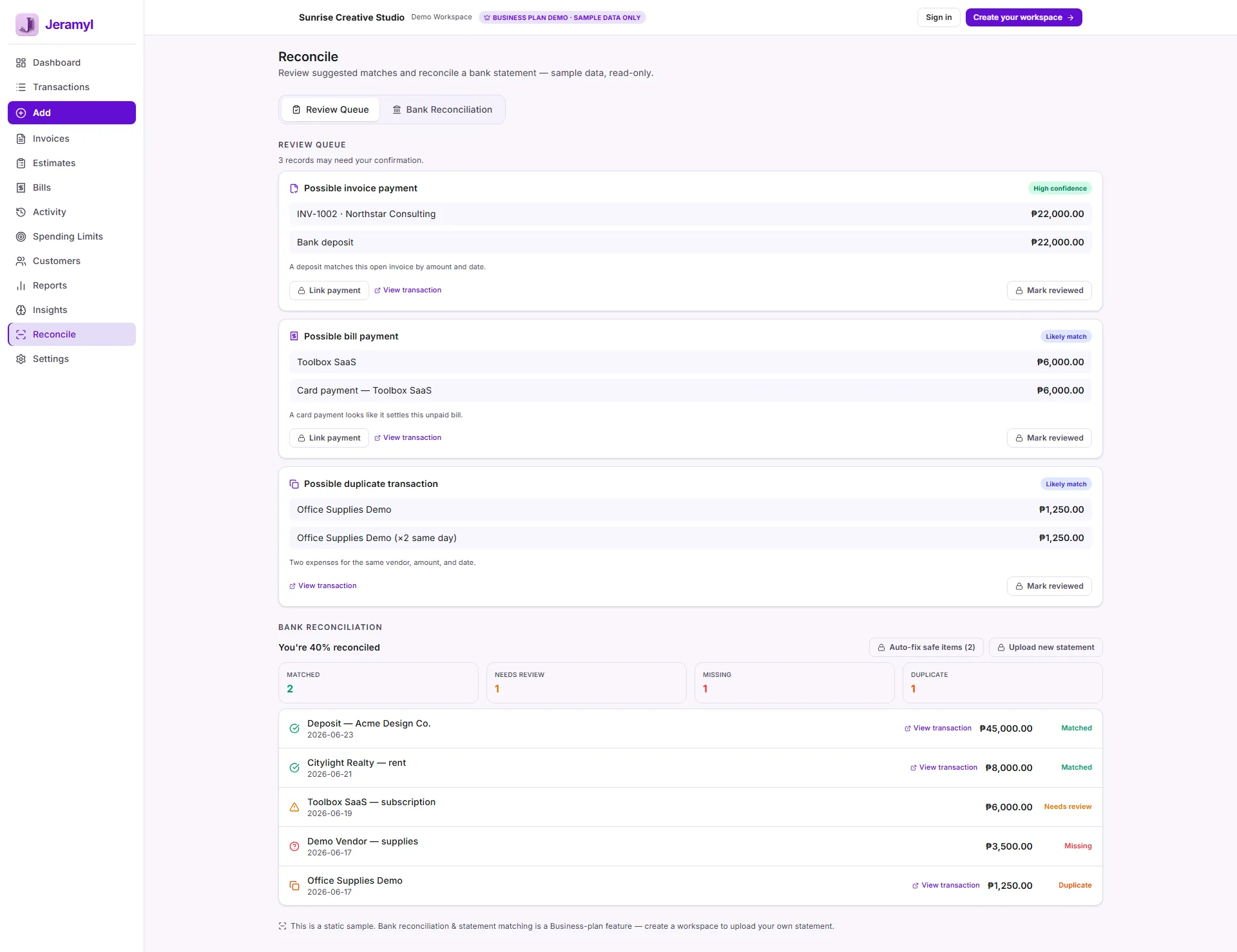
Bank Reconciliation results
At the top of the Reconcile page, Jeramyl shows a running summary of where things stand:
- Book balance: The total recorded in Jeramyl for the selected period.
- Bank statement balance: The closing balance you entered from your bank statement.
- Difference: The gap between the two. Your goal is to bring this to zero.
As you confirm matches, the difference decreases. When it reaches zero, the period is balanced and ready to close.
Status meanings
Every item in the Review Queue has a status that shows how confident Jeramyl is about the suggested match.
Jeramyl found a strong match between this record and a line on your bank statement. Review the suggestion and confirm if it is correct.
Jeramyl found a possible match but is not confident — the date, amount, or description are close but not exact. Inspect the suggestion carefully before confirming.
No match found. This transaction appears in your Jeramyl records but not on your bank statement, or appears on your bank statement but not in Jeramyl. You may need to add a transaction or investigate a discrepancy.
Two entries appear to represent the same real transaction — often caused by uploading a receipt and also manually recording the same expense. Review both records and remove the one that should not be there.
Auto-fix safe items
Auto-fix safe items is a shortcut that lets Jeramyl automatically confirm matches where it has very high confidence — typically transactions where the date, amount, and description align precisely with a bank statement line.
How it works
- Click Auto-fix safe items from the Reconcile page.
- Jeramyl scans the Review Queue for items it considers clearly safe to confirm automatically.
- Those items are confirmed. The queue updates immediately to show only items that still need your attention.
- Review the result — anything with uncertainty remains in the queue for you to inspect manually.
Auto-fix only acts on items Jeramyl considers clearly safe. Anything ambiguous — mismatched amounts, similar but different descriptions, or date differences — stays in the queue for you to review. You remain in control. Jeramyl does not change your records silently.
View transaction
For any item in the Review Queue, click View transaction to open the full transaction record. Use this to:
- Check the vendor, date, amount, and expense category
- Confirm a receipt is attached
- Compare the record details to your bank statement line before confirming
- Identify and correct any errors before marking the match
If something does not look right — the amount differs, the date is off, or the vendor name does not match — correct the transaction record before confirming the match. A reconciliation built on incorrect records is not accurate even if the difference reaches zero.
Have your bank statement open while working through the Review Queue. Comparing each item side by side is the most reliable way to catch discrepancies.
When the difference reaches zero
When the difference shown at the top of the Reconcile page reaches zero, your Jeramyl records and your bank statement are in agreement for that period. The reconciliation is complete and the period is ready to close.
If the difference does not reach zero after working through all Review Queue items:
- Check for Missing or Duplicate items that have not been resolved
- Look for transactions recorded in the wrong period
- Confirm the bank statement closing balance was entered correctly
- Ask your accountant if you cannot identify the source of the difference
Do not force-close a reconciliation if the difference is not zero. A remaining difference means something is unaccounted for. Your accountant can help identify whether it is a timing issue, a missing transaction, or a data entry error.
What Jeramyl does not do automatically
It is important to understand what Bank Reconciliation in Jeramyl does not do:
- Does not connect to your bank. Jeramyl does not have a live bank feed. You enter your bank statement closing balance manually and compare records yourself.
- Does not change your financials without confirmation. Every reconciliation action is user-initiated. Jeramyl suggests matches; you confirm them.
- Does not file or submit anything. Reconciliation in Jeramyl is a private record-keeping process. Nothing is sent to a bank, tax authority, or any third party.
- Does not replace your accountant. A reconciled period gives your accountant cleaner records to work with, but it is not a substitute for professional accounting or tax review.
- Auto-fix is not silent. Auto-fix safe items acts with your knowledge and only on items Jeramyl considers clearly safe. The result is visible in the queue immediately after it runs.
Best practices
- Reconcile monthly, ideally within a few days of your bank statement being available.
- Run Month-end Cleanup before reconciling to clear flagged transactions first.
- Attach receipts to expense transactions before reconciling — it makes reviewing matches easier.
- Work through Needs review and Missing items before closing the period.
- Use View transaction to verify any match you are not certain about.
- If the difference does not close, ask your accountant before moving on — do not leave an unexplained gap.
- Keep a note of any manual adjustments you made and why.
FAQ
Check that you entered the correct closing balance from your bank statement. Then look for Missing or Duplicate items still unresolved in the queue. A single transaction recorded in the wrong period or a data entry error can cause the difference. If you cannot find it, ask your accountant before closing the period.
A Duplicate flag means Jeramyl found two entries that appear to represent the same real transaction — for example, a receipt upload and a manual entry for the same expense. Open both records, confirm which one is correct, and delete or correct the duplicate before closing the period.
Needs review means Jeramyl found a possible match but is not confident. The date, amount, or description are similar but not identical to the bank statement line. Open the suggested match and compare the details carefully before confirming.
If you confirmed a match and need to reverse it, re-open the reconciliation for the same period and unconfirm the match from the transaction detail view. If you need help, contact support@jeramyl.com.
No. Bank Reconciliation is a Business plan feature. You need an active Business plan subscription to access Reconcile in the sidebar. See the Pricing page for a plan comparison.