Getting Started
Jeramyl organises your business finances in a Workspace — a container for a single business entity. One account can hold multiple workspaces, so you can manage several businesses without switching logins.
- Go to app.jeramyl.com/auth and create a free account.
- After signing in you land on your Dashboard. If you have no workspace yet, follow the prompt to create one.
- Set your business name and preferred currency in Settings → Workspace.
- Invite team members under Settings → Team if you need others to access the workspace.
- Start adding income, expenses, invoices, or bills — or upload a receipt to record your first transaction.
Switch between workspaces using the workspace selector in the sidebar. Each workspace has its own separate records, settings, and plan.
For a detailed walkthrough of switching between business workspaces, keeping records separate, and managing multiple entities, read the Multi-Business and Workspaces guide.
For a detailed walkthrough of inviting team members, reviewing workspace access, and removing members when needed, read the Team Members and Permissions guide.
Dashboard
The Dashboard is your first screen after signing in. It gives a real-time overview of your business's financial position and flags records that need attention.
What you will see
- Cash position: Your estimated cash on hand, derived from recorded income and expenses.
- Alerts: A count of items that need your attention, shown as N to fix when there are open issues or All clear when everything is resolved.
- No activity: Displayed when no transactions have been recorded for the current period.
- Recent activity: A summary of the latest transactions, invoices, and bills.
Alert types
Alerts point to records that may need action — such as uncategorized transactions, invoices missing a customer, or bills approaching their due date. Resolving alerts keeps your records clean and your Month-end Cleanup fast.
Check the Dashboard each morning for a fast health check on your business. Working through alerts daily prevents a large backlog at month-end.
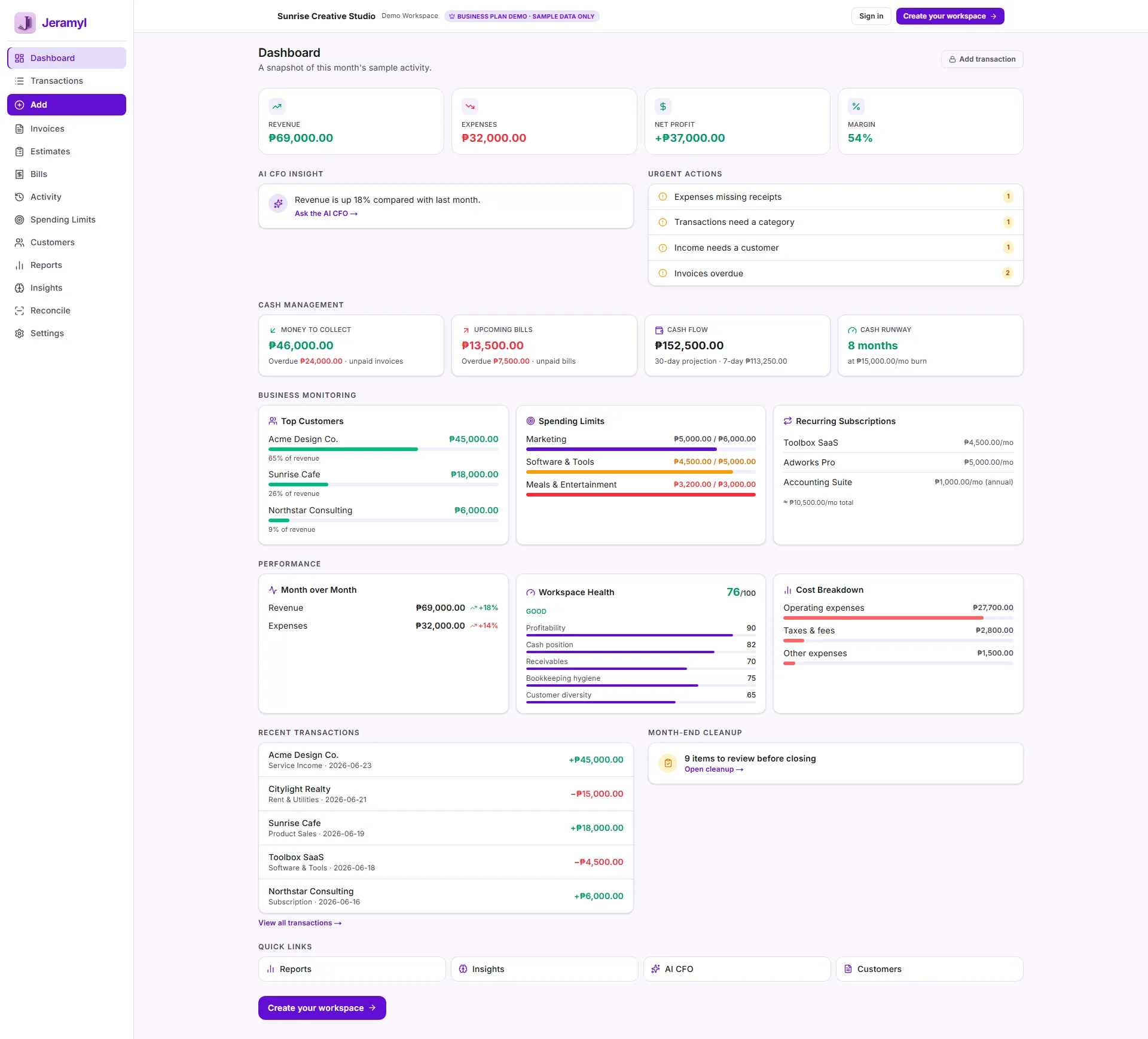
For a detailed walkthrough of cash flow, cash runway, overdue invoices, upcoming bills, and dashboard finance signals, read the Cash Flow and Runway guide.
For a detailed walkthrough of workspace health signals, overdue invoices, missing receipts, uncategorized transactions, and bills due, read the Workspace Health Engine guide.
Invoices
Use Invoices to bill customers for products or services. Navigate to Invoices in the sidebar to see a full list of all invoices, sorted by status and due date.
Invoice statuses
- Paid — a payment has been recorded against this invoice.
- Waiting — the invoice has been issued but the due date has not yet passed.
- Overdue — the due date has passed with no payment recorded.
Create an invoice
- Go to Invoices and click Add.
- Select or type a customer name.
- Add one or more line items — description, quantity, and unit price.
- Set the invoice date and payment due date.
- Save. The invoice is now visible in your invoice list.
Record a payment
When a customer pays, open the invoice and click Link payment. Enter the payment date and amount. The invoice status changes to Paid and the payment is recorded as an income transaction.
Payments are currently recorded as fully paid. Partial-payment tracking is not yet supported. To track a partial payment, record a separate income transaction manually and note the remaining balance in the invoice description.
Invoice follow-up tracking Pro
On any invoice, you can set a follow-up date using Update follow-up. This adds a reminder visible in the invoice list so overdue invoices do not slip through. Once you have contacted the customer, click Mark followed up to clear it.
Download and send
Each invoice can be downloaded as a PDF. If Connected Gmail is set up, you can send the invoice directly from your Gmail address within Jeramyl — per message, user-initiated.
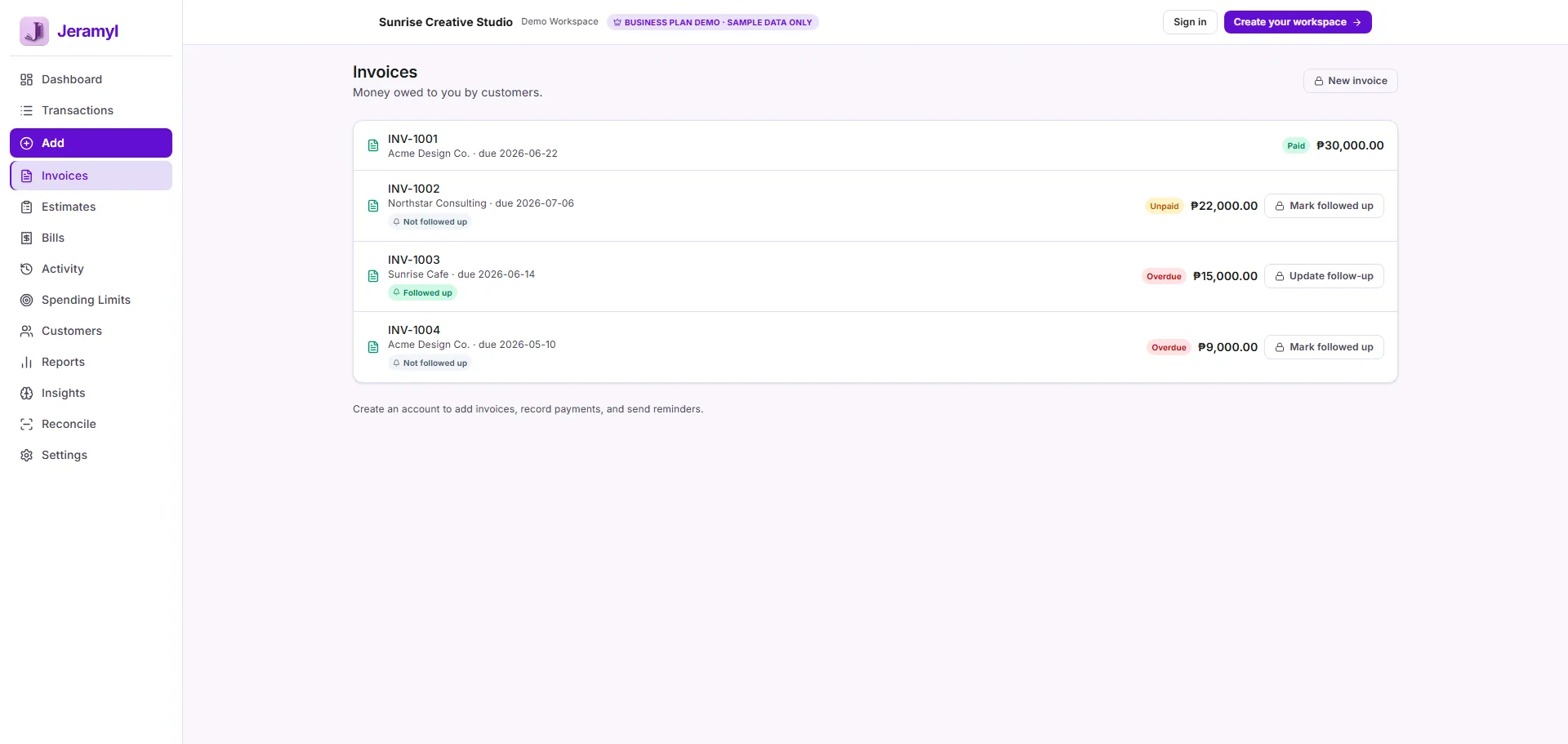
For a detailed walkthrough of creating invoices, invoice statuses, PDFs, payment recording, and follow-up tracking, read the Create Invoice guide.
Estimates Pro
Estimates let you quote a customer before work begins. Once the customer approves, an estimate converts directly into an invoice with all line items pre-filled — no re-entry needed.
Create an estimate
- Go to Estimates (accessible from Invoices or the main sidebar) and click Add.
- Select a customer, add line items, and set an expiry date if needed.
- Save the estimate and share the PDF with your customer.
Convert an estimate to an invoice
- Open the estimate you want to convert.
- Click Convert to invoice.
- Jeramyl creates a new invoice with all line items pre-filled from the estimate.
- Review and adjust the invoice date and due date if needed, then save.
Estimates are a Pro plan feature. The original estimate is kept and marked as converted after you create the invoice from it.
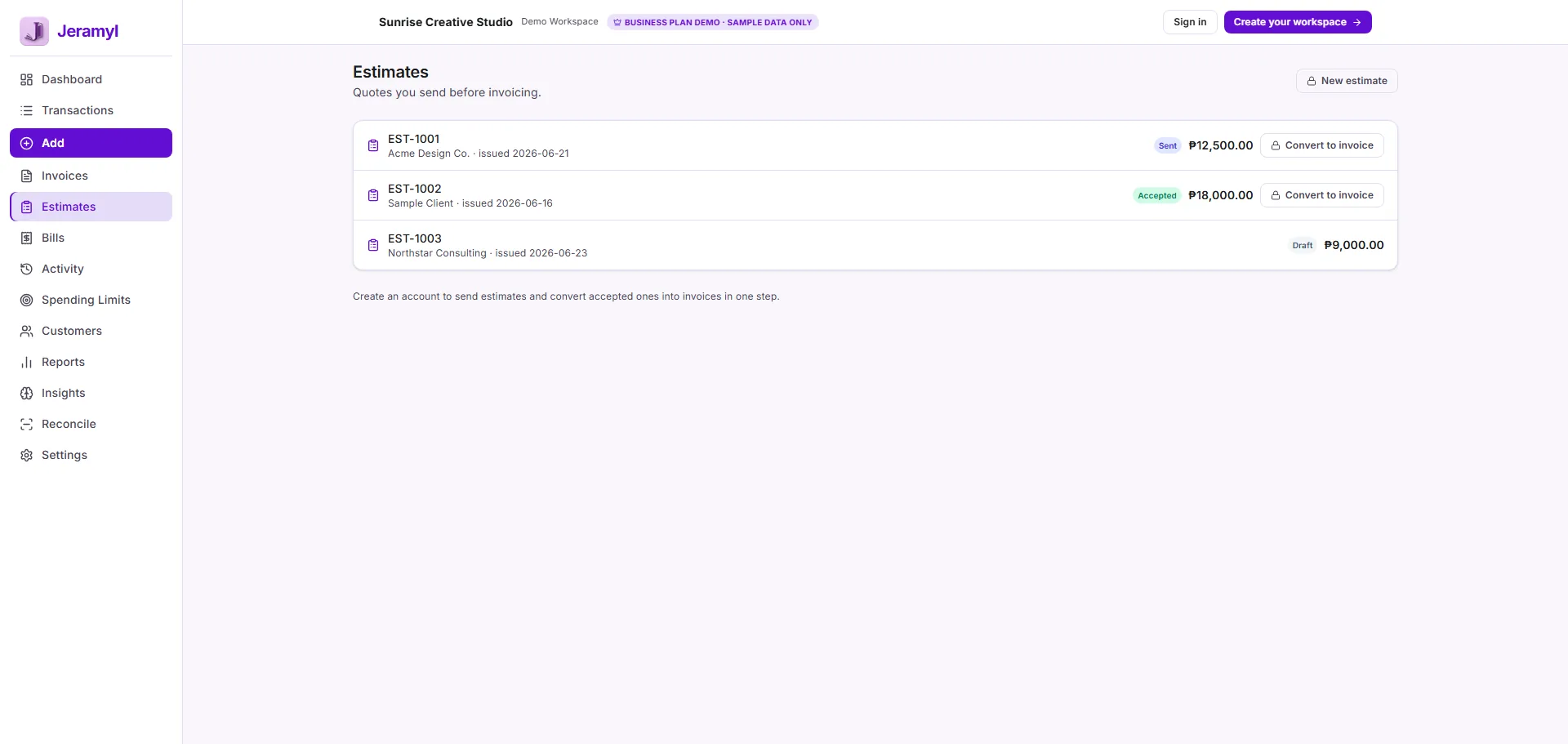
For a detailed walkthrough of creating estimates, tracking status, and converting accepted estimates into invoices, read the Estimates and Convert to Invoice guide.
Bills
Use Bills to track money you owe vendors and suppliers. Bills give you a clear view of upcoming and overdue payments so nothing is missed.
Bill statuses
Record a bill
- Go to Bills in the sidebar and click Add.
- Enter a vendor name (free-text), bill date, and due date.
- Enter the total amount and add a description or reference number if needed.
- Save. The bill appears with status Unpaid.
Record a payment
When you pay a bill, open it and click Link payment. Select or create the corresponding expense transaction. The bill status changes to Paid.
Vendors are currently free-text — there are no full vendor profiles or vendor contact records yet. Payments are recorded as fully paid; partial-payment tracking is not yet supported.
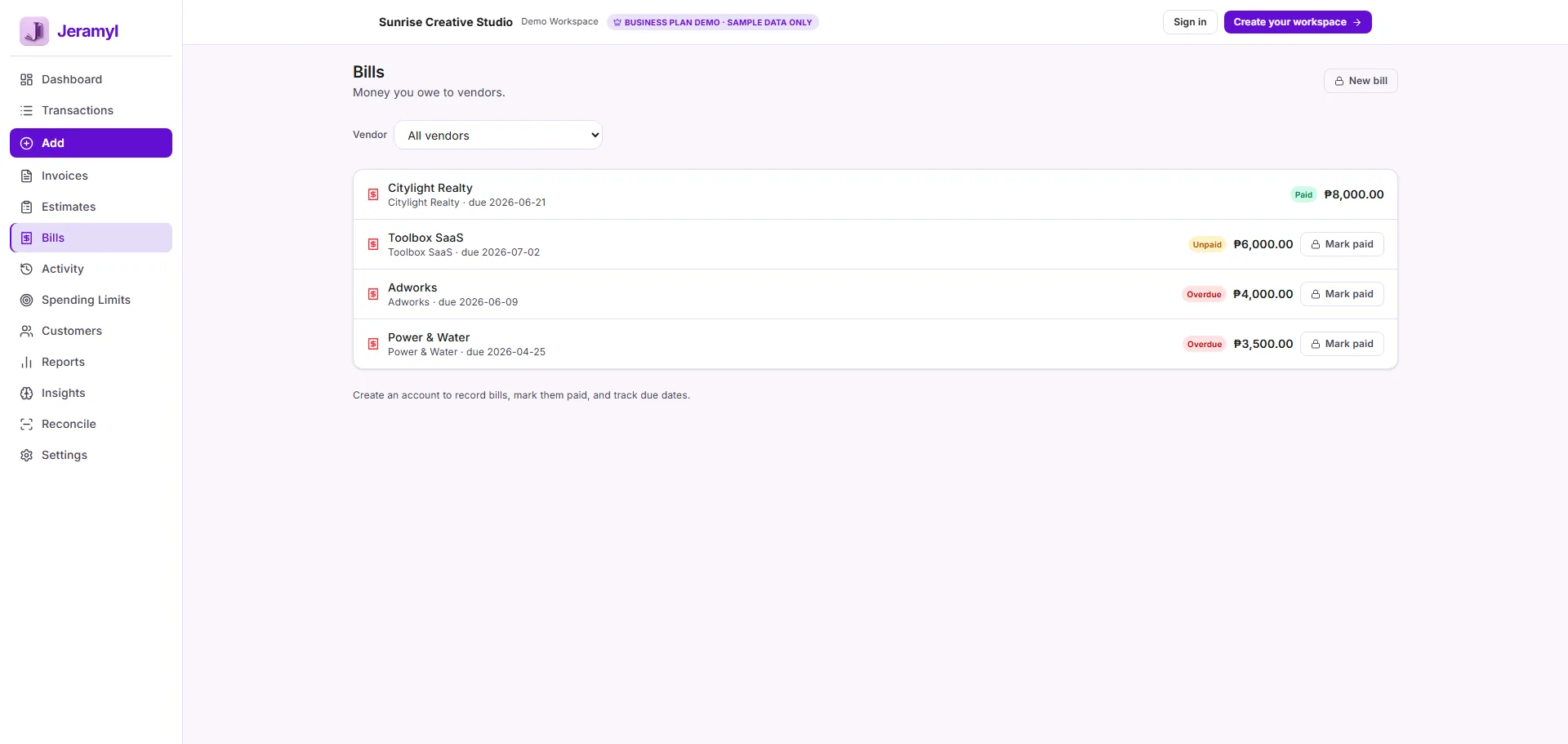
For a detailed walkthrough of bills, vendors, due dates, payment status, overdue bills, and vendor filters, read the Bills and Vendor Payments guide.
Transactions and Receipts
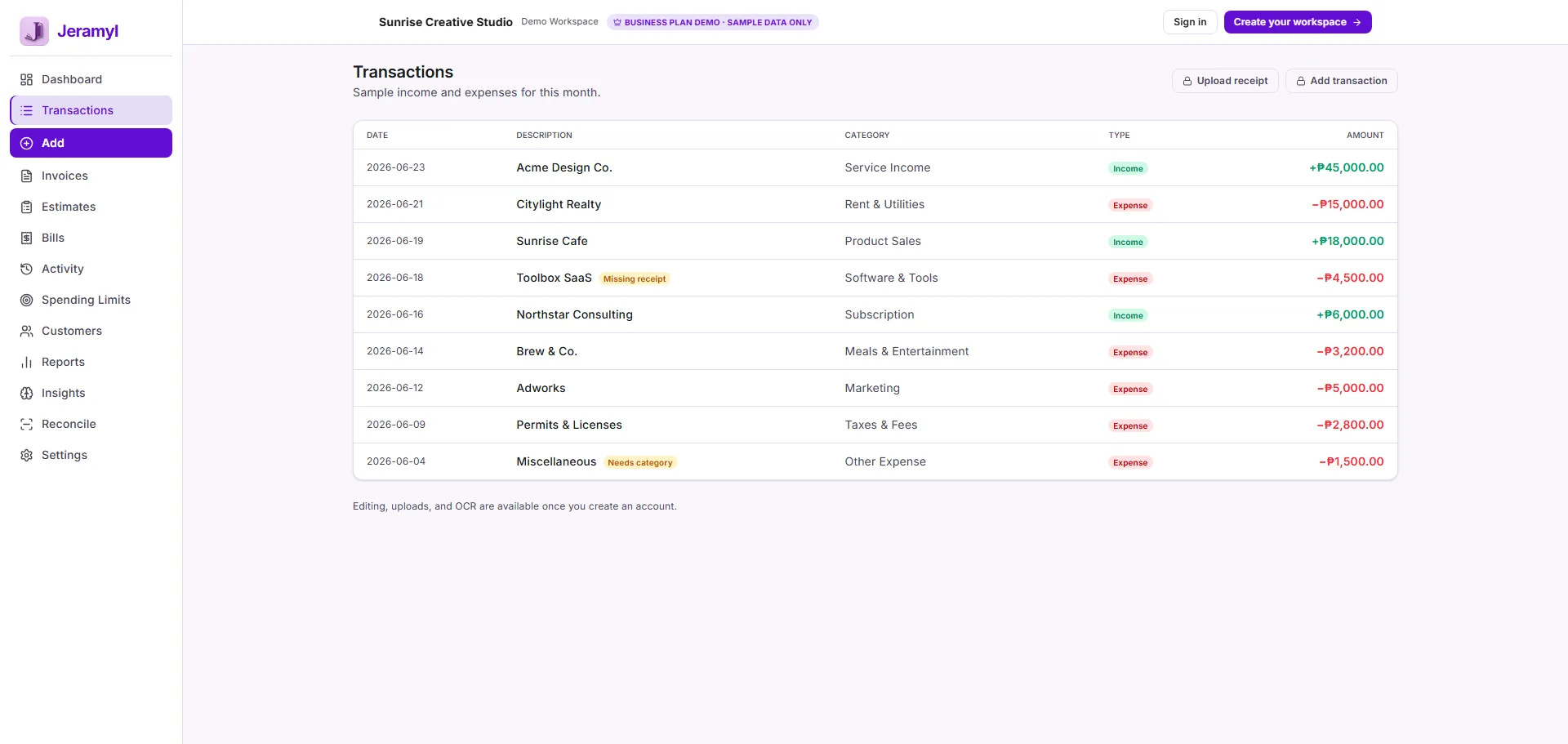
Every income and expense in Jeramyl is a Transaction. Navigate to Transactions in the sidebar to see your full transaction history, filter by period, and resolve flagged items.
Add a transaction manually
- Click Add in the Transactions section.
- Choose the type: income or expense.
- Enter the date, amount, vendor or source, and a category.
- Save the transaction.
Upload a receipt
- Click Add and choose to attach a receipt, or use the receipt/camera shortcut.
- Upload a photo or file (JPEG, PNG, or PDF).
- Jeramyl OCR reads the receipt and pre-fills the vendor, date, and amount.
- Review the extracted details, make any corrections, and assign a category.
- Save. The transaction is created with the receipt attached.
OCR extraction is automatic but not always perfect — always review the extracted amount and vendor name before saving.
Transaction flags and Review Queue
Jeramyl surfaces transactions that may need attention in the Review Queue and as Dashboard alerts.
- Uncategorized / Needs category — the transaction has no expense or income category assigned.
- Needs customer — an income transaction has no customer linked to it.
- Missing receipt — an expense transaction has no receipt attached.
- Recurring activity — the transaction matches a pattern of recurring entries.
- Linked — the transaction is connected to a bill payment or invoice payment.
Working through the Review Queue regularly keeps your records complete and your Month-end Cleanup fast.
Filtering transactions
Use the All vendors and All customers filters to view transactions grouped by vendor or customer. The Spending Limits section shows you if any category is approaching a limit you have set.
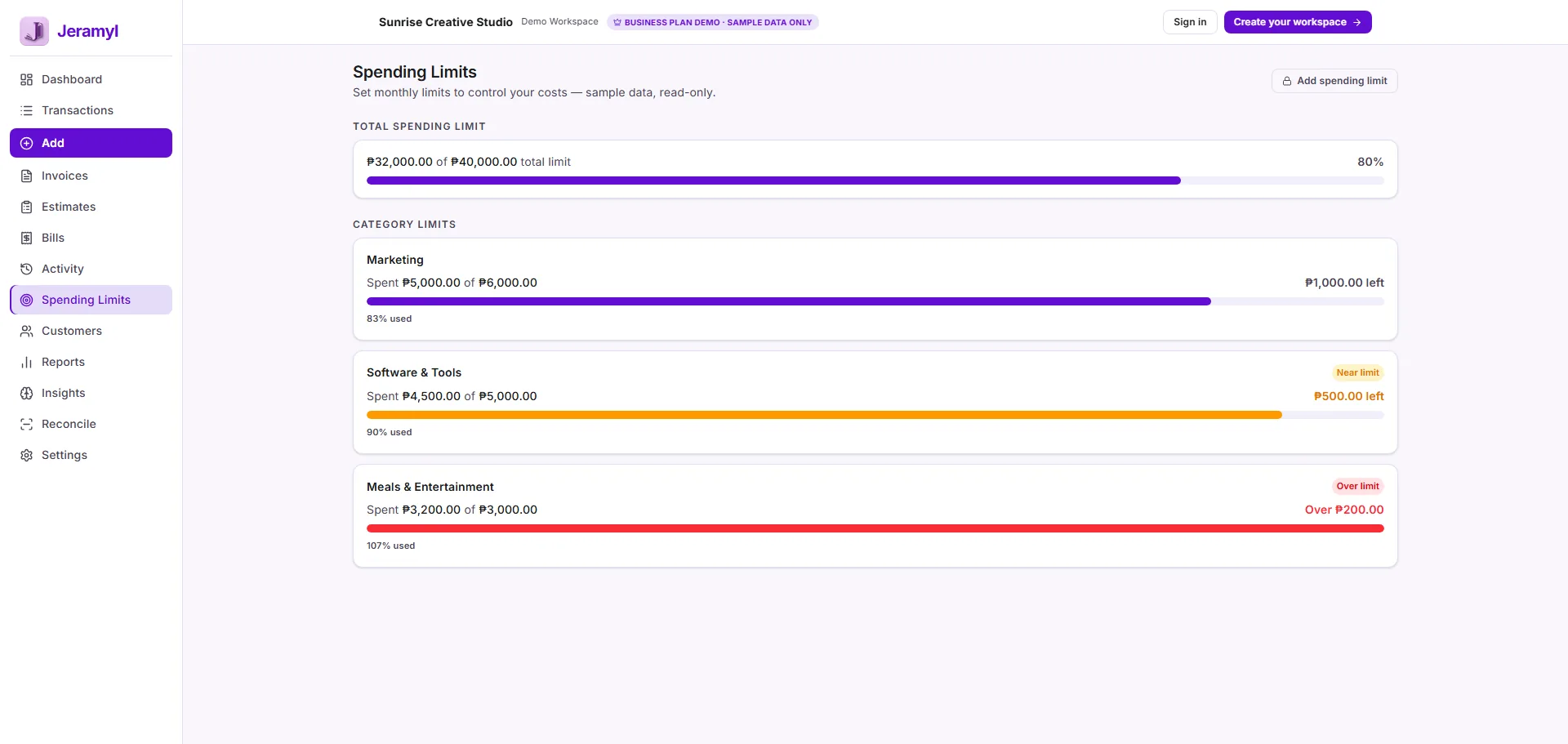
For a detailed walkthrough of setting spending limits, reviewing alerts, checking categories, and monitoring business expenses, read the Spending Limits and Budget Controls guide.
For a detailed walkthrough of uploading receipts, reviewing OCR results, fixing missing receipts, and confirming categories, read the Upload Receipt guide.
For a detailed walkthrough of reviewing transactions, choosing categories, attaching receipts, and fixing uncategorized items, read the Transactions and Categories guide.
Customers and Statements
The Customers section gives you a view of each customer's invoices, payment history, and outstanding balance — all in one place.
View customer history
- Go to Customers in the sidebar.
- Use the All customers tab to see every customer.
- Click a customer name to open their detail view — showing all invoices, payments received, and current balance.
Customer statement PDF Pro
A customer statement summarises all invoices and payments for a customer over a selected period. It is useful when a customer disputes a balance or needs a record of their account.
- Open a customer record.
- Click the statement option (Generate statement or PDF).
- Choose a date range.
- Download the PDF or send it via Connected Gmail.
Follow-up dates Pro
Set a follow-up date on a customer or invoice using Update follow-up. This keeps the reminder visible until you resolve it. Once you have made contact, click Mark followed up to clear the flag.
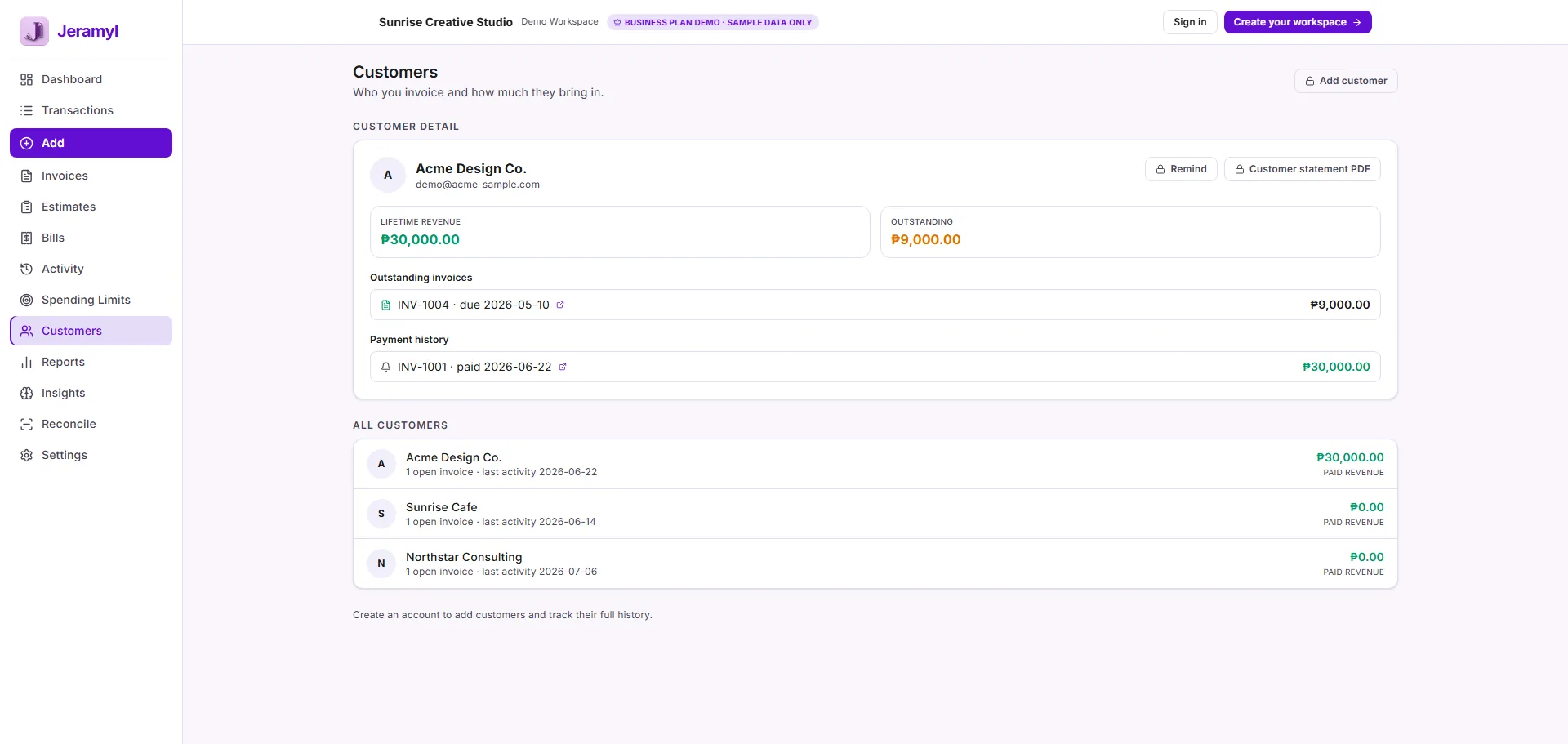
For a detailed walkthrough of outstanding invoices, payment history, reminders, and customer statement PDFs, read the Customer Statements guide.
Reports and Tax Summary
Navigate to Reports in the sidebar to view summaries of your financial performance across any period you choose.
Available reports
- Profit & Loss (P&L): Total income minus total expenses over a selected period. Shows your net profit or net loss.
- Expense breakdown: Expenses grouped by category, so you can see where spending is going.
- Tax Summary: An estimate of taxable income and deductible expenses to help you prepare for tax season.
The Tax Summary is an estimate based on the categories and amounts you have recorded in Jeramyl. It is not tax advice. Confirm your tax position with a qualified accountant before filing.
Export
Most reports can be exported as CSV. Click the export or download button in the report header. Use CSV exports to share data with your accountant or import it into a spreadsheet.
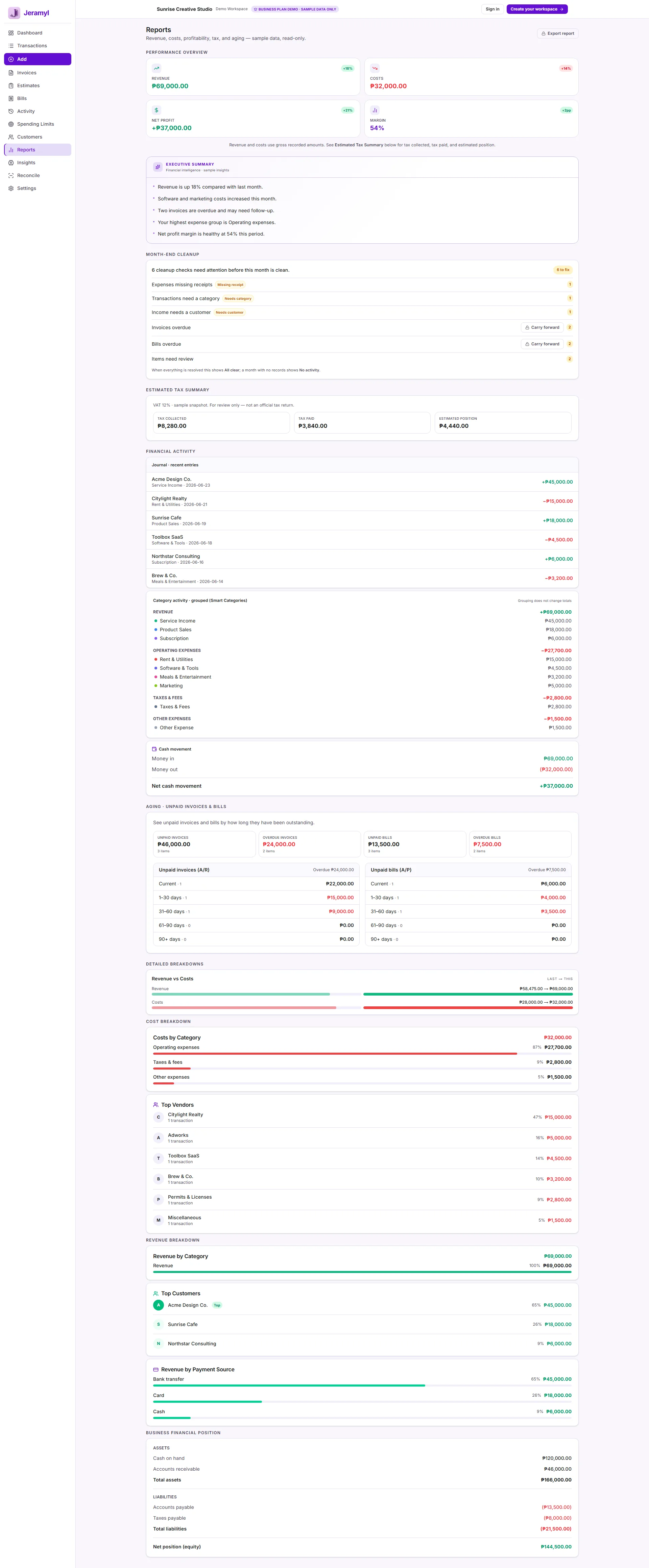
For a detailed walkthrough of estimated tax views, categories, exports, and accountant review notes, read the Tax Summary guide.
For a detailed walkthrough of all financial reports, aging reports, CSV and PDF exports, and sharing with your accountant, read the Reports and Exports guide.
Month-end Cleanup
Month-end Cleanup is a guided workflow for reviewing and closing out the previous month's records. It helps you resolve uncategorized transactions, missing receipts, and other open flags before they accumulate.
Navigate to Month-end Cleanup from the main sidebar or Reports section.
How to run a Month-end Cleanup
- Open Month-end Cleanup and select the month to review.
- Review flagged items in the Review Queue.
- For each item: assign the correct category, attach a missing receipt, or link it to an invoice or bill payment.
- Click Mark reviewed on each item once it is resolved.
- When the queue is empty the month is complete.
Carry forward
If you close a Month-end Cleanup with unresolved items, those items carry forward to the following month. Resolve carry-forward items early in your next cleanup to keep months clean.
Month-end Cleanup is much faster when you resolve Dashboard alerts daily. A few minutes a day prevents a large backlog at month-end.
For a detailed walkthrough of cleanup checks, status chips, missing receipts, missing customers, and carry-forward items, read the Month-end Cleanup guide.
Bank Reconciliation Business
Bank Reconciliation is the process of matching your Jeramyl transaction records to your actual bank statement. It confirms that your books accurately reflect the money that has moved in and out of your account.
Navigate to Reconcile in the sidebar. Bank Reconciliation is available on the Business plan.
How to reconcile
- Open Reconcile and select the account and period to reconcile.
- Enter the closing balance from your bank statement.
- Click Auto-fix safe items to let Jeramyl automatically match transactions that are clearly safe to reconcile without your input.
- Review remaining suggested matches — confirm correct matches or adjust where needed.
- Use View transaction to open a source record if you need to check details.
- When the difference reaches zero, the reconciliation is complete for that period.
Reconciliation matching is suggested by Jeramyl and must be confirmed by you. Jeramyl does not automatically change your financials — every reconciliation action is user-initiated.
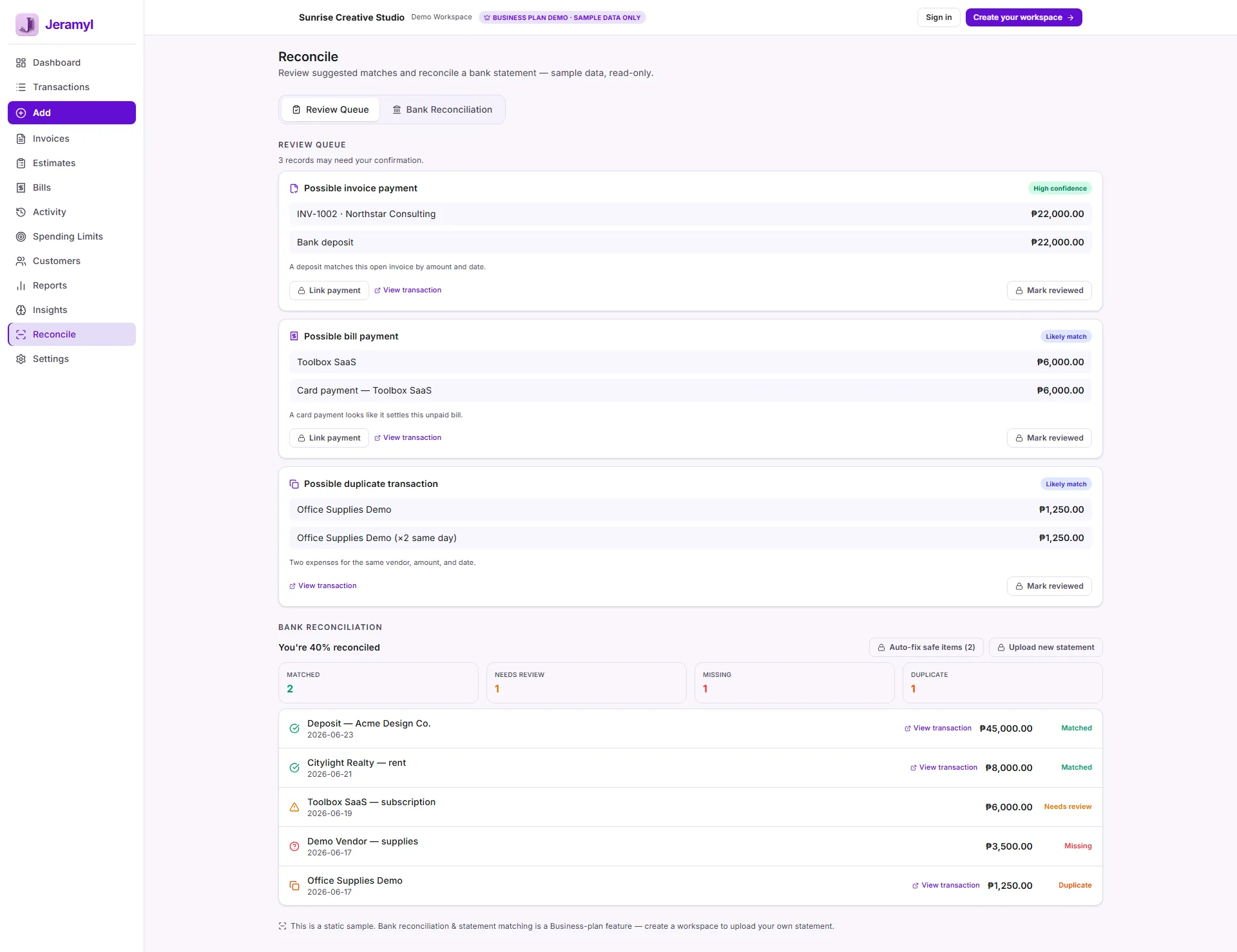
For a detailed walkthrough of Review Queue, status meanings, Auto-fix safe items, and best practices, read the Bank Reconciliation guide.
AI Assistant
The AI Assistant answers plain-language questions about your business finances. Find it in the Insights section or the AI panel in the sidebar.
What you can ask
- What was my biggest expense category last month?
- How much did I earn from a specific customer this quarter?
- What is my current cash runway?
- Which invoices are overdue right now?
- What are my top five expenses this year?
How it works
The AI reads your Jeramyl records and responds in plain language. It is read-only — it provides answers and summaries but never changes your data. If the AI gives you a number, it is drawn from the transactions and records you have entered in Jeramyl.
AI-generated answers are based on your recorded data and should be reviewed before making financial decisions. The AI Assistant is plan-gated and usage-limited — the number of questions you can ask per billing period depends on your plan. The AI does not have access to external data sources or your bank.
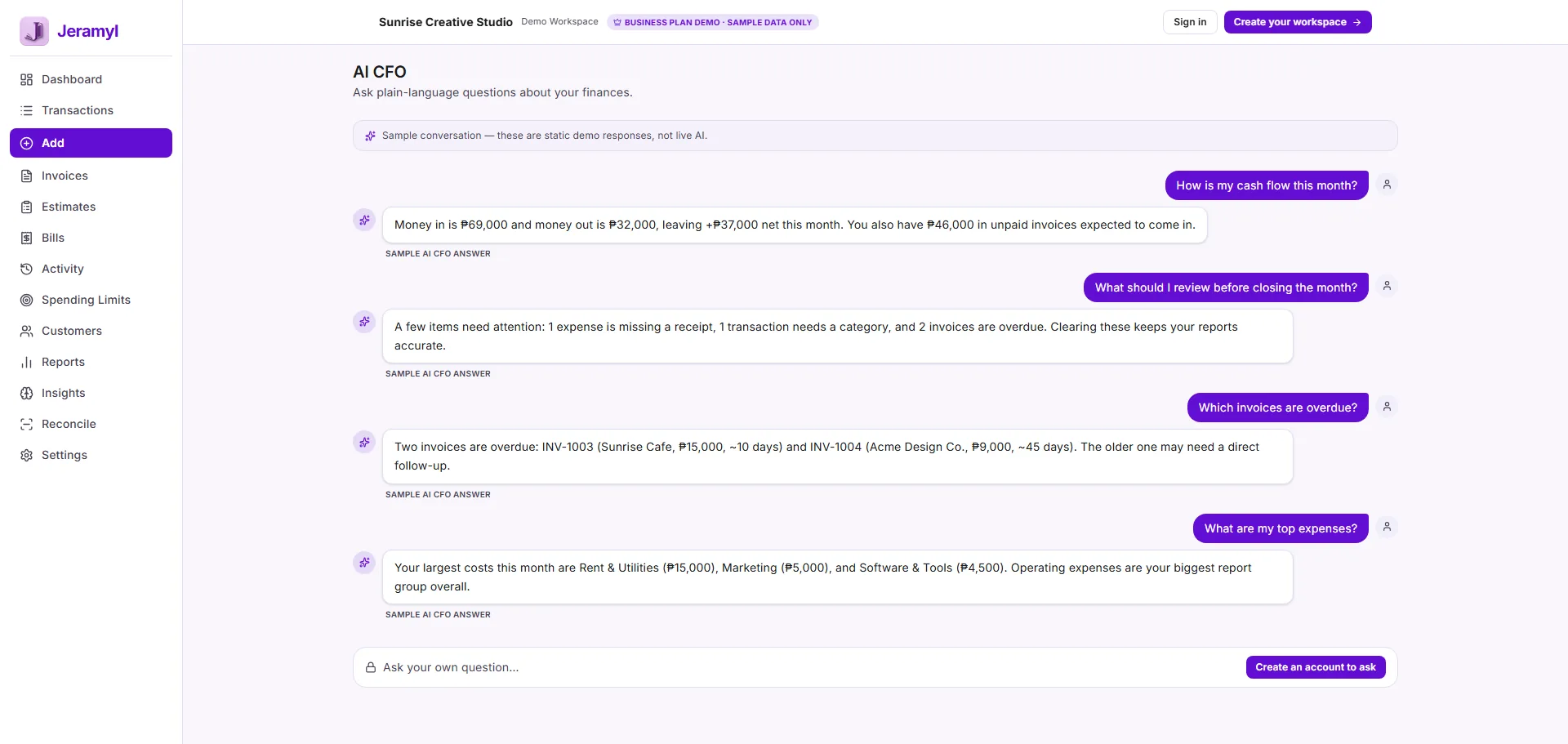
For a detailed walkthrough of asking better questions, reviewing AI answers, checking source records, and understanding AI limitations, read the AI Assistant guide.
Google Drive and Connected Gmail
Jeramyl offers two optional Google integrations. Each is enabled separately and can be disconnected at any time from Settings.
Google Drive
Connect your Google Drive to save receipt images and invoice PDFs to a dedicated folder in your Drive. This creates a cloud backup of your financial documents alongside your Jeramyl records.
- Go to Settings → Data (or the integrations section within Settings).
- Click Connect Google Drive.
- Authorize Jeramyl — Jeramyl requests only the permissions needed to save files to a designated folder.
- Once connected, new receipts and PDFs sync to your Drive automatically when they are saved in Jeramyl.
Connected Gmail
Connect your Gmail account to send invoices and statements directly from your Gmail address within Jeramyl. Sending is per message and user-initiated — Jeramyl does not send emails automatically without your action.
- Go to Settings and find the Connected Gmail option.
- Click Connect Gmail and authorize Jeramyl to send email on your behalf.
- Once connected, you can choose to send an invoice or customer statement via Gmail from within the invoice or customer detail view.
Jeramyl requests only the minimum Google permissions needed for each integration. Drive access is scoped to a specific folder. Gmail access is limited to sending on your behalf — Jeramyl does not read your inbox. Disconnect either integration from Settings at any time.
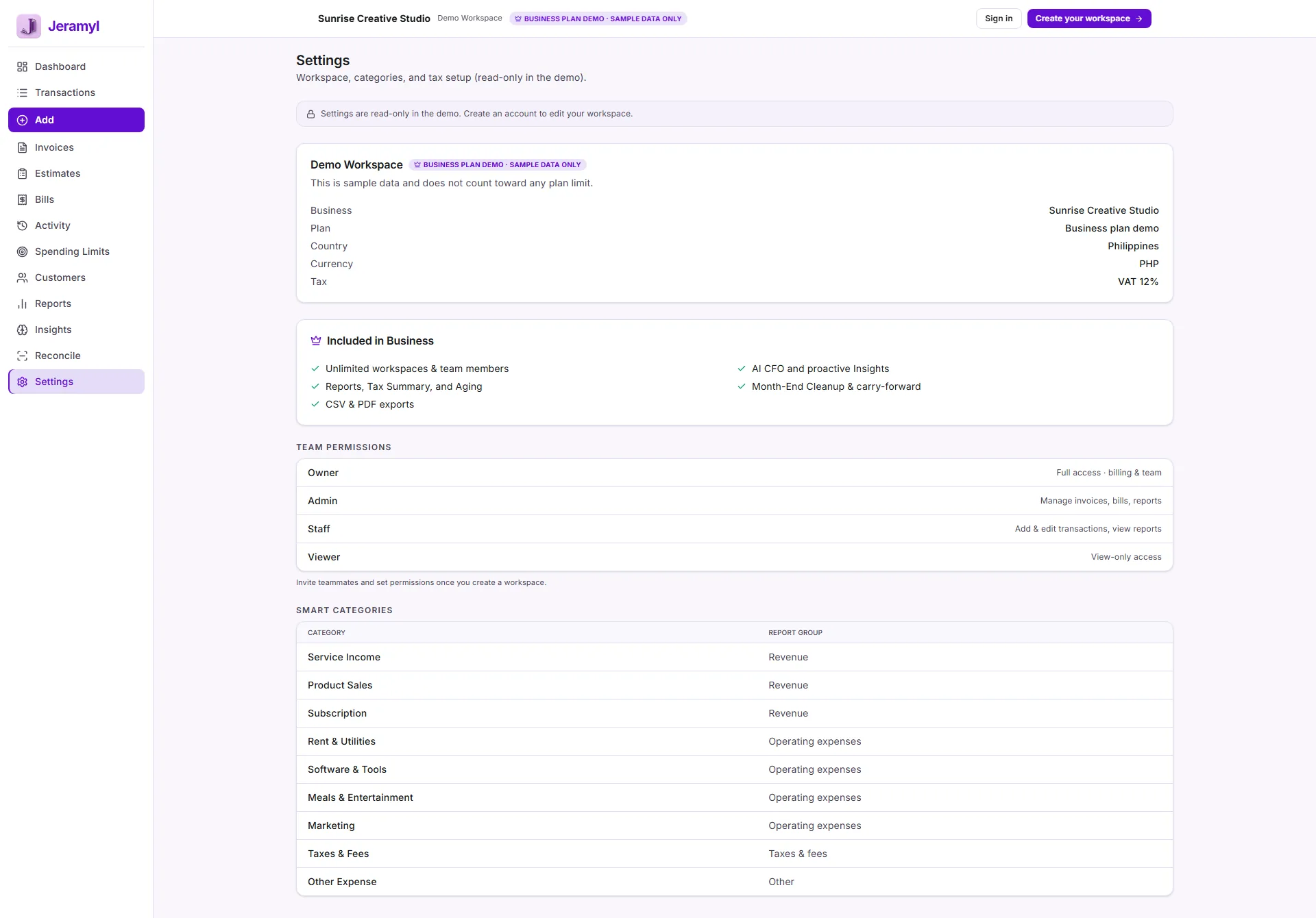
For a detailed walkthrough of optional Google Drive and Gmail connections, receipt backup, connected account permissions, and disconnecting integrations, read the Google Drive and Gmail Connections guide.
Plans and Limits
Jeramyl has three plans. Some features are only available on specific plans. See the Pricing page for a full comparison and current prices.
Plan overview
- Free — income and expense tracking, invoices, bills, receipt scanning, basic reports, limited AI usage.
- Pro — everything in Free, plus estimates, estimate-to-invoice conversion, invoice follow-up tracking, customer statement PDF, recurring invoice tracking, and higher AI usage limits.
- Business — everything in Pro, plus Full Activity Center with detailed audit history for invoices, bills, and transactions, Bank Reconciliation, and advanced features.
Plan-gated features at a glance
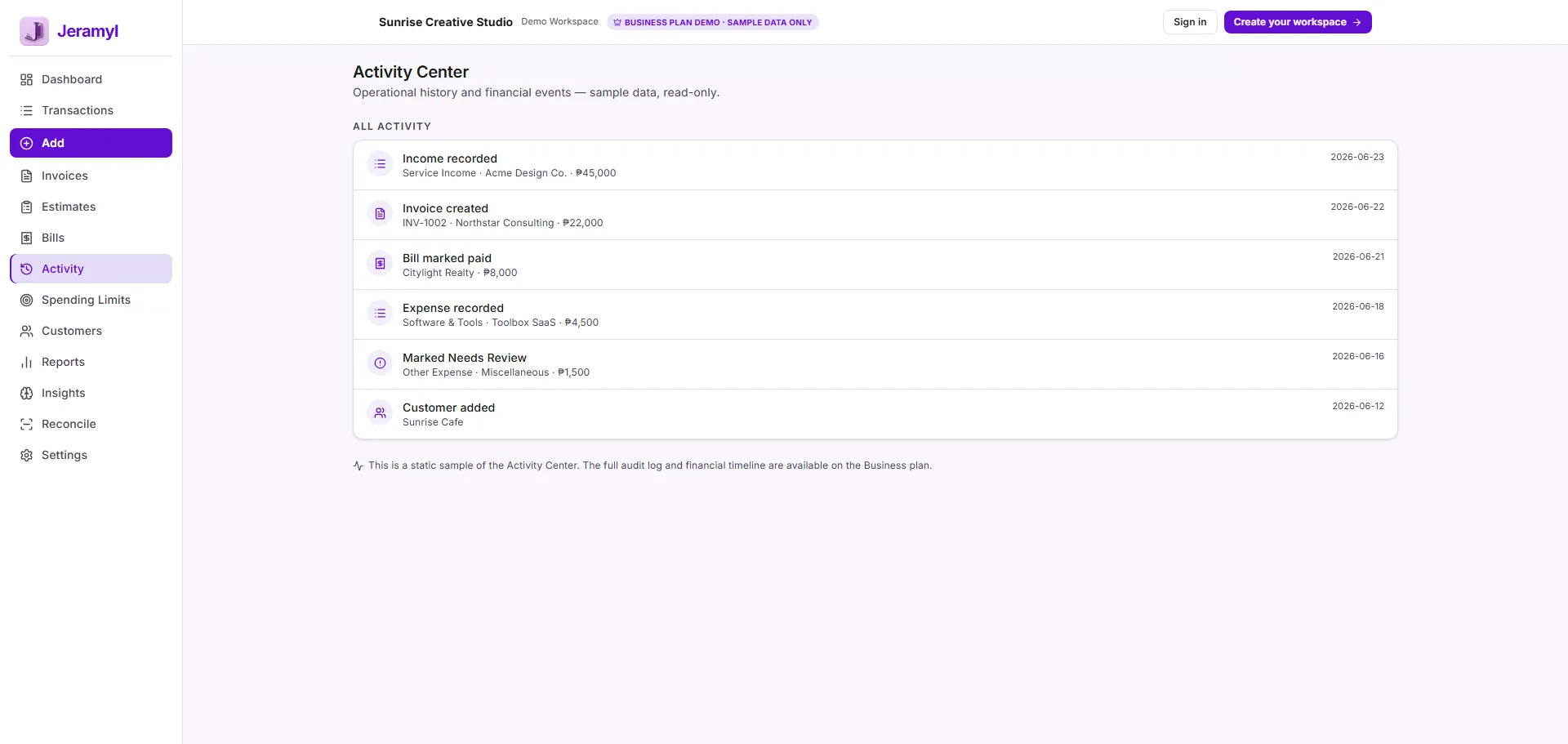
For a detailed walkthrough of reviewing workspace actions, team changes, source records, and audit history, read the Activity Log and Audit Trail guide.
Upgrade or manage your plan
Go to Settings → Billing to upgrade, view your billing cycle, or make changes. Plans are available monthly or annually.
AI usage limits reset each billing period. If you reach your AI limit, you can upgrade from Settings → Billing.
For a detailed walkthrough of plan features, transaction limits, AI message limits, upgrading, and billing review, read the Plans, Limits, and Billing guide.
Support
Need help that is not covered here? Reach the Jeramyl team by email.
- General support and billing: support@jeramyl.com
- General enquiries: hello@jeramyl.com
We typically respond within 24–48 hours on business days.
For product information see the Features page. For plan comparison see the Pricing page. To send a message see the Contact page.