What invoices are for
Invoices are how you bill customers for products or services you have delivered. Each invoice states what was provided, the amount owed, and the due date for payment. When a customer pays, you record the payment against the invoice so your income is accurately reflected in your books.
In Jeramyl, invoices also serve as the link between the money you are owed and your income records. When you mark an invoice paid, the payment is recorded as an income transaction — keeping your Profit & Loss report, cash flow, and outstanding balances accurate without extra data entry.
Before you create an invoice
A few things to have ready before opening a new invoice:
- Customer name: You will need at least a customer name. You can create a new customer inline when creating the invoice.
- Line items: Know what you are billing for — description, quantity, and unit price for each item or service.
- Issue date and due date: The date you are issuing the invoice and the date payment is expected.
- Tax details (optional): If you charge tax on this invoice, have the rate or tax category ready.
If you regularly invoice the same customer for the same services, consider using Recurring invoices to save time each billing period.
Open the Invoices page
- Sign in to Jeramyl at app.jeramyl.com.
- In the sidebar, click Invoices.
- The Invoices list shows all existing invoices sorted by status and due date.
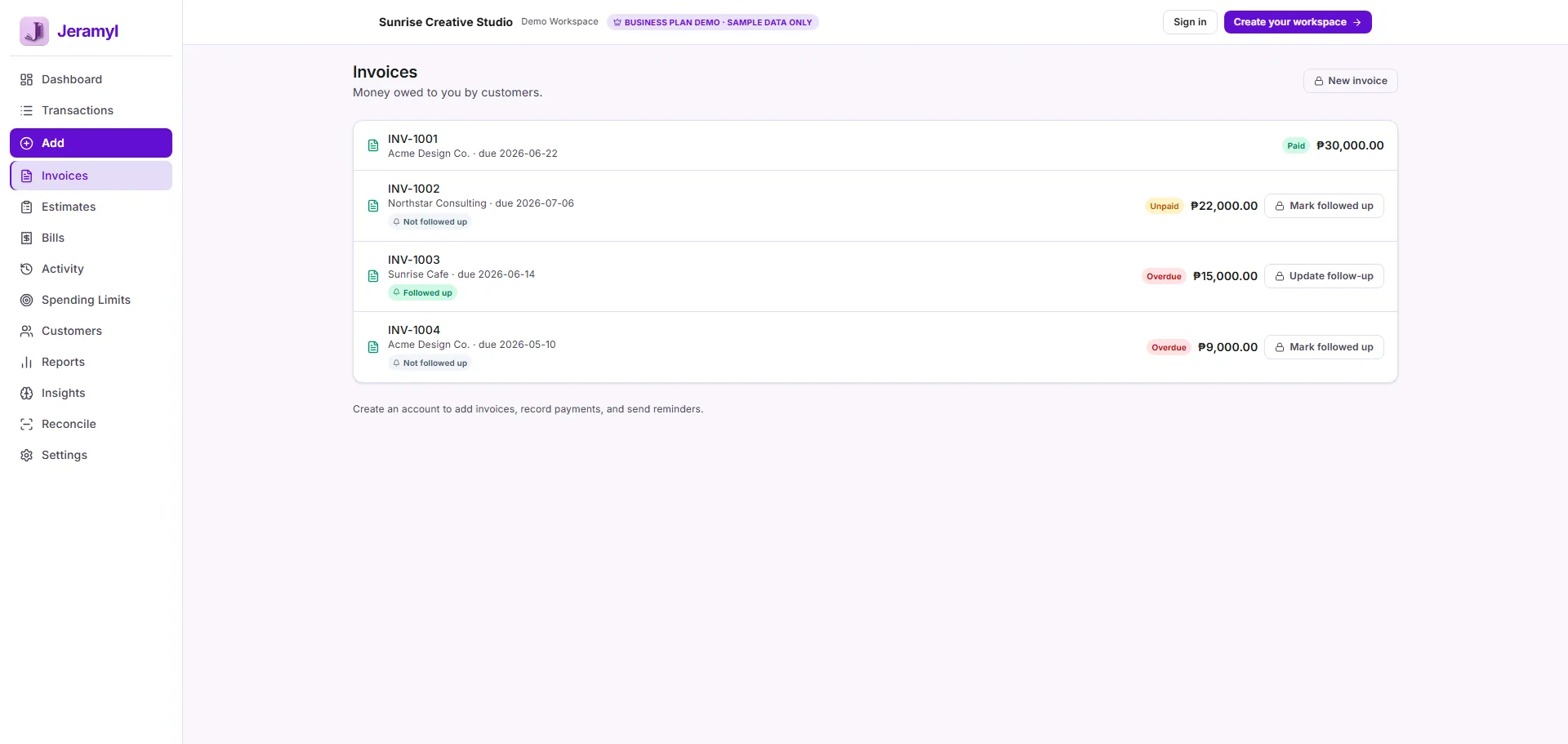
Create a new invoice
- On the Invoices page, click Add.
- A new invoice form opens. Fill in the customer, line items, dates, and any other details.
- Review everything before saving — once issued, the invoice is visible in your list.
- Click Save. The invoice appears in your list with the appropriate status.
The sections below walk through each field in detail.
Add customer details
Every invoice must be linked to a customer. Customers track who owes you money and give you a consolidated view of each client's invoices and payment history.
- In the customer field, start typing the customer's name.
- If the customer already exists in Jeramyl, select them from the dropdown.
- If the customer is new, type their name and create them inline — you can add contact details to their profile later from the Customers section.
Keeping customer records clean helps with follow-up tracking, customer statement PDFs, and filtering your income by client. Take a moment to add a contact email when creating a new customer — you will need it if you want to send the invoice via Connected Gmail.
Add line items
Line items are the individual products or services you are billing for. Each line item has a description, quantity, and unit price. Jeramyl calculates the line total and the invoice subtotal automatically.
- Click Add line item (or the equivalent add row button).
- Enter a description of the product or service.
- Enter the quantity and unit price.
- Jeramyl calculates the line total. Repeat for each additional item.
Use clear, descriptive line items — for example, "Website design — May 2026" rather than "Design work." Clear descriptions reduce the chance of disputes when the customer receives the invoice.
Set issue date and due date
Two dates control how Jeramyl displays and ages your invoice:
- Issue date: The date the invoice is created or sent. This is typically today's date.
- Due date: The date payment is expected. Common terms are Net 7, Net 14, or Net 30 — meaning payment is due within 7, 14, or 30 days of the issue date.
Once the due date passes without a recorded payment, the invoice status automatically changes to Overdue.
Set realistic due dates and communicate your payment terms to customers upfront. A clearly stated due date reduces the number of overdue invoices you need to follow up on.
Add tax and category details if needed
If your invoices are subject to sales tax, GST, VAT, or a similar charge, you can add a tax rate to your invoice. The tax amount is added to the invoice total and included in your Tax Summary report.
You can also assign an income category to the invoice — for example, "Consulting income" or "Product sales." Categorizing income helps your Profit & Loss report and Tax Summary reflect where your revenue comes from.
Jeramyl's Tax Summary is an estimate based on the amounts and categories you have recorded. It is not tax advice. Confirm your tax obligations with a qualified accountant before filing.
Review and save the invoice
Before saving, review the invoice one final time:
- Customer name is correct
- All line items are accurate — description, quantity, unit price
- Issue date and due date are correct
- Tax rate is applied if required
- Invoice total matches what you intend to bill
Once you are satisfied, click Save. The invoice is now recorded in Jeramyl and appears in your Invoices list with a Waiting status — meaning it has been issued but not yet paid.
Jeramyl does not send the invoice to the customer automatically. Sending is a separate step — you download the PDF and share it, or send it via Connected Gmail if that integration is set up. See Download or send the invoice PDF below.
Understand invoice statuses
Every invoice in Jeramyl has a status that shows where it stands in the payment lifecycle.
A payment has been recorded against this invoice. The invoice is considered fully settled and the payment has been added as an income transaction in your books.
The invoice has been issued but the due date has not yet passed and no payment has been recorded. This is the default status for a newly created invoice.
The due date has passed and no payment has been recorded. Overdue invoices are highlighted so you can take action — follow up with the customer or record a payment if one has arrived.
Download or send the invoice PDF
After saving, you can download the invoice as a PDF and send it to your customer by any means — email, messaging app, or print.
- Open the invoice from the Invoices list.
- Click the Download PDF button (or the PDF / print option).
- Save the file and send it to your customer.
Send via Connected Gmail Pro
If you have Connected Gmail set up, you can send the invoice PDF directly from your Gmail address within Jeramyl — without leaving the app.
- Open the invoice.
- Click Send via Gmail (or the send option).
- Confirm the recipient address and message, then send.
Sending via Connected Gmail is per message and always user-initiated. Jeramyl does not send emails automatically without your action. See Google Drive and Connected Gmail in the Knowledge Base for setup instructions.
Mark an invoice as paid
When a customer pays, record the payment in Jeramyl to keep your books accurate. Mark as paid records the invoice as fully paid — the invoice status changes to Paid and the payment amount is added as an income transaction.
- Open the invoice from the Invoices list.
- Click Mark as paid (or Link payment).
- Enter the payment date and confirm the amount.
- Save. The invoice status updates to Paid and the income transaction is created automatically.
Payments are recorded as fully paid. Partial-payment tracking is not currently supported. If a customer pays in instalments, record each partial payment as a separate income transaction manually and note the remaining balance in the invoice description until the full amount is received and you mark the invoice paid.
Jeramyl does not verify payment with your bank automatically. Recording a payment in Jeramyl is a manual step — it reflects what you tell Jeramyl, not a confirmed bank transaction. If you use Bank Reconciliation, you can confirm that the payment matches your bank statement during your next reconciliation.
Follow up on unpaid or overdue invoices Pro
Overdue invoices need active follow-up. Jeramyl's follow-up tracking helps you keep track of which customers you have contacted and when, so nothing slips through.
- Open an overdue or unpaid invoice.
- Click Update follow-up and set a follow-up date — the date you plan to contact the customer.
- The invoice is now marked with a follow-up reminder visible in the Invoices list.
- After you have contacted the customer, click Mark followed up to clear the reminder.
- If the invoice remains unpaid, set another follow-up date to keep the chain going.
Review overdue invoices at the start of each week. Setting follow-up dates keeps unpaid balances visible and prevents them from ageing unnoticed into your books.
Recurring invoices Pro
If you bill a customer the same amount on a regular schedule — weekly, monthly, or quarterly — recurring invoices save you from creating the same invoice manually each time. Jeramyl tracks the recurring invoice and generates the next one automatically on the schedule you set.
Recurring invoices are useful for:
- Monthly retainer clients
- Subscription-based services
- Regular maintenance or service contracts
- Any repeat billing arrangement with consistent amounts
Recurring invoice tracking is a Pro plan feature. Each recurring invoice still requires you to record the payment when the customer pays — Jeramyl does not collect payments automatically.
Best practices
- Always review invoice details — customer name, line items, dates, and total — before saving or sending.
- Use clear, descriptive line item names so customers understand exactly what they are paying for.
- Set realistic due dates and state your payment terms clearly on the invoice.
- Record payments as soon as you receive them to keep your income records and outstanding balances accurate.
- Use follow-up dates to stay on top of overdue invoices — consistent follow-up improves collection rates.
- Check the Invoices list weekly to catch any invoices that have become overdue without a payment.
- If you use Bank Reconciliation, confirm that recorded invoice payments match your bank statement during your monthly reconciliation. See the Bank Reconciliation guide.
- For repeat clients on consistent amounts, set up Recurring invoices to save time each billing period.
FAQ
No. Saving an invoice in Jeramyl records it in your books but does not send it to the customer. To deliver the invoice, download the PDF and share it yourself, or use Connected Gmail (Pro) to send it directly from your Gmail address within Jeramyl. Sending is always a user-initiated action.
Partial-payment tracking is not currently supported. Payments are recorded as fully paid. If a customer pays in instalments, record each partial payment as a separate income transaction manually and note the remaining balance in the invoice description. Mark the invoice paid only when the full amount has been received.
Marking an invoice as paid records the invoice as fully settled and creates an income transaction in your books for the payment amount on the payment date you specify. The invoice status changes to Paid. This is a manual step — Jeramyl does not verify payment with your bank.
An invoice becomes Overdue automatically when its due date passes and no payment has been recorded. To resolve it, either record the payment if one has arrived or set a follow-up date and contact the customer.
Yes. Open the invoice from the Invoices list and edit the details. If the invoice has already been sent to the customer, let them know if anything material has changed — for example, the amount or due date.
Invoice follow-up tracking and recurring invoice tracking are Pro plan features. Creating basic invoices, downloading PDFs, and recording payments are available on all plans including Free. See the Pricing page for a full plan comparison.