What Month-end Cleanup means
Month-end Cleanup is a guided checklist workflow in Jeramyl that helps you review and resolve bookkeeping gaps before closing a month. It works through your records for a selected period and shows you items that need attention — uncategorized transactions, missing receipts, unlinked customers, overdue invoices, overdue bills, and more.
Running Month-end Cleanup before sharing your numbers with an accountant or exporting monthly reports helps ensure your records are as complete and accurate as possible for that period.
Month-end Cleanup is available on the Pro and Business plans. See the Pricing page for a plan comparison.
When to use it
Run Month-end Cleanup once per month, at the start of the following month when all transactions for the previous period have been recorded.
- After all transactions for the month are in
- Before exporting monthly reports
- Before sharing records with your accountant or bookkeeper
- Before running Bank Reconciliation, if you are on the Business plan
Resolving Dashboard alerts throughout the month keeps the cleanup checklist short. A few minutes each week prevents a large backlog at month-end.
Open Month-end Cleanup
- Go to Reports in the sidebar.
- Select Month-end Cleanup.
- Choose the month you want to review.
- Jeramyl loads the checklist for that period, showing each check card with its current status.
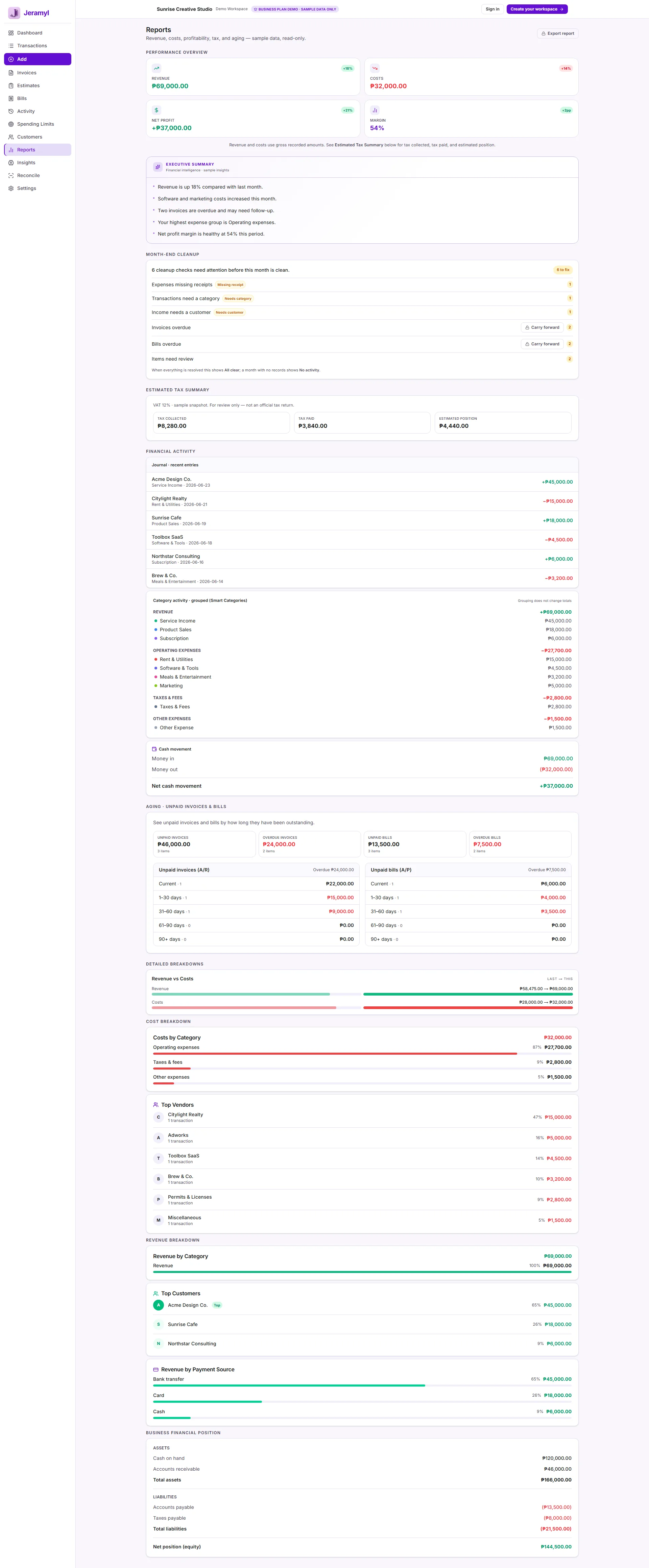
What Jeramyl checks
Month-end Cleanup runs a series of checks on your records for the selected month. Each check is shown as a card with a status chip. Work through every card that shows N to fix before closing the month.
Cards showing No activity or All clear do not need action. Only cards with N to fix require your review.
Uncategorized transactions
Uncategorized transactions are income or expense records with no category assigned. Categories flow into your Profit & Loss report and expense breakdown, so uncategorized transactions create gaps in your reporting.
How to resolve
- Click the Uncategorized transactions card or its link to open the transactions list filtered to uncategorized items.
- For each transaction, assign the correct income or expense category.
- Save the transaction.
- Return to Month-end Cleanup — the count updates as you resolve items.
If you are unsure of the right category for a transaction, use your best judgement and make a note in the description. Your accountant can confirm the correct category when they review your records.
Missing receipts
Missing receipts are expense transactions with no receipt or document attached. Receipts are important for verifying expense details and for tax record-keeping.
How to resolve
- Open the Missing receipts card and click through to the transactions list.
- For each expense, attach the corresponding receipt — upload a photo, scan, or PDF.
- Save and return to the checklist.
If you genuinely do not have a receipt for an expense, add a note in the transaction description explaining the expense. Ask your accountant about record-keeping requirements for expenses without receipts in your jurisdiction.
Missing customer
Income transactions sometimes get recorded without a customer linked to them. Missing customer links make it harder to track revenue by client and to generate accurate customer statements and aging reports.
How to resolve
- Open the Missing customer card.
- For each income transaction shown, link the correct customer from your customer list — or create a new customer if needed.
- Save the transaction.
Items needing review
Items needing review are transactions that have been flagged by Jeramyl for attention — such as possible duplicate entries, unusual amounts, or recurring transactions that have changed. These items also appear in the Review Queue and as Dashboard alerts.
How to resolve
- Open the relevant card and click through to the Review Queue.
- Read the flag reason for each item.
- Correct the record if needed — update the category, amount, date, or vendor.
- Click Mark reviewed once you are satisfied the record is correct.
Marking an item reviewed clears the flag but does not change the amounts or categories. Only make corrections to the underlying transaction if something is genuinely incorrect.
Overdue invoices and bills
Month-end Cleanup surfaces any invoices that were overdue at the end of the selected month, and any bills that were past their due date. Clearing these helps your reports reflect the true outstanding position at the end of each period.
Overdue invoices
- If payment has been received, open the invoice and click Link payment to record it. The invoice status changes to Paid.
- If payment is still outstanding, follow up with the customer. You can set a follow-up date on the invoice to keep a reminder visible.
Overdue bills
- If the bill has been paid, open it and click Link payment. The bill status changes to Paid.
- If the bill is still outstanding, note the due date and plan to pay it in the coming period.
Clearing overdue invoices and bills before month-end gives your accountant an accurate picture of what was owed and what was outstanding at the close of each period.
Tax items to confirm
The Tax items to confirm check surfaces transactions that may affect your tax position but have not yet been fully reviewed — typically expense transactions in deductible categories that are missing receipts or have amounts that look unusual.
How to resolve
- Open each transaction listed in the Tax items card.
- Confirm the category is correct for the expense.
- Attach a receipt if one is missing.
- Confirm the amount matches your records.
- Mark reviewed once each item is confirmed.
Jeramyl's tax-related checks are based on the categories and amounts you have recorded. They are not tax advice. Confirm your tax position with a qualified accountant or bookkeeper before filing.
Status chips
Every check card in Month-end Cleanup shows one of three status chips that tell you what action, if any, is needed.
There are no transactions or records of this type in the selected month. Nothing to review — this check is complete by default.
Jeramyl checked this area and found no items needing attention. You are good to move on.
There are N items that need your review. The number decreases as you resolve items. When it reaches zero, the chip updates to All clear.
Carry forward
If you move on from a month with unresolved items still in the checklist, those items carry forward to the following month's cleanup. They appear at the top of the next month's checklist so you cannot miss them.
Carry-forward items remain visible until you resolve them — they do not disappear when a new month starts. Resolving them early in the following month keeps your records clean and prevents backlogs from growing.
A high carry-forward count at the start of each cleanup is a sign that the previous month was not fully closed. Try to keep carry-forward items low by resolving uncategorized transactions and missing receipts throughout the month, not just at month-end.
Best practices
- Run Month-end Cleanup once per month, at the start of the following month when all transactions are in.
- Resolve Dashboard alerts throughout the month — this makes the checklist much shorter at month-end.
- Clear uncategorized transactions first, then missing receipts, then overdue items.
- Review carry-forward items from the previous month before starting the current month's checklist.
- Run Month-end Cleanup before Bank Reconciliation if you are on the Business plan.
- Share cleaned records with your accountant after Month-end Cleanup, not before.
- If you cannot resolve an item yourself, add a note to the transaction description and ask your accountant.
FAQ
Unresolved items carry forward to the next month's cleanup. They appear at the top of the checklist and remain visible until you resolve them. Starting each month with carry-forward items means the previous month was not fully closed.
No. Month-end Cleanup is a review workflow, not a hard close. It helps you find and resolve bookkeeping gaps, but it does not lock or formally close any period. Your records remain editable after you run it.
N to fix means there are N items in that check category that need your review. Each item you resolve reduces the count. When the count reaches zero, the card shows All clear.
You can move past any card, but unresolved items will carry forward to the following month. It is best to review every card showing N to fix before moving on, even if you cannot fully resolve all items right away.
Month-end Cleanup is available on Pro and Business plans. See the Pricing page for a full plan comparison.
Run Month-end Cleanup first. Clearing uncategorized transactions, missing receipts, and flagged items before Bank Reconciliation (Business plan) makes the reconciliation faster and more accurate.