Why upload receipts
Receipts support your expense records by providing evidence of what was spent, where, when, and for how much. Attaching receipts to expense transactions keeps your books complete and gives you a clear paper trail when reviewing records or preparing for tax season.
In Jeramyl, uploading a receipt does two things at once: it creates an expense transaction using details extracted from the receipt, and it attaches the receipt image to that transaction. You end up with a linked record — the expense and its supporting document in one place.
Jeramyl helps you record and organise receipts. Whether a specific expense is tax-deductible depends on your business situation and tax jurisdiction. Ask your accountant or bookkeeper if you are unsure about the tax treatment of any expense.
Before you upload
Receipt uploads work best when the image is clear and complete. Before uploading:
- Use a clear photo or scan. Blurry, poorly lit, or cropped images produce lower-quality OCR results.
- Include the full receipt. Make sure the vendor name, date, total amount, and any tax lines are visible.
- Supported file types: JPEG, PNG, and PDF.
- Have the receipt handy. If OCR misses something, you will need the original to fill in the correct details manually.
Upload receipts as soon as the expense happens — before the paper fades or the digital file gets buried. A habit of same-day uploads keeps your records current and your Monthly Cleanup fast.
Open Transactions or Add
There are two ways to start a receipt upload in Jeramyl:
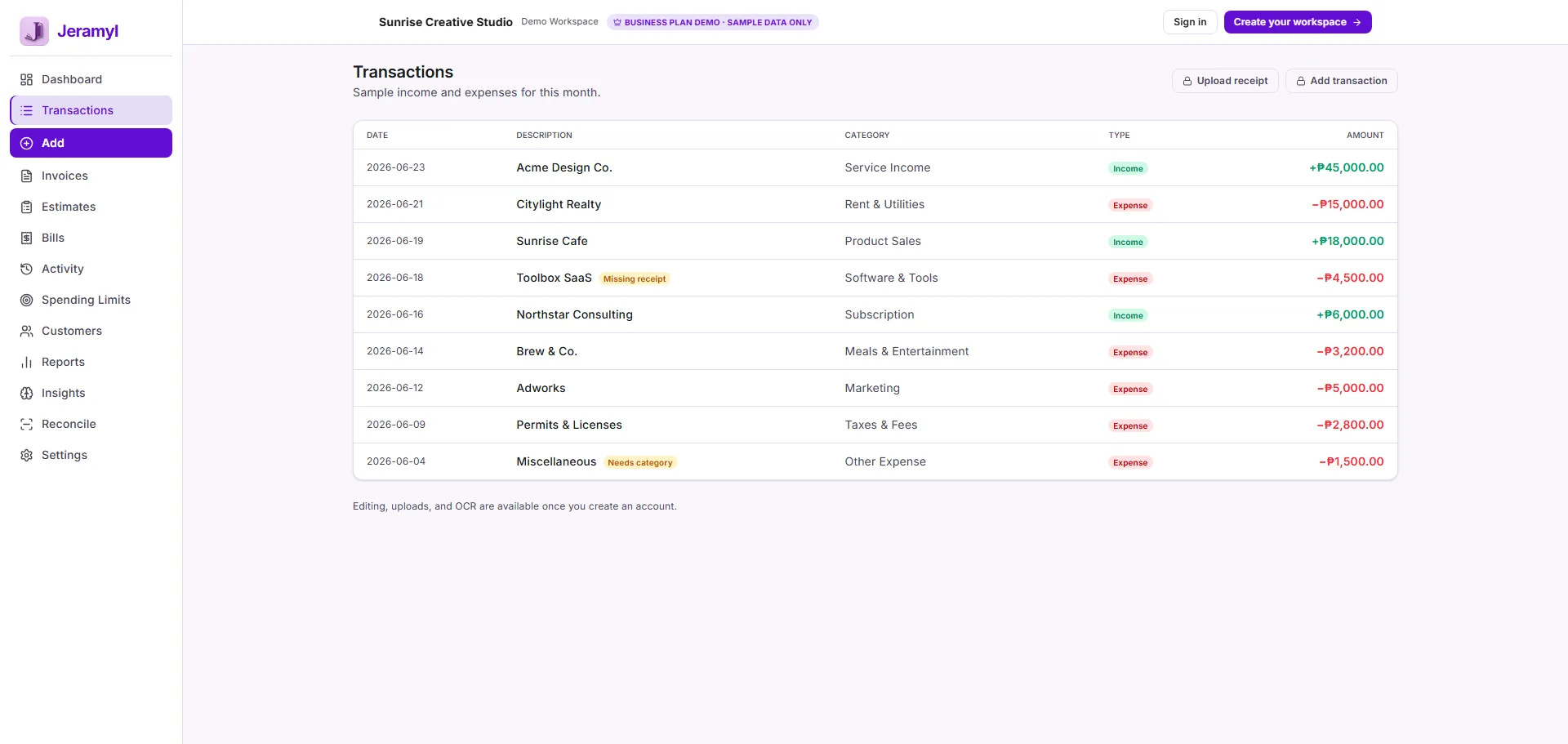
- Go to Transactions in the sidebar and click Add.
- Choose the option to upload or attach a receipt when the Add form opens.
Alternatively, use any receipt or camera shortcut shown on the Dashboard or in the quick-add controls — these take you directly to the receipt upload flow.
Upload or snap a receipt
- In the receipt upload step, choose to upload a file from your device or take a photo using your camera (on mobile).
- Select or capture the receipt image. Supported formats: JPEG, PNG, PDF.
- Jeramyl uploads the file and starts OCR processing to extract the details.
- Wait a moment for extraction to complete — the form will populate with the extracted values.
OCR extraction is automatic but not always perfect. Always review the extracted vendor name, date, and amount before saving. If anything is wrong or missing, correct it manually in the form.
Review OCR results
After upload, Jeramyl pre-fills the transaction form with what it extracted from the receipt image. The fields typically populated include:
- Vendor name — where the expense was incurred
- Date — the date on the receipt
- Amount — the total amount paid
- Tax amount — if a tax line is visible on the receipt
Review each extracted field before saving. OCR can misread unclear text, skip fields, or extract the wrong total if the receipt has multiple amounts on it.
You are responsible for confirming that the extracted details are correct. Do not save a transaction without reviewing the vendor name, date, and amount — especially the amount. A saved transaction reflects what you confirm, not what OCR guessed.
Confirm vendor, amount, date, and tax details
Go through each field in the form and confirm or correct it against the actual receipt:
Check that the vendor name matches what appears on the receipt. OCR may shorten long names, transpose characters in low-contrast text, or miss the vendor entirely on minimal receipts.
Verify the amount matches the total you paid — not a subtotal, a line item, or a tax-only line. If the receipt shows tax separately, confirm whether the total includes tax.
Confirm the date matches the purchase date on the receipt. OCR occasionally picks up a printed date from a loyalty program or offer rather than the transaction date.
If the receipt shows a tax amount (GST, VAT, sales tax, etc.) and OCR extracted it, verify it is correct. If the field is blank but tax was charged, enter the tax amount manually.
Once all fields look correct, proceed to attach the receipt to an expense and confirm the category.
Attach the receipt to an expense
When you save the receipt upload form, Jeramyl creates an expense transaction with the confirmed details and attaches the receipt image to it. The transaction appears in your Transactions list with a receipt indicator showing the file is attached.
You can also attach a receipt to an existing transaction that does not yet have one:
- Open the transaction from the Transactions list.
- Find the receipt or attachment section within the transaction detail.
- Upload the receipt file.
- Save the transaction. The Missing receipt flag clears once a receipt is attached.
Attaching a receipt clears the Missing receipt flag on that transaction. Clearing flags regularly keeps your Dashboard clean and your Month-end Cleanup short.
Add or confirm the category
Every expense transaction needs a bookkeeping category — for example, "Office supplies", "Travel", "Meals", or "Software subscriptions". Categories determine how expenses appear in your Profit & Loss report and Tax Summary.
Jeramyl may suggest a category based on the vendor name. Review the suggestion and change it if it is not the right fit for this expense.
- Check the category field in the transaction form.
- If a category has been suggested, confirm it is correct for this expense.
- If no category is suggested or the suggestion is wrong, type or select the correct category from the list.
- Save the transaction. A transaction with a category clears the Needs category flag.
Use consistent category names across similar expenses. Consistent categories make your Profit & Loss report easier to read and your Tax Summary more accurate. If you are unsure which category to use for a specific type of expense, ask your accountant.
Fix Missing receipt items
A Missing receipt flag appears on an expense transaction that has no receipt attached. These are surfaced in the Dashboard alerts and in the Review Queue during Month-end Cleanup.
How to clear a Missing receipt flag
- Open the flagged transaction from the Dashboard, Review Queue, or Transactions list.
- In the transaction detail, find the receipt section and upload the missing receipt file.
- Confirm the details match the transaction record — vendor, date, amount.
- Save. The Missing receipt flag clears immediately.
Not every expense will have a paper receipt — some vendors send digital receipts by email, and small cash purchases may not come with one. If a receipt genuinely does not exist, you can note this in the transaction description. Jeramyl does not require a receipt on every transaction, but unattached expenses will continue to show the flag.
Fix Needs category items
A Needs category flag appears on a transaction that has no bookkeeping category assigned. Uncategorized transactions are excluded from your Profit & Loss breakdown and may affect your Tax Summary accuracy.
How to clear a Needs category flag
- Open the flagged transaction from the Dashboard, Review Queue, or Transactions list.
- In the category field, type or select the correct bookkeeping category for this expense or income.
- Save. The Needs category flag clears immediately and the transaction is included in your reports.
Work through Needs category items weekly rather than saving them for month-end. A small backlog each week is far easier to clear than a large one at the close of the month.
How receipts help Month-end Cleanup
Month-end Cleanup reviews all transactions from the previous month and flags anything that still needs attention — including missing receipts and uncategorized expenses. The more receipts you attach and categories you confirm during the month, the shorter your Month-end Cleanup will be.
Transactions flagged during Month-end Cleanup with Missing receipt or Needs category can be resolved directly from the cleanup queue — open the item, make the correction, and mark it reviewed.
Run Month-end Cleanup before Bank Reconciliation. Cleared receipts and confirmed categories make reconciliation faster and reduce the number of items that need manual review. See the Bank Reconciliation guide for details.
Google Drive backup
If you have connected Google Drive in Settings, Jeramyl automatically saves a copy of each receipt image to a designated folder in your Drive when the transaction is saved. This creates a cloud backup of your financial documents alongside your Jeramyl records.
- Google Drive backup is optional — it only applies if you have enabled the integration.
- The backup happens automatically when a receipt is saved, with no extra steps from you.
- To connect Google Drive, go to Settings → Data and click Connect Google Drive.
- Jeramyl requests only the permissions needed to save files to a designated folder — it does not read the rest of your Drive.
- You can disconnect Google Drive from Settings at any time.
Google Drive backup stores a copy of the receipt image. Your Jeramyl records remain the primary source of truth. Disconnecting Google Drive does not remove your transaction records from Jeramyl.
Best practices
- Upload receipts as soon as the expense happens — same-day uploads take seconds and prevent a large backlog.
- Always review OCR results before saving. Check the vendor name, date, and especially the amount.
- If OCR misses a field, correct it manually rather than saving with blank or incorrect values.
- Use clear, well-lit photos. Blurry or cropped receipts produce lower-quality extraction.
- Assign a category to every expense when you upload — clearing Needs category flags at upload time is faster than fixing them at month-end.
- Work through Dashboard alerts weekly to stay on top of missing receipts and uncategorized items.
- Enable Google Drive backup in Settings if you want an automatic cloud copy of each receipt image.
- If you are unsure which category fits a particular expense, ask your accountant or bookkeeper — consistent, correct categorization makes your reports more useful.
FAQ
Jeramyl accepts JPEG, PNG, and PDF files for receipt uploads. Take a clear photo with your phone or scan the receipt — either works as long as the key details (vendor, date, total) are legible.
Correct the field manually before saving. OCR is a starting point, not a guaranteed result — it can misread unclear text, low-contrast printing, or non-standard receipt layouts. Always compare the extracted values against the actual receipt before confirming.
No. Attaching a receipt records the expense and provides supporting documentation, but it does not determine the tax treatment of that expense. Whether an expense is deductible depends on your business type, jurisdiction, and tax rules. Ask your accountant or bookkeeper if you are unsure.
Open the flagged transaction and upload a receipt file in the receipt section. Once you save with a receipt attached, the Missing receipt flag clears immediately. You can find flagged transactions in the Dashboard alerts, the Transactions list, or the Month-end Cleanup queue.
Yes. Open the existing transaction from the Transactions list, find the receipt section in the detail view, and upload the file. Save the transaction and the receipt will be attached retroactively.
Some expenses genuinely have no receipt — small cash purchases, for example. In those cases you can note the reason in the transaction description. Jeramyl does not block saving an expense without a receipt, but the Missing receipt flag will remain visible until a file is attached.