What bills are for
Bills in Jeramyl help you track money your business needs to pay. A bill represents an amount owed to a vendor or supplier — whether it is a rent invoice, a supplier statement, a subscription renewal, or any other payable amount that has a due date.
Recording bills in Jeramyl gives you a clear view of upcoming and overdue payments, helps you plan cash flow, and ensures that payment obligations do not slip through. When you pay a bill, you record that payment in Jeramyl so the bill status updates accordingly.
Jeramyl does not automatically pay vendors or transfer money on your behalf. Recording a bill and marking it as paid are both manual actions. Payments happen through your own bank or payment method — Jeramyl records that they happened.
When to record a bill
Record a bill in Jeramyl as soon as you receive it from a vendor — before you pay it. This ensures the bill appears in your upcoming payments view so you can plan ahead and avoid missing due dates.
Common situations where recording a bill helps:
- You receive a supplier invoice or statement that is due later in the month
- You have a recurring expense — rent, subscriptions, utilities — with a known due date each period
- You need to see all outstanding payments in one place before deciding which to prioritise
- You want a record of what you have paid to specific vendors over time
- You are preparing for month-end and want to ensure all liabilities are captured before reviewing your finances
If you have already paid an expense and have the receipt, you may prefer to record it directly as a transaction in the Transactions section rather than creating a bill. Use bills when you want to track the obligation before payment is made.
Open the Bills page
- In the sidebar, click Bills.
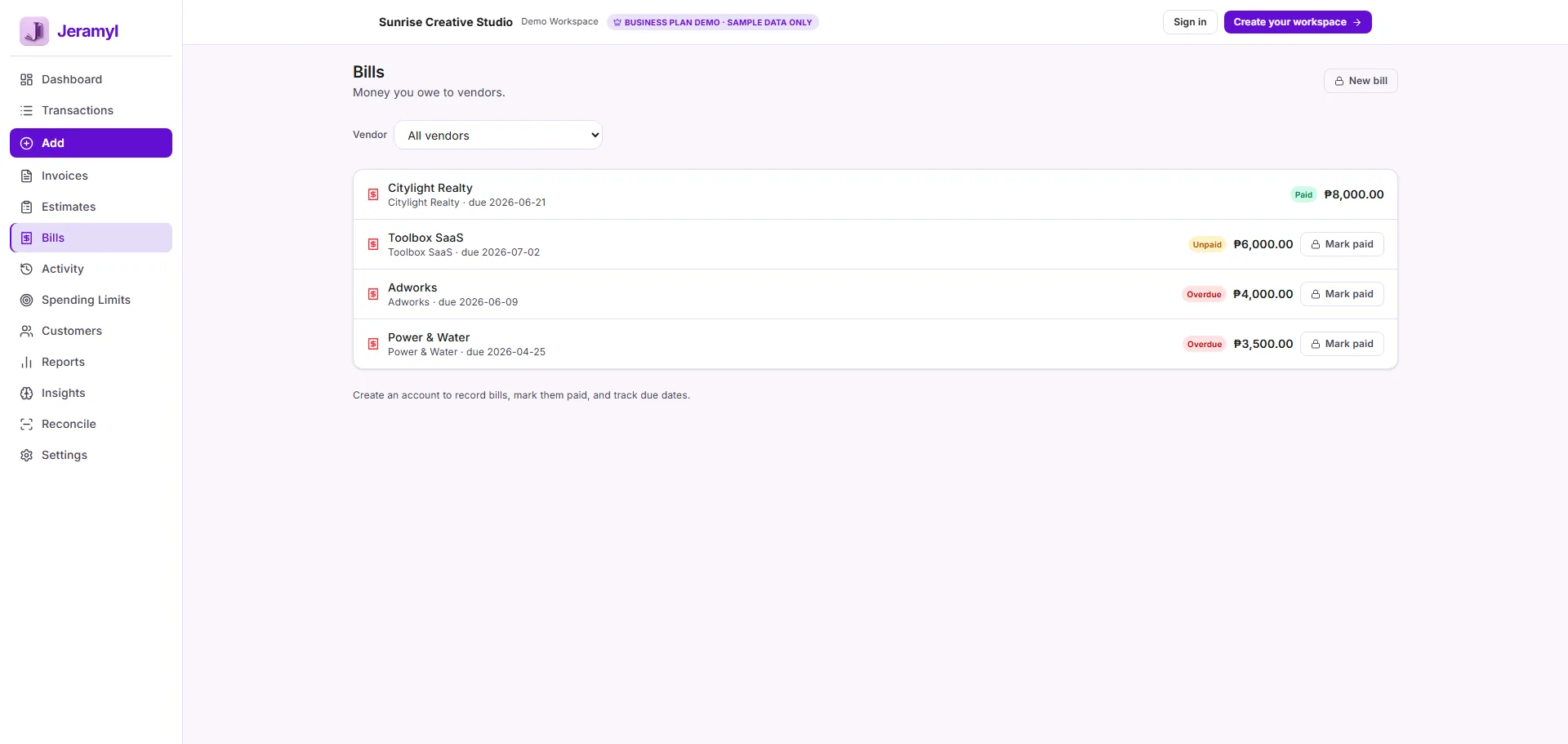
- The Bills list opens showing all bills you have recorded, sorted by due date.
- Unpaid and overdue bills appear at the top so you can see what needs attention first.
- Use the filter or search bar to narrow the list by vendor name, status, or date range.
Add a new bill
- From the Bills list, click Add or New bill.
- A bill form opens with fields for vendor, amount, dates, category, and notes.
- Fill in the details. At minimum, enter a vendor name, the bill amount, and a due date.
- Save the bill. It appears in the Bills list with a Unpaid status.
Add a description or reference number when saving a bill — such as the vendor's invoice number or a short note about what the bill is for. This makes it easier to match the bill to a payment later and find it when filtering by vendor.
Add vendor details
The vendor field identifies who the bill is owed to. In Jeramyl, vendor names are entered as free-text — type the vendor name directly into the field.
- Use consistent vendor names across bills — for example, always use "Adobe Inc." rather than "Adobe" on some bills and "Adobe Systems" on others. Consistent names make filtering by vendor more reliable.
- Vendor entries are free-text and do not create full vendor profiles or contact records at this time.
- If you filter bills by vendor later, Jeramyl matches the text you entered — so consistent naming is important for accurate filtering.
There are no full vendor profile pages in Jeramyl at this time. Vendor information is stored at the bill level — each bill holds its own vendor name and details. If you need a full vendor ledger or contact management, consult your accountant or a dedicated accounts payable tool.
Add bill amount, due date, and category
Amount
Enter the total amount owed for the bill. This is the amount you need to pay the vendor. Bills in Jeramyl record the full amount — partial payment tracking is not currently supported. If you pay a portion of a bill, record the partial payment as a transaction separately and note it in the bill description.
Due date
The due date tells Jeramyl when the bill needs to be paid. Bills that have passed their due date and remain unpaid will appear as overdue. Setting an accurate due date is important for getting meaningful cash flow visibility and overdue alerts.
Category
Assign a bookkeeping category to the bill — such as "Rent", "Software", "Utilities", or "Materials". The category you choose affects how the bill appears in expense reports and your Tax Summary once the payment is recorded as a transaction.
If you are unsure how to categorise a particular bill, ask your accountant or bookkeeper. The category assigned here flows through to your expense reports, so using consistent, meaningful category names makes your records easier to review and share.
Attach receipts or documents
You can attach a document to a bill — such as the vendor's invoice PDF or a receipt — to keep your records complete. Having the source document attached to the bill makes it easier to verify the amount and find the bill during reconciliation or when your accountant asks for backup.
- Open the bill you want to add a document to.
- Click the attachment option — labelled Attach, Add document, or similar.
- Upload the file from your device. Supported formats typically include PDF, JPG, and PNG.
- Save the bill. The document is attached and visible in the bill detail view.
Attaching the vendor's original invoice to the bill in Jeramyl gives you one place to find both the record and the supporting document. This is especially useful at month-end when reconciling or when preparing records for your accountant.
Bill statuses
Each bill in Jeramyl has a status that reflects where it stands in the payment process:
- Unpaid — the bill has been recorded but payment has not yet been logged in Jeramyl. The due date is in the future or has not yet been addressed.
- Overdue — the bill's due date has passed and it is still marked as unpaid in Jeramyl. Overdue bills need attention.
- Paid — payment has been recorded in Jeramyl and linked to this bill. The bill is considered settled in your records.
Bill statuses reflect what has been recorded in Jeramyl — not what has actually happened in your bank account. A bill marked as Paid means you have recorded the payment in Jeramyl. Always confirm the actual payment left your account before marking a bill as paid.
Mark a bill as paid
When you have paid a vendor, record the payment in Jeramyl so the bill status updates to Paid. This keeps your outstanding bill list accurate and creates a link between the bill and the corresponding expense transaction.
- Open the bill you have paid.
- Click Link payment or Mark as paid.
- Select or create the corresponding expense transaction — enter the payment date, amount, and payment method.
- Confirm the details are correct before saving. The bill status changes to Paid and the payment is recorded as an expense transaction.
Review the payment amount, date, and vendor before confirming. Jeramyl does not automatically verify that a payment has left your bank account. Marking a bill as paid is a manual record-keeping action — confirm the actual payment happened before recording it here.
Track overdue bills
Bills that have passed their due date and remain unpaid are flagged as Overdue in Jeramyl. Overdue bills appear at the top of the Bills list so they are easy to spot.
When you see an overdue bill:
- Check whether the payment has already been made but not yet recorded in Jeramyl. If so, link the payment to the bill.
- If the bill is genuinely unpaid, prioritise it based on vendor relationship and any late payment terms that apply.
- Update the due date if the vendor has granted an extension — this keeps your overdue list accurate.
- If the bill was entered in error, delete it or edit the details to correct the record.
Run Month-end Cleanup each month to surface overdue bills alongside other flagged items. Resolving overdue bills as part of a regular cleanup keeps your payables list current and reduces the chance of missed payments.
Filter bills by vendor
You can filter your Bills list to see all bills associated with a specific vendor. This is useful when reviewing what you have paid a particular supplier over a period, or when investigating a discrepancy in a vendor's statement.
- In the Bills list, click the Vendor filter or use the search bar.
- Type the vendor name you want to filter by.
- The Bills list updates to show only bills matching that vendor name.
- Review the bills shown — check amounts, due dates, and payment status for that vendor.
Vendor filtering matches the exact text entered in the vendor field. If a vendor's name was entered differently on different bills — for example "Adobe" on one and "Adobe Inc." on another — those bills will not all appear in the same filter result. Use consistent vendor names to get accurate filtered views.
Bills and cash flow planning
Recording bills with accurate due dates helps you see how upcoming payment obligations will affect your available cash. When you can see which bills are due and when, you are better placed to plan payments, avoid shortfalls, and prioritise which obligations to address first.
How bills contribute to cash flow visibility:
- Unpaid bills with future due dates represent outflows you can anticipate and plan for.
- The total of upcoming unpaid bills gives you a sense of how much cash needs to be available in the coming days or weeks.
- Overdue bills represent obligations that are already past due — addressing these should be the first priority.
- When bills are recorded and kept up to date, your cash flow view in Jeramyl reflects a more accurate picture of your actual position.
Cash flow figures in Jeramyl are based on the transactions and bills recorded in Jeramyl. They reflect your bookkeeping records, not your live bank balance. For cash flow decisions, review your actual bank balance alongside what Jeramyl shows. If in doubt, consult your accountant or bookkeeper.
What bills do not do
Understanding what the Bills feature does not do helps set accurate expectations:
- Jeramyl does not automatically pay vendors. Recording a bill in Jeramyl does not initiate any payment. You pay the vendor through your own bank, card, or payment method — then record that the payment happened in Jeramyl.
- Jeramyl does not automatically verify vendor payments. Marking a bill as paid is a manual action. Jeramyl has no connection to your bank account that would let it detect or confirm whether a payment has left your account. Always confirm the actual payment before recording it.
- Partial payments are not tracked at the bill level. Bills are recorded and marked as either unpaid or fully paid. If you have made a partial payment, record it as an expense transaction separately and note the remaining balance in the bill description until it is fully settled.
- Bills do not create vendor profiles. Vendor names are stored as free-text on each bill. There are no dedicated vendor profile pages, contact records, or vendor ledgers at this time.
- Recording a bill does not make it tax-deductible. Whether a particular expense is deductible depends on your jurisdiction, business type, and the nature of the expense. Ask your accountant or bookkeeper if you are unsure how a specific bill should be treated for tax purposes.
- Jeramyl does not replace accountant or bookkeeper advice. Bills help you track payment obligations and keep records organised. For questions about how to categorise a bill, how to treat it for tax purposes, or how to handle complex vendor arrangements, consult a qualified professional.
Best practices
- Record bills as soon as you receive them from vendors — do not wait until the due date. Early recording gives you the most lead time to plan payments.
- Always enter an accurate due date when recording a bill. The due date is what triggers the overdue flag and what drives the cash flow view.
- Use consistent vendor names across all bills so that vendor filtering works reliably.
- Attach the vendor's original invoice or statement to the bill in Jeramyl. Having the source document linked to the record saves time during reconciliation and when your accountant needs backup.
- Assign a category to every bill before saving. Uncategorized bills do not appear correctly in expense reports or Tax Summary.
- Confirm the actual payment has left your bank account before marking a bill as paid in Jeramyl.
- Review your unpaid and overdue bills at the start of each week or as part of your month-end routine. Do not let overdue bills accumulate without attention.
- If a bill amount or due date changes after you have recorded it, update the bill in Jeramyl so the record stays accurate.
- If you are unsure how to categorise or treat a bill for bookkeeping or tax purposes, ask your accountant or bookkeeper rather than guessing.
FAQ
No. Jeramyl does not make payments on your behalf. Recording a bill is a bookkeeping action — it tracks the obligation. You pay the vendor through your own bank, card, or payment method, then return to Jeramyl to record that the payment happened and mark the bill as paid.
Open the bill and click Link payment or Mark as paid. Enter the payment date, amount, and payment method, then confirm. The bill status changes to Paid and the payment is recorded as an expense transaction. Always confirm the actual payment left your account before recording it here.
Jeramyl does not automatically detect payments from your bank. If a bill shows as overdue but you have already paid it, open the bill and record the payment manually. Once the payment is linked, the bill status will update to Paid and it will no longer appear as overdue.
Partial payment tracking at the bill level is not currently supported. Bills are recorded as either unpaid or fully paid. If you have made a partial payment, record it as an expense transaction in the Transactions section and note the remaining balance in the bill description until the full amount is settled.
Open the bill and check the vendor name, amount, due date, category, attachment, and payment status. Edit any field that is incorrect. Common issues include the wrong amount entered, a missed due date, an incorrect vendor name that causes filtering problems, or a payment that was not linked after it was made.
No. Recording a bill in Jeramyl is a bookkeeping action — it tracks that the expense obligation exists. Whether the underlying expense is tax-deductible depends on your jurisdiction, your business type, and the nature of the expense. Ask your accountant or bookkeeper if you are unsure how a specific bill should be treated for tax purposes.