What customer statements are
A customer statement in Jeramyl is a summary of all invoices, payments, and outstanding balances recorded for a specific customer over a selected period. It helps you see — and share with a client — what has been billed, what has been paid, and what still needs attention.
Customer statements are based on invoices, payments, and customer activity you have recorded in Jeramyl. They reflect your bookkeeping records as they stand at the time you generate the statement. They are not automatically updated after you share them.
A customer statement summarises recorded invoice and payment information. It is not a legal collection notice or demand letter. Review the customer details, invoice amounts, and payment records before sharing a statement with a client.
When to use customer statements
Customer statements are most useful when you need a clear, shareable record of what a client owes or has paid. Common situations where a statement helps:
- A client disputes a balance and needs to see all invoices and payments in one view
- You want to follow up on overdue invoices and need a summary to share
- A client requests a record of what they have been charged and paid over a period
- You are doing an end-of-month or end-of-quarter review of outstanding receivables
- You need to confirm a client's account balance before issuing a new invoice
Before generating a statement, make sure all payments the customer has made are recorded in Jeramyl. A statement that shows an invoice as unpaid when payment has already been received will cause confusion for the client.
Open Customers
- In the sidebar, click Customers.
- The Customers list opens showing all customers you have added to Jeramyl.
- Use the search bar to find a specific customer by name, or scroll through the list.
- Use the All customers tab to see everyone, or filter by outstanding balance if available.
Open a customer profile
Each customer in Jeramyl has a detail view that consolidates their invoices, payments, and follow-up status in one place.
- From the Customers list, click a customer name.
- The customer detail view opens with their full invoice and payment history.
- Review the summary at the top — it shows total billed, total paid, and any outstanding balance.
- Scroll down to see individual invoices and payment entries for the customer.
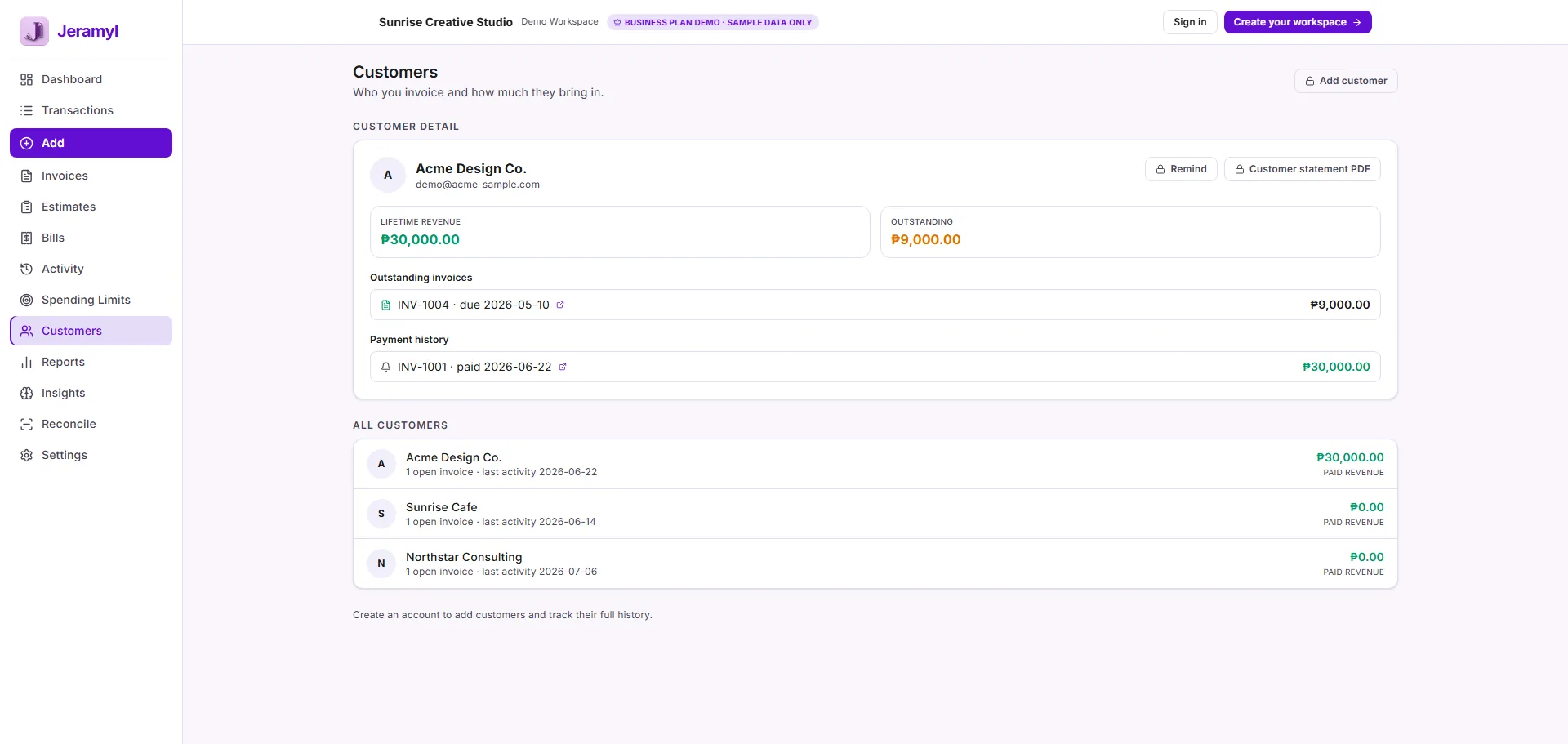
The customer detail view only shows invoices and payments that are linked to that customer in Jeramyl. If a payment was recorded without being assigned to the correct customer, it will not appear here. Check the Transactions list if a payment seems to be missing.
Review outstanding invoices
Outstanding invoices are invoices that have been issued to the customer but not yet recorded as paid in Jeramyl. The customer detail view lists these clearly so you can see what still needs attention.
When reviewing outstanding invoices:
- Check the invoice number, issue date, and due date for each outstanding item.
- Confirm the amount on each invoice matches what was agreed with the customer.
- Look for invoices that are past their due date — these are overdue and may need a follow-up.
- If a payment has been received but the invoice still shows as unpaid, record the payment to update the status. See the Create Invoice guide for how to link payments to invoices.
Jeramyl does not automatically verify that a customer has paid. Payment status updates only when you record or reconcile the payment in Jeramyl. Always confirm the actual payment before treating an invoice as settled.
Review payment history
The payment history section of the customer profile shows all payments that have been recorded against that customer's invoices. This gives you a clear view of what has been received and when.
When reviewing payment history:
- Confirm that each payment entry corresponds to an actual payment you received.
- Check payment dates and amounts against your bank records to make sure everything is correctly recorded.
- If a payment appears in your bank account but not in the customer's payment history, it may have been recorded without being linked to the customer or invoice. Find it in the Transactions list and update the assignment.
- If there are partial payments, confirm that the remaining balance on the invoice reflects the correct outstanding amount.
Use Bank Reconciliation regularly to confirm that payments recorded in Jeramyl match your bank statement. This keeps customer payment histories accurate and reduces the chance of discrepancies when a client reviews their statement.
Reminders and follow-up actions
Follow-up actions help you track which customers or invoices need attention. You can set a follow-up date on a customer or on an individual invoice so overdue items do not slip through.
- Open the customer profile or the specific invoice that needs follow-up.
- Click Update follow-up.
- Set a follow-up date — the reminder will appear in the invoice list until it is cleared.
- When you have contacted the customer or taken action, click Mark followed up to clear the flag.
Follow-up dates are visible in the invoice list, so you can quickly see which invoices are due for a reminder on any given day. They do not send any automatic communication to the customer — all follow-up action is user-initiated.
Jeramyl does not automatically send statements or follow-up messages to customers. Any communication — whether a statement PDF, a follow-up email, or a payment reminder — is sent manually by you from outside Jeramyl, or via Connected Gmail if you have enabled that feature.
What to check before sending
Before sharing a customer statement with a client, take a moment to review the details. A statement that shows incorrect balances or missing payments can cause confusion or disputes.
Check the customer details
- Confirm the customer name and contact details are correct.
- Make sure you are generating the statement for the right customer — especially if you have clients with similar names.
Check the invoice list
- Confirm all expected invoices are included in the statement period.
- Check that invoice numbers, dates, and amounts match what was agreed.
- Look for any invoices that should not be on the statement — for example, invoices from a different period or a draft that was never sent.
Check the payment records
- Confirm that all payments the customer has made are recorded and appear in the statement.
- Check that partial payments are reflected correctly and the remaining balance is accurate.
- If a payment is missing, record it before downloading the statement.
Confirm the outstanding balance
- The balance shown on the statement is based on what has been recorded in Jeramyl. If anything has been omitted or miscategorized, the balance may not reflect the customer's actual position.
- Always review the balance with your own records before sending to the client.
What customer statements do not do
Understanding what customer statements do not do helps set the right expectations before sharing one with a client:
- A statement is not a legal collection notice. A customer statement summarises recorded invoice and payment information. It is not a formal demand for payment, a legal letter, or a debt collection document. If you need a formal demand letter, consult a legal professional.
- Jeramyl does not automatically verify payment. Payment status updates only when you record or reconcile a payment in Jeramyl. Jeramyl does not connect to your customer's bank or payment system to confirm whether they have actually paid.
- Jeramyl does not automatically send statements. Statements are generated and sent manually. Jeramyl does not send statements, reminders, or follow-ups to customers on your behalf without your action.
- Statements reflect recorded data only. If invoices are missing, payments are not linked, or amounts are incorrect, the statement will reflect those errors. The accuracy of the statement depends entirely on the quality of the records in Jeramyl.
- Jeramyl does not replace your accountant. Customer statements help you track receivables and share account summaries with clients. For complex billing disputes, legal matters, or formal financial records, consult a qualified professional.
Best practices
- Record payments as soon as they are received so customer balances stay accurate and statements are always up to date.
- Link every payment to the correct invoice and customer — unlinked payments do not appear in the customer's payment history.
- Use Bank Reconciliation regularly to confirm that all payments in Jeramyl match your bank records before generating statements.
- Review the outstanding invoice list for each customer at month-end to catch overdue items before they become a problem.
- Set follow-up dates on overdue invoices so they stay visible and are not forgotten.
- Before sending a statement to a client, verify the invoice list, payment history, and outstanding balance against your own records.
- Do not send a statement that shows an invoice as unpaid if you know the customer has already paid — record the payment first.
- If a client disputes a balance, compare the statement to your bank reconciliation records before responding.
FAQ
No. A customer statement in Jeramyl is a summary of recorded invoices and payments — it is an account summary, not a legal notice or debt collection document. If you need a formal demand letter, consult a legal professional.
Jeramyl does not automatically detect or verify customer payments. If a payment has been received but not recorded in Jeramyl, the invoice will still show as unpaid. Open the invoice, record the payment with the correct date and amount, and the statement will reflect the updated status.
Jeramyl does not automatically send statements to customers. If you have Connected Gmail enabled, you can send a statement PDF from within the customer detail view using your Gmail account. Otherwise, download the PDF and send it manually through your email client or preferred communication method.
If the balance does not look right, check the following: all expected invoices are present and assigned to the correct customer; all payments received have been recorded and linked to the right invoice; the date range you selected for the statement matches the period you intend to cover; no invoices have been accidentally duplicated or recorded under a different customer name. Fixing these items will update the balance.
The statement PDF shows invoices issued during the selected period, payments recorded against those invoices, and the outstanding balance at the end of the period. It is based on the data recorded in Jeramyl and reflects your bookkeeping records as they stand when the statement is generated.
Yes. When generating a customer statement, you choose the date range for the period you want to cover. Set the start and end dates to match the period you need — for example, the current month, a quarter, or a full year. Only invoices and payments within that period will appear on the statement.