What estimates are for Pro
An estimate in Jeramyl is a quote you send to a customer before work begins. It lists the services or products you plan to provide, the quantities, and the prices — giving the customer a clear picture of what to expect before they agree to proceed.
Estimates are a way to document what has been proposed. They are not legally binding contracts and do not represent income. An estimate does not affect your bookkeeping records until it is converted into an invoice and that invoice is either paid or recorded as a receivable.
Estimates are not legally binding contracts. Whether a proposal constitutes a binding agreement depends on the laws in your jurisdiction and how it is accepted by the customer. If you need legally binding quotes or contracts, consult a legal professional.
When to use an estimate
Estimates are most useful when you need to confirm scope and pricing with a customer before starting work or sending a formal invoice:
- When quoting a project before the customer commits to the work
- When the final amount may change and you want the customer to approve a baseline before you begin
- When a customer requests a written quote before approving a purchase order
- When you want to propose multiple line items and get alignment before invoicing
- When your work process requires a customer sign-off step before billing
If you already know the exact amount and are ready to bill, create an invoice directly instead of creating an estimate first. Use estimates for the quoting step, not for billing.
Open the Estimates page
- In the sidebar, click Invoices.
- From the Invoices section, select the Estimates tab, or navigate directly to Estimates if it appears separately in your sidebar.
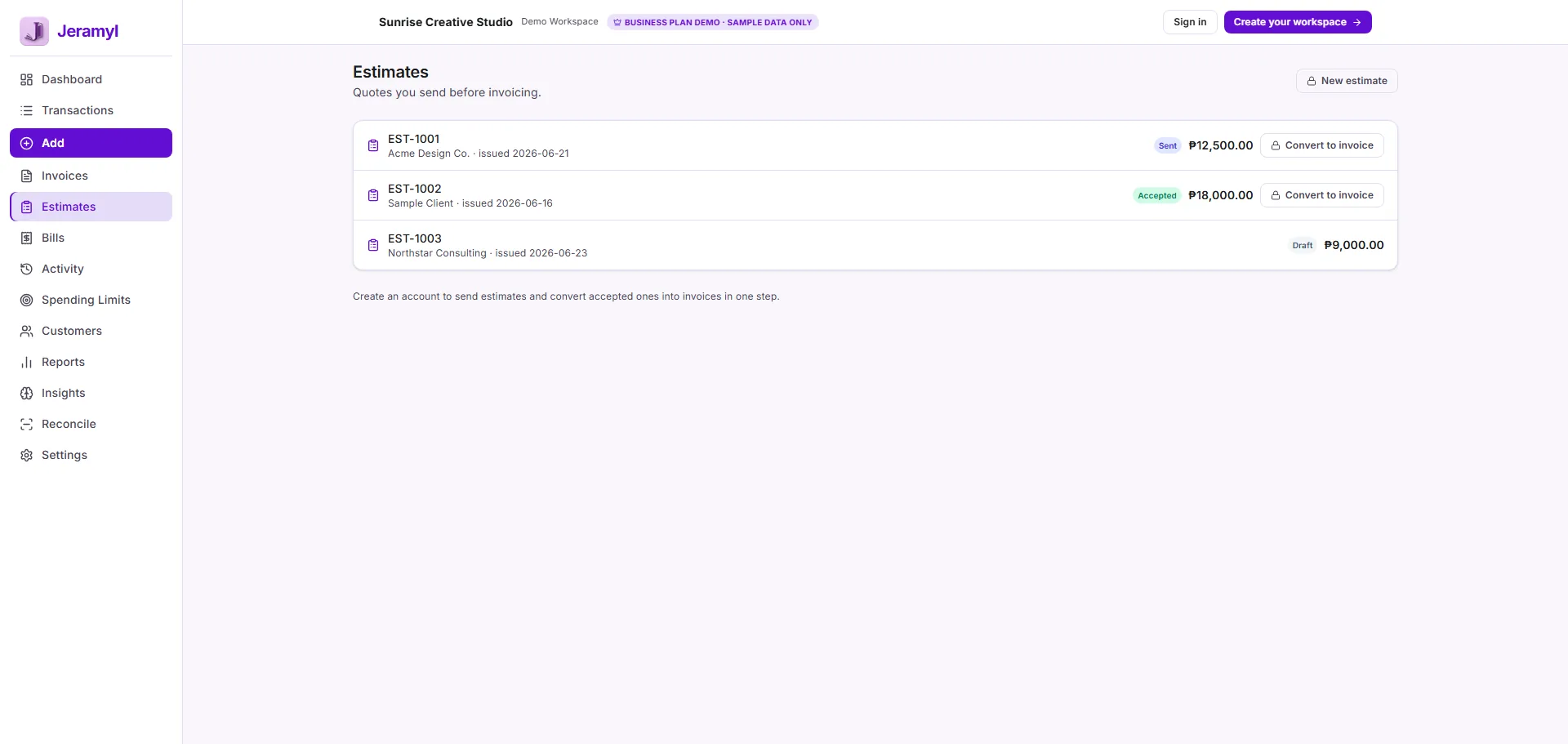
- The Estimates list shows all estimates you have created, along with their current status and customer name.
Create a new estimate
- From the Estimates list, click Add or New estimate.
- A blank estimate form opens with fields for customer, line items, dates, and notes.
- Fill in the estimate details. You do not need to complete every field before saving — you can save a draft and return to it.
- When ready, save the estimate. It will appear in your Estimates list with a Draft status.
Save estimates as drafts while you work out the details. A draft estimate is not visible to your customer and does not affect any records until you decide to share it.
Add customer details
Linking an estimate to a customer ensures it appears in the customer's profile alongside their invoices and payment history.
- In the estimate form, click the Customer field.
- Type the customer's name. If the customer already exists in Jeramyl, select them from the dropdown.
- If the customer is new, type their name and save — Jeramyl will create a new customer record linked to this estimate.
- Confirm the customer name is correct before saving. Estimates linked to the wrong customer will appear in that customer's profile.
Jeramyl does not automatically contact or notify your customer when you create or save an estimate. All communication — sharing a PDF, sending a quote — is initiated by you.
Add line items
Line items are the individual services or products you are quoting. Each line item has a description, quantity, and unit price. The estimate calculates the total automatically from the line items you enter.
- In the estimate form, click Add line item.
- Enter a description for the service or product.
- Enter the quantity and unit price.
- Repeat for each item you are including in the quote.
- Review the subtotal and total before saving — confirm the amounts are correct.
Line items added to the estimate will carry over directly when you convert the estimate to an invoice. You can still edit them on the invoice after conversion if anything needs adjusting.
Use clear, descriptive line item names that match what you plan to invoice. This makes it easier for the customer to understand the quote and reduces back-and-forth before approval.
Set dates and notes
Estimate date
The estimate date is the date the quote is issued. Set it to today or the date you plan to send the estimate. This date appears on the estimate PDF.
Expiry date
An expiry date tells the customer how long the quoted prices are valid. Setting an expiry date is optional but recommended — it creates a clear deadline for the customer to respond and helps you manage pricing that may change over time.
Notes
Use the notes field to add any context the customer needs — for example, payment terms that would apply if they accept, scope limitations, assumptions behind the pricing, or next steps after approval. Notes appear on the estimate PDF.
Notes added to an estimate are informational only. They do not constitute legally binding terms unless you have a separate agreement in place. If you need enforceable contract terms, consult a legal professional.
Estimate statuses
Each estimate in Jeramyl has a status that reflects where it is in the quoting process:
- Draft — the estimate has been created but not yet shared with the customer.
- Sent — the estimate PDF has been shared with the customer, but no response has been recorded yet.
- Accepted — the customer has agreed to the quote. You have marked it as accepted in Jeramyl. This is a manual update — Jeramyl does not automatically detect customer approval.
- Declined — the customer did not accept the quote. You have marked it as declined in Jeramyl.
- Converted — the estimate has been converted into an invoice. The original estimate record is kept for reference.
Jeramyl does not automatically detect or receive customer approval. When a customer accepts your estimate, you update the status manually in Jeramyl to mark it as Accepted before converting it to an invoice.
Convert an accepted estimate to an invoice
Once a customer has agreed to your estimate, converting it to an invoice creates a formal billing document with all line items pre-filled from the estimate — no re-entry needed.
- Open the estimate you want to convert.
- If you have not already done so, mark the estimate as Accepted to reflect the customer's approval.
- Click Convert to invoice.
- Jeramyl creates a new invoice with all line items, the customer, and the amounts pre-filled from the estimate.
- Review the invoice — set or confirm the invoice date, due date, and any payment terms.
- Save the invoice. It is now in your Invoices list ready to be sent to the customer.
Converting an estimate to an invoice does not record income. Income is recorded when you mark the resulting invoice as paid and enter the payment amount and date.
What changes after conversion
When an estimate is converted to an invoice, a few things happen automatically in Jeramyl:
- The estimate status changes to Converted. The original estimate is kept in your Estimates list and is not deleted.
- A new invoice is created in your Invoices list with the status Unpaid. It contains all the line items, amounts, and customer details from the estimate.
- The invoice date and due date are set based on what you enter during conversion — check and adjust them as needed before sending.
After conversion, the invoice follows the normal invoice workflow. See the Create Invoice guide for how to share the invoice, record payment when it arrives, and track invoice status.
Review the converted invoice carefully before sending it to the customer. If anything changed from the original estimate — scope, quantities, prices — update the invoice to reflect the final agreed amounts before sharing.
What estimates do not do
Understanding what estimates do not do helps set accurate expectations for you and your customers:
- Estimates are not legally binding contracts. An estimate documents a proposed price and scope. Whether it creates any legal obligation depends on your jurisdiction and how the customer accepts it. For binding agreements, consult a legal professional.
- Jeramyl does not automatically detect customer approval. When a customer agrees to your estimate verbally, by email, or through any other channel, you update the estimate status manually in Jeramyl. Jeramyl has no way to receive or verify customer approval automatically.
- An estimate is not income. Creating or sending an estimate has no effect on your bookkeeping records. Income is only recorded when an invoice is created from the estimate and payment is received and recorded in Jeramyl.
- Estimates do not send automatically. Jeramyl does not send estimate PDFs or notifications to customers on your behalf. You download the PDF and share it through your own email or communication channel, or send it via Connected Gmail if you have that enabled.
- Jeramyl does not replace legal or accounting advice. Estimates help you track proposed work and pricing. For questions about whether a quote is binding, what terms to include, or how to handle a dispute, consult a legal or accounting professional.
Best practices
- Always link an estimate to the correct customer before sharing — fixing a wrong customer assignment after conversion adds extra steps.
- Set an expiry date on estimates to create a clear deadline for the customer to respond and to protect yourself from old pricing being accepted long after the fact.
- Use the notes field to document any scope assumptions, exclusions, or conditions that the customer should be aware of before accepting.
- Update the estimate status to Accepted or Declined as soon as you hear back from the customer — this keeps your Estimates list accurate and avoids converting the wrong estimate.
- Review the converted invoice before sending it to the customer — confirm that dates, amounts, and payment terms are all correct.
- Do not skip the invoice step after a customer accepts an estimate. The estimate is a quote, not a billing document. Income is only tracked through the invoice and the payment recorded against it.
- If the final amount differs from the estimate, adjust the invoice line items before sending — and let the customer know what changed and why.
- Keep declined estimates for your records — they provide a useful history of what was proposed and can inform future quoting decisions.
FAQ
No. An estimate in Jeramyl is a documented quote — a record of the services or products you proposed and the prices you offered. Whether it creates a legally binding obligation depends on your jurisdiction and how the customer communicates their acceptance. If you need a contract, consult a legal professional.
No. Jeramyl does not automatically contact your customer. To share an estimate, download the PDF and send it to the customer through your own email or via Connected Gmail if you have that feature enabled.
No. Converting an estimate creates an invoice — a document requesting payment. Income is only recorded in your bookkeeping records when you mark the invoice as paid and enter the payment date and amount. The estimate itself has no impact on your financial records.
Yes. After conversion, the new invoice is a separate document and can be edited independently. You can change the line items, dates, amounts, and notes before sending it to the customer. Editing the invoice does not change the original estimate.
The estimate is marked as Converted and stays in your Estimates list for reference. It is not deleted. You can view the original estimate at any time to compare it to the final invoice.
Jeramyl allows you to convert an estimate to an invoice regardless of its current status. However, it is good practice to mark the estimate as Accepted first — this keeps your estimates list accurate and ensures you only convert quotes the customer has actually agreed to.