What team members are for
Team members in Jeramyl are collaborators you invite to share access to a workspace. A team member can view and work within the workspace — adding records, reviewing data, and using the tools available — based on the access granted in that workspace.
Common reasons to add a team member:
- Your accountant or bookkeeper needs to review records, run reports, or handle Month-end Cleanup.
- A business partner needs to view cash flow, invoices, or expense data.
- An employee or contractor is responsible for entering bills, uploading receipts, or managing specific records.
Team access is per workspace. Inviting someone to one workspace does not give them access to other workspaces on your account. If you need a person to access multiple workspaces, invite them separately in each workspace where access is needed.
When to invite a team member
Invite a team member when another person needs regular access to a workspace's records — not just a one-time data export. If you only need to share a report or export once, exporting and sending the file is often simpler than granting workspace access.
Good times to invite a team member:
- At the start of a bookkeeping engagement — invite your accountant so they can access records throughout the month or quarter.
- When you bring on a business partner who needs visibility into financial data.
- When an employee is responsible for a recurring task such as uploading receipts or entering bills.
Think before inviting someone you do not fully trust with your financial data. Even with limited roles, team members can see workspace records. Remove access promptly when a working relationship ends.
Open workspace settings
- Sign in at app.jeramyl.com.
- Confirm the active workspace is the one you want to manage. Check the workspace selector in the sidebar.
- Navigate to Settings in the sidebar.
- Look for the Team or Members section within Settings. This is where team access is managed for the active workspace.
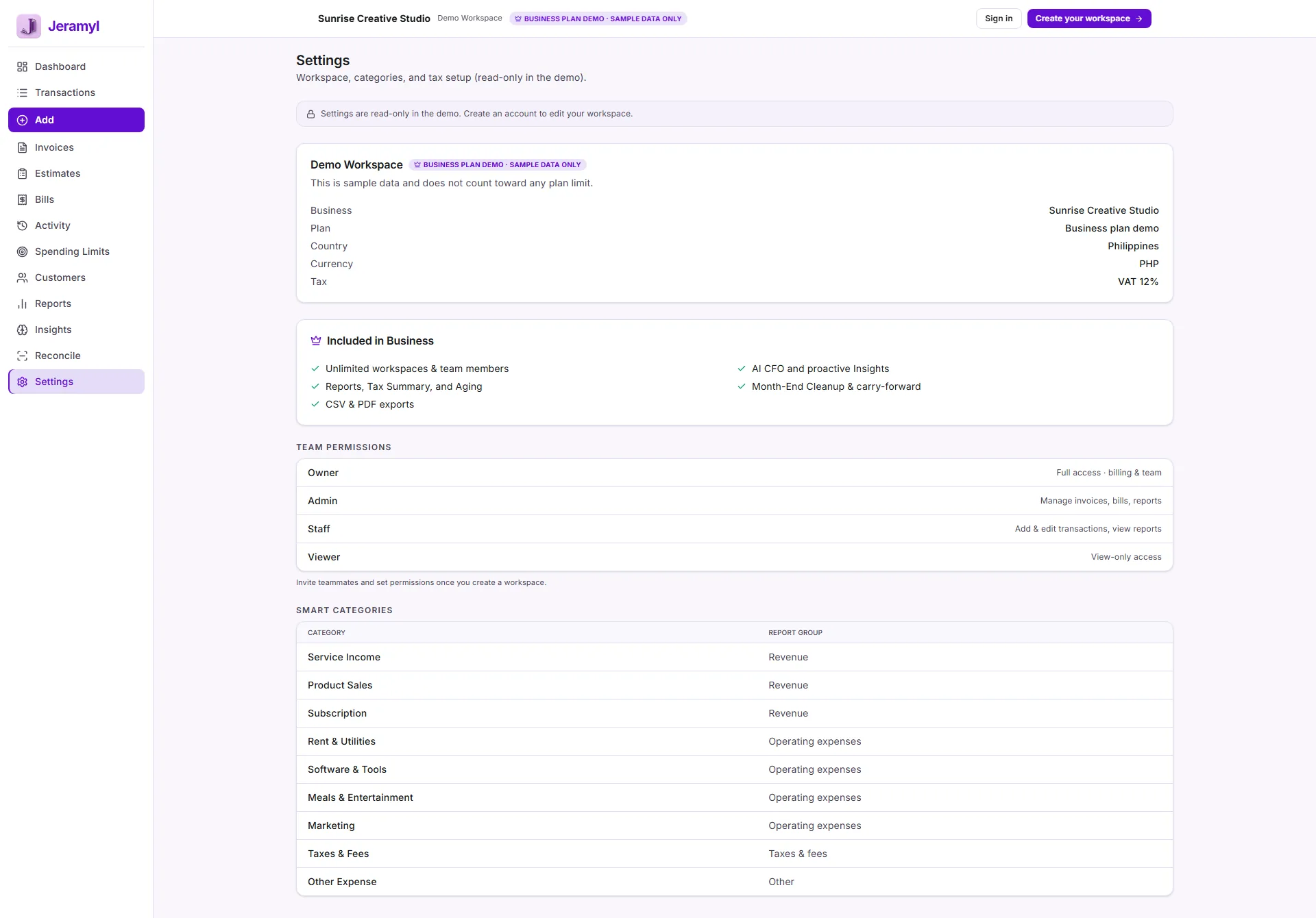
Always confirm the active workspace before managing team members. Settings changes — including team invitations and access removal — apply only to the currently active workspace.
Review current team access
Before adding new team members, review who already has access to the workspace. Over time, access may accumulate — former contractors, old partners, or people who only needed temporary access.
What to check
- Open Settings → Team in the active workspace to see the full list of team members with access.
- Check whether each person on the list still needs access and still works with your business.
- If anyone on the list should not have access, remove them before adding new members.
Make it a habit to review team access during Month-end Cleanup — it takes a few seconds and helps ensure your workspace access list stays accurate and current.
Add and manage team members
- Open Settings → Team in the workspace where you want to add access.
- Use the invite or add member option to enter the email address of the person to invite.
- The invited person will receive an email with a link to accept the invitation and join the workspace.
- Once they accept, they appear in the team member list and can access the workspace.
Managing existing team members
- You can view the team member list at any time in Settings → Team.
- To remove a team member, find their entry in the list and use the remove or revoke option. Removal takes effect immediately — the person can no longer access the workspace.
- If someone needs access to a different workspace, invite them again in that workspace separately.
Only invite people using email addresses you trust and have verified belong to the intended person. An invitation sent to the wrong email address grants workspace access to whoever receives it. If you send an invitation to the wrong address, remove the team member from the list promptly and re-invite using the correct email.
Assigned members on records
Jeramyl allows you to assign a team member to specific records — such as an invoice or bill — to indicate who is responsible for that record. Assigned members appear on the record itself and can be used to organise accountability within the workspace.
How to assign a team member
- Open the record — an invoice, bill, or transaction — and look for the Assigned to or Team member field.
- Select a team member from the dropdown. Only people with access to the active workspace appear in the list.
- The assigned member can be changed at any time.
What assignment means
- Assigning a member to a record indicates responsibility — it does not restrict who else in the workspace can view or edit that record.
- Assignment is visible to all team members with workspace access.
- Assignments appear in the Activity Log so you can see which team members are associated with which records over time.
Review team activity
The Activity Log in Jeramyl records actions taken within the workspace, including actions by team members. Reviewing team activity helps you understand what has changed and who made changes.
How to review team activity
- Navigate to Activity Log or Audit Trail in the sidebar.
- The log shows a timestamped list of actions — records created, edited, deleted, and more.
- Filter by team member to see activity from a specific person, or filter by record type to see all changes to invoices, transactions, or bills.
- Use the log to investigate unexpected changes — such as a record that was deleted or a transaction that was re-categorized.
The Activity Log records what happened and who did it — it does not automatically reverse or undo changes. If a team member made an error, you need to correct the record manually. For a detailed walkthrough of the Activity Log, read the Activity Log and Audit Trail guide.
Remove a team member
- Open Settings → Team in the workspace where you want to remove access.
- Find the team member in the list.
- Use the remove or revoke access option for that person.
- Confirm the removal. The person's access is revoked immediately — they can no longer open or interact with the workspace.
When to remove access
- When a team member leaves the business or ends a working relationship with you.
- When a contractor or consultant finishes their engagement.
- When you suspect unauthorized access or a security concern.
- When a team member's role changes and they no longer need access to this workspace.
Removing a team member from one workspace does not remove them from other workspaces on your account. If the person has access to multiple workspaces, you must remove them from each workspace separately. Records created by the removed team member remain in the workspace — removal does not delete their past work.
Keep your workspace safe
Your workspace contains sensitive financial records. Following these practices helps keep your team access secure and your data protected.
- Only invite people you trust with access to your financial records. Even read-level access exposes income, expenses, and cash flow data.
- Remove access promptly when a person's role ends. Do not wait until the next time you review settings.
- Review the team list regularly — once a month during Month-end Cleanup is a good cadence. Look for anyone who no longer needs access.
- Use the Activity Log to spot unexpected activity. If you see changes you did not expect, check the log to see who made them and when.
- Never share your own login credentials with a team member. Invite them to the workspace using their own email address so their actions are recorded separately in the Activity Log.
- If you suspect unauthorized access, remove the team member immediately and review recent Activity Log entries for unexpected changes.
Sharing your own account credentials with another person means their actions appear in the Activity Log under your name — making it impossible to distinguish your activity from theirs. Always use proper team invitations so each person's actions are tracked separately.
What team access does not do
- Team access is not role-based in the granular sense. Jeramyl's team access model grants workspace access at the workspace level. If you need to restrict specific actions by team member — such as allowing viewing but not editing — check the current access options in Settings → Team, as capabilities may vary by plan.
- Removing a team member does not delete their records. Records they created, edited, or were assigned to remain in the workspace after access is removed.
- Team access does not carry across workspaces. Access granted in one workspace is completely independent of access in other workspaces.
- The Activity Log does not undo changes automatically. It records what happened — you still need to correct errors manually.
- Team access in Jeramyl is not a substitute for proper internal controls. For businesses with formal compliance requirements around financial data access, consult your accountant or IT security professional about appropriate access control policies beyond what Jeramyl provides.
FAQ
Yes. Invite your accountant using their email address via Settings → Team in the relevant workspace. Once they accept the invitation, they can view records, run reports, and work within the workspace. Remove their access when the engagement ends.
No. Removing a team member only revokes their workspace access going forward. All records they created, edited, or were assigned to remain in the workspace exactly as they left them. The Activity Log also retains their past actions.
Team member limits depend on your plan. Check the Pricing page for current limits per plan, or review Settings → Billing within the workspace to see your current plan details. Plan details may vary; the pricing page has the most up-to-date information.
Only if you invite them to each workspace separately. Access is entirely per workspace. A person invited to Workspace A has no access to Workspace B unless you also invite them in Workspace B.
Remove the pending or accepted invitation from Settings → Team immediately. Then re-invite using the correct email address. If the wrong recipient accepted the invitation before you removed it, revoke their access and check the Activity Log for any actions they may have taken.