What workspaces are
A workspace in Jeramyl is a container for a single business entity. Every record inside a workspace — transactions, invoices, bills, receipts, customers, categories, reports, and settings — belongs to that workspace only. Data does not cross between workspaces automatically.
One Jeramyl account can hold multiple workspaces, so you can manage several businesses without needing a separate login for each. You switch between businesses using the workspace selector, and each business's records are kept fully separate.
Each workspace is completely independent. A transaction entered in Workspace A is not visible in Workspace B — even if both workspaces belong to the same Jeramyl account. Reports, invoices, and spending data are all per workspace.
When to use multiple businesses
You should use a separate workspace for each business entity whose records you need to keep separate. Common situations where multiple workspaces make sense:
- You operate two or more legally separate businesses — such as a consulting practice and a side product business.
- You manage finances for a client or another entity alongside your own business. Each entity gets its own workspace so records do not mix.
- You have a business with multiple trading names but separate banking and financial records for each.
- You are a bookkeeper or accountant managing records for multiple clients from a single Jeramyl account.
If you are unsure whether two business activities need separate workspaces, consider whether their financial records — bank accounts, invoices, tax positions — are kept separately in practice. If yes, they likely need separate workspaces. If they share a bank account and file taxes together, one workspace may be appropriate. Consult your accountant if unsure.
Switch business workspaces
- Sign in at app.jeramyl.com.
- Look for the workspace selector in the sidebar — it typically shows the name of the currently active business.
- Click the workspace selector to see a list of your workspaces.
- Select the workspace for the business you want to work in. The app reloads with that workspace's records.
- Confirm the workspace name shown in the sidebar reflects the correct business before adding any records.
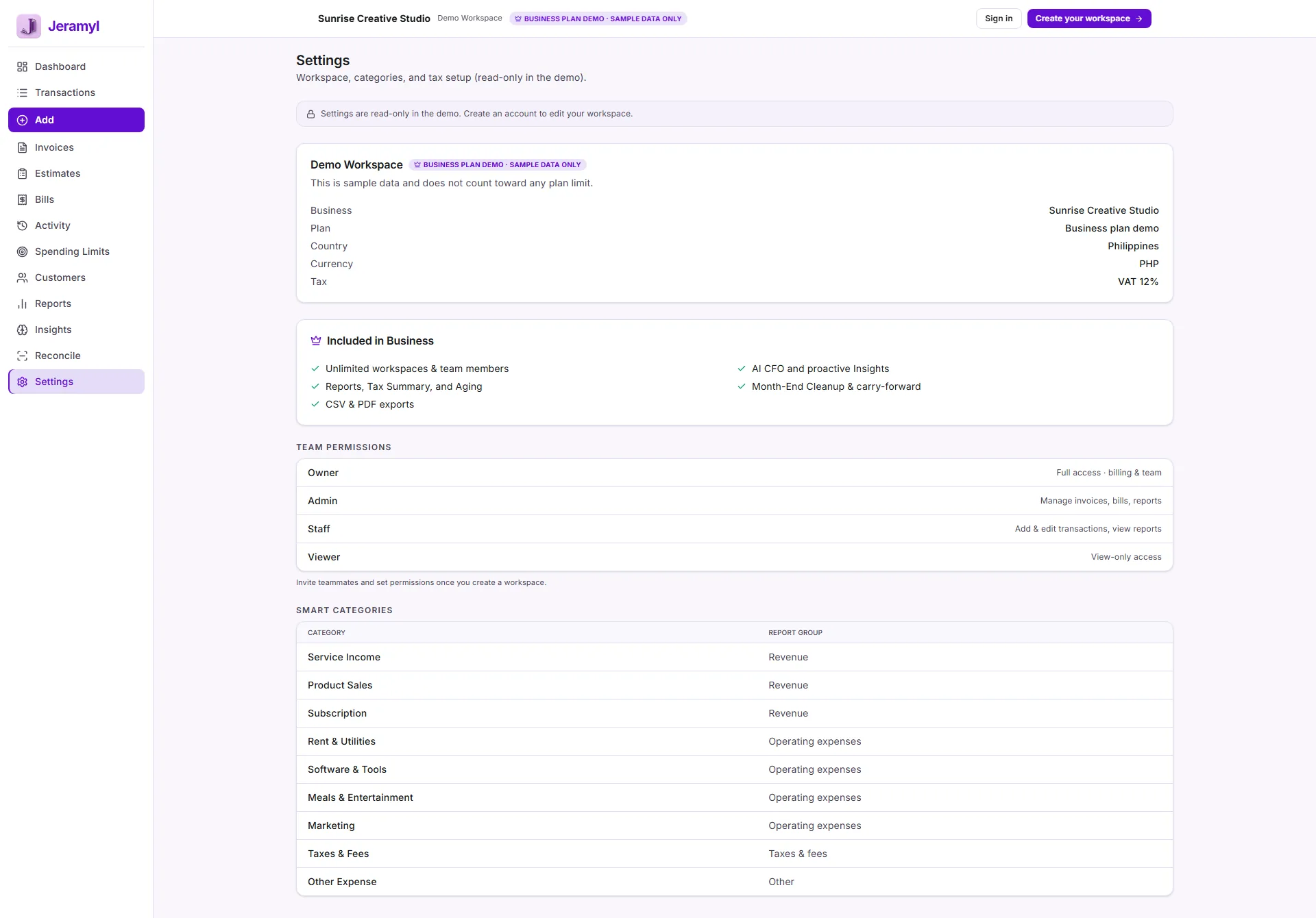
Always confirm the active workspace before adding transactions, invoices, or bills. Records added in the wrong workspace must be manually removed and re-entered in the correct one — there is no automatic move between workspaces.
Check the active workspace
Before adding any record — a transaction, invoice, bill, receipt, or customer — confirm that the correct workspace is active. This is the single most important habit when managing multiple businesses in Jeramyl.
How to check
- The active workspace name is displayed in the sidebar workspace selector. Look for it every time you switch tasks between businesses.
- If you have been working in one business and need to add a record for another, switch the workspace first — do not add records and plan to move them later.
- If a report or transaction list looks unexpected, check the active workspace — you may be looking at the wrong business's records.
If you manage two businesses with similar names, rename them clearly in Settings → Workspace so the workspace selector is unambiguous. For example, "Business A — Trading" and "Business A — Holdings" is clearer than two similar-sounding names.
Keep transactions in the right business
Because workspace data does not cross between businesses automatically, it is essential to add each transaction to the correct workspace from the start. Mixed records — a Business A expense accidentally entered in Business B — require manual correction.
How to keep records clean
- Before uploading a receipt or adding a transaction, glance at the workspace selector to confirm the active business.
- If you discover a transaction in the wrong workspace, delete it from the incorrect workspace and re-enter it in the correct one. There is no move or transfer function between workspaces.
- For businesses that share some expenses — such as a shared office or shared subscription — decide which business each shared expense belongs to before recording it, and apply a consistent rule going forward. Consult your accountant if the split requires formal allocation.
Data does not move automatically between workspaces. If you have entered records in the wrong business, you need to delete and re-enter them. There is no bulk move or transfer tool — this is another reason to always confirm the active workspace before adding records.
Invoices and bills by workspace
Invoices and bills are workspace-specific. A customer invoice created in Workspace A is not visible in Workspace B, even if the same customer does business with both. Similarly, vendor bills in one workspace are separate from bills in another.
Managing invoices across businesses
- Create invoices in the workspace of the business that is providing the service or product. If your consulting business bills a client, create the invoice in the consulting workspace.
- If you invoice the same customer from multiple businesses, each invoice is in the relevant workspace. Customer records are also per workspace — the same customer may appear in multiple workspaces if they do business with several of your entities.
Managing bills across businesses
- Enter bills in the workspace of the business that owes the payment. A shared vendor may appear in multiple workspaces if they supply multiple businesses.
- If a vendor invoice covers expenses for multiple businesses, decide how to split it before entering — record the relevant portion in each workspace, or assign the full amount to the business that will pay it and make an internal note.
Reports by workspace
All Jeramyl reports — P&L, expense breakdown, Tax Summary, aging reports — are generated from the data in the currently active workspace. Reports do not combine or consolidate data across multiple workspaces.
How to review reports for each business
- Switch to the workspace for the business you want to report on.
- Navigate to Reports in the sidebar.
- Set the date range and run the report.
- To review reports for another business, switch to that workspace and repeat.
Jeramyl does not currently provide consolidated or combined reports across multiple workspaces. Each workspace's reports reflect only the records entered in that workspace. If you need a consolidated view across entities, export the data from each workspace and combine it in a spreadsheet, or work with your accountant on a consolidated review.
Team access and workspace context
Team member access in Jeramyl is per workspace. A team member invited to Workspace A does not automatically have access to Workspace B, even if both are managed by the same account.
Managing team access across businesses
- When inviting a team member, confirm you are in the correct workspace before sending the invitation. The invite grants access to the active workspace only.
- If a team member needs access to multiple businesses, invite them separately in each workspace where they need access.
- Review team access in each workspace's Settings → Team section. A team member may have different roles or access levels in different workspaces.
When a team member leaves or no longer needs access to a particular business, remove them from that workspace specifically. Removing them from one workspace does not affect their access to other workspaces.
Common workspace mistakes
Most workspace issues trace back to one of a small number of common errors. Knowing them helps you avoid them.
Adding records to the wrong workspace
This is the most frequent mistake. A transaction, invoice, or bill entered in the wrong workspace cannot be moved — it must be deleted and re-entered. Always check the active workspace before adding records.
Reading reports from the wrong workspace
If your P&L or expense breakdown looks wrong, check that you are in the correct workspace. Switching to a different business without noticing is a common cause of "missing" transactions in a report.
Expecting data to appear in multiple workspaces
A transaction, customer, or bill entered in one workspace does not appear in any other. Each workspace is fully independent. If you need the same information in two workspaces, it must be entered separately in each.
Inviting team members to the wrong workspace
Team invites go to the currently active workspace. If you meant to invite someone to Business B but were in Business A's workspace, revoke the incorrect invite and re-send from the correct workspace.
If your workspace context is unclear when you look at numbers that do not match your expectations — the first thing to check is whether you are in the correct workspace. It takes two seconds and resolves most "wrong numbers" situations instantly.
What workspaces do not do
- Data does not move automatically between workspaces. Records stay in the workspace where they were created. There is no auto-sync, auto-copy, or automatic consolidation across businesses.
- Reports do not combine or consolidate across workspaces. Each workspace's reports are entirely independent. Jeramyl does not produce multi-entity consolidated reports within the app. Export and combine externally if needed.
- Workspace setup does not replace accountant advice. How to structure your businesses — whether to use one entity or multiple, how to allocate shared expenses, how to report inter-entity transactions — are accounting and legal questions. Consult your accountant before making structural decisions based on Jeramyl workspace setup.
- Workspaces are not legal entities. A Jeramyl workspace is a record-keeping container — not a legal business registration, tax entity, or company structure. The legal and tax structure of your businesses is determined outside of Jeramyl.
Best practices
- Always check the active workspace before adding any record — transaction, invoice, bill, or receipt. This single habit prevents the most common workspace errors.
- Give each workspace a clear, distinct name in Settings → Workspace so the workspace selector is never ambiguous.
- Run Month-end Cleanup separately for each workspace. Each workspace needs its own cleanup workflow.
- Review team access in each workspace's Settings → Team section regularly. Access granted to one workspace does not carry over to others.
- If you find a record in the wrong workspace, delete it and re-enter it in the correct one as promptly as possible — the longer it sits in the wrong workspace, the more it may affect that business's reports and cleanup workflow.
- For shared expenses that span multiple businesses, decide on an allocation method and apply it consistently. When in doubt, consult your accountant on the correct approach.
FAQ
Not within Jeramyl — reports are per workspace. To combine data across multiple businesses, export the relevant reports or transaction CSVs from each workspace and consolidate them in a spreadsheet or share them with your accountant for a consolidated review. Jeramyl does not currently produce multi-entity consolidated reports within the app.
There is no move or transfer function between workspaces. You need to delete the transaction from the incorrect workspace and re-enter it in the correct one. If the transaction had a receipt attached, download the receipt first so you can re-attach it in the correct workspace.
No. One Jeramyl account can hold multiple workspaces. You manage all your businesses from a single login and switch between them using the workspace selector. A separate account is not needed.
First, confirm you are in Business A's workspace — check the workspace selector in the sidebar. Then confirm the date range on the report is correct. If both are correct, click through to the underlying transactions to check for miscategorized, misdated, or duplicate entries. These are the most common causes of unexpected report totals.
Plan and billing details are per workspace. Check the Pricing page for current information on how plans apply to multiple workspaces, or go to Settings → Billing within a workspace to see that workspace's plan status. Plan details may vary; the pricing page has the most up-to-date information.