What the Activity Log is Business
The Activity Log — part of the Full Activity Center — is a record of actions taken inside your Jeramyl workspace. It shows you which team member performed an action, what that action was, which record it affected, and when it happened. This gives you a way to review workspace history without having to ask each team member individually.
Common uses include reviewing who updated a transaction, checking when an invoice was marked paid, confirming that a bill was added on a particular date, or following up on a record that looks different from what you expect.
The Activity Log and Full Activity Center are available on the Business plan. If you are on the Free or Pro plan and need access to detailed audit history, consider upgrading. See the Pricing page for a plan comparison.
When to use it
The Activity Log is most useful when you need to review what happened to a record, confirm that an action was taken, or understand why something looks different from what you expected. Some situations where it helps:
- A transaction amount looks different from what you remember — check the log to see if it was recently edited and by whom.
- An invoice shows as paid but you are not sure when or who recorded the payment — the log shows the timestamp and team member.
- A bill was marked paid but you cannot find the corresponding expense transaction — the log can show when the status change was made.
- A new team member has been making changes and you want to confirm their work matches expectations — review their recent actions in the log.
- A record appears to have been deleted and you want to confirm when that happened — the log records deletion events.
- You want a general review of workspace activity before a month-end close or before sharing records with your accountant.
The Activity Log is a review tool — it shows what was recorded in the system. Before drawing conclusions from an entry, always check the source record and, if a team member is involved, confirm the business context with them directly.
Open the Activity Log
- Sign in at app.jeramyl.com.
- Confirm the workspace selector in the sidebar shows the business whose activity you want to review. Each workspace has its own separate Activity Log.
- Navigate to Activity or Activity Center in the sidebar. The exact label may vary depending on the current version of the app.
- The Activity Log loads showing a list of recent actions, typically ordered with the most recent at the top.
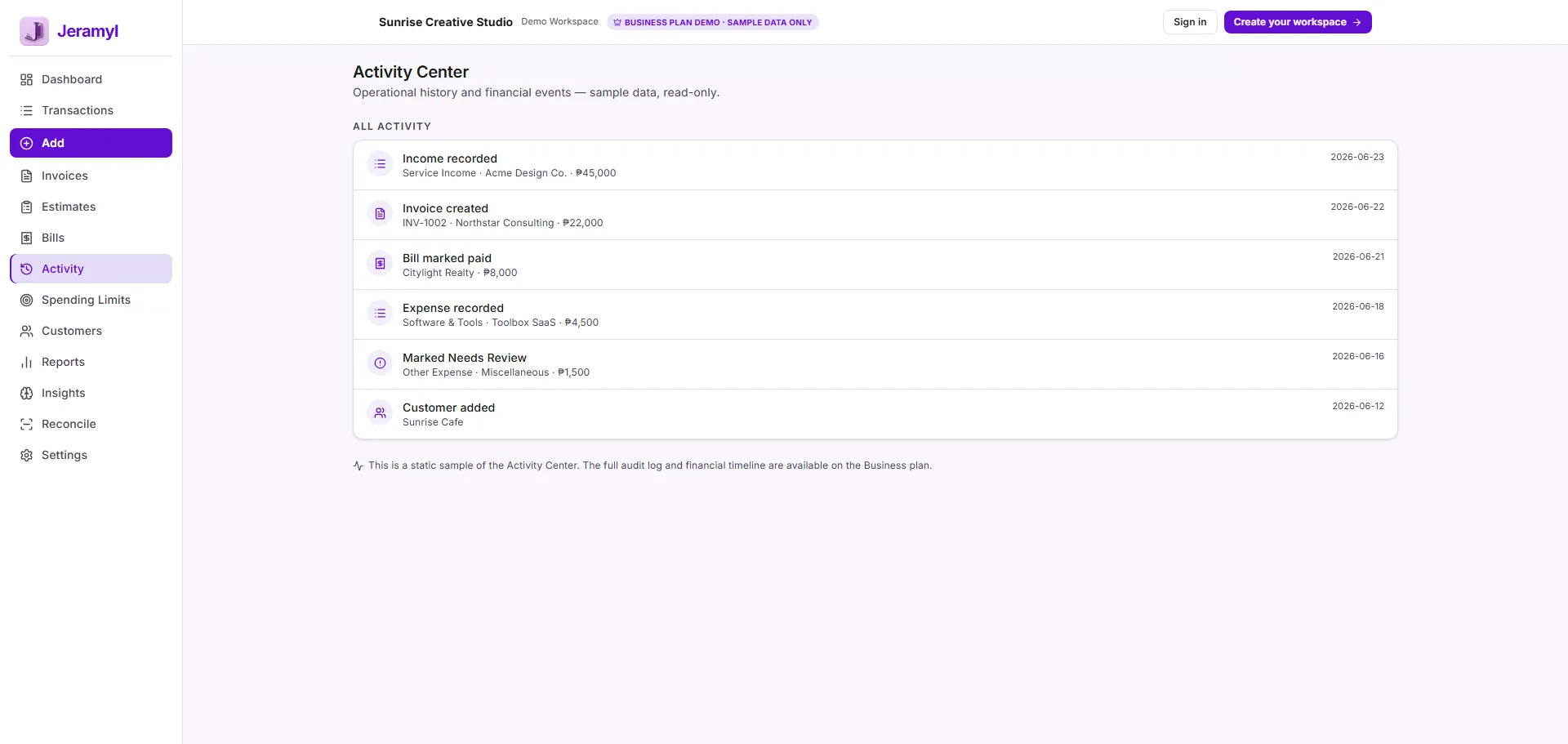
The Activity Log shows actions recorded in Jeramyl. System-level events, actions taken before you enabled a Business plan, or actions from outside the workspace are not included. The log reflects what has been captured in the application.
Review recent workspace activity
When you open the Activity Log, you see a list of recent actions in your workspace. Each entry typically shows the action type, the record affected, the team member who performed it, and the timestamp.
What a typical log entry shows
- Action: What was done — for example, "Invoice created", "Transaction updated", "Bill marked paid", or "Setting changed".
- Record: The specific invoice, transaction, bill, customer, or setting that was affected. Where available, the record reference or name is shown.
- Team member: The name or email of the user who performed the action.
- Timestamp: The date and time the action was recorded in Jeramyl.
Scanning the most recent entries gives you a quick overview of what has happened in the workspace since you last reviewed it. For specific investigations, use the record details or filters to narrow your focus.
If you review the Activity Log regularly — for example, at the start or end of each week — you are less likely to encounter a significant unexpected change without context. Regular review keeps the log useful as a routine check rather than only an investigation tool.
Understand action types
The Activity Log records different types of actions depending on what happened. Understanding what each type means helps you interpret entries correctly.
Record creation
A created action means a new record was added to the workspace — a new transaction, invoice, bill, customer, or other item. The log shows who created it and when.
Record updates
An updated action means an existing record was edited — for example, a transaction amount was changed, an invoice date was adjusted, or a bill due date was extended. The log shows the team member and timestamp. For the specific detail of what changed, open the source record.
Status changes
Actions like marked paid, marked reviewed, or converted reflect a deliberate status change on a record — an invoice marked as paid, a cleanup item resolved, or an estimate converted to an invoice.
Deletions
A deleted action records that a record was removed from the workspace. The log captures who deleted it and when. The deleted record itself may no longer be accessible depending on how deletion is handled in the current version of the app.
Settings and configuration changes
Changes to workspace settings — such as team member permissions, billing changes, or integration connections — may appear in the log as settings-level actions. These are typically distinct from transaction-level activity.
The specific action types and labels displayed in the Activity Log may vary depending on the version of Jeramyl you are using. The categories above describe common patterns — check the log in your workspace for the exact labels shown.
Review who made a change
Each entry in the Activity Log shows the team member who performed the action. This helps you identify who to follow up with if a record looks unexpected or if you need more context about why a change was made.
How to use who-changed information
- If a record was updated by a team member and the change looks unexpected, contact that team member to understand the business context before drawing a conclusion.
- If an action was taken by you and you do not remember making it, check whether the timestamp matches a session when you were working in the workspace.
- If a team member appears to have made a change outside their normal responsibilities, confirm with them or with the workspace admin before taking further action.
Seeing a team member's name in the Activity Log means that action was recorded under their account. It does not on its own prove intent, error, or wrongdoing. Always confirm business context with the person involved before reaching a conclusion. The Activity Log is a review tool, not a determination of responsibility.
Review what changed
The Activity Log records that a change was made and by whom. To understand the full detail of what changed — for example, which field was updated and what the new value is — you need to open the source record itself.
How to review a specific change
- Find the relevant entry in the Activity Log — the action type and record name tell you what was affected.
- Note the record reference shown in the log entry — the invoice number, transaction date, or bill vendor name.
- Navigate to the corresponding section in Jeramyl: Invoices, Transactions, Bills, or Customers.
- Open the specific record and review its current state. Compare it to what you expected or to any previous version if one is available.
- If the change looks incorrect, edit the record to correct it, or contact the team member who made the change to confirm the intended value.
The Activity Log is most useful when combined with the source record. The log tells you that something happened and who did it — the source record tells you what the current state is. Use them together rather than relying on either alone.
Filter or search activity
If your Activity Log contains a large number of entries, filtering or searching helps you find the specific action you are looking for without scrolling through the full history.
Common ways to narrow the log
- Filter by date range: Restrict the log to a specific period — for example, this week, last month, or a custom range — to focus on activity during a particular time.
- Filter by team member: If you want to review the actions of a specific person, filter to show only their entries.
- Filter by action type: Show only created, updated, deleted, or specific action types if the log supports it.
- Search by record: If the log has a search field, enter an invoice number, transaction description, or vendor name to find activity related to that specific record.
Filter and search options available in the Activity Log depend on the current version of Jeramyl and your plan. The options described here reflect common patterns — check the Activity Center in your workspace for the exact filters available.
Check source records
The Activity Log tells you that an action occurred. The source record — the invoice, transaction, bill, or customer entry that was affected — tells you what the current state of that record is. Always check the source record before drawing conclusions from an Activity Log entry.
Why source records matter
- An "updated" entry in the log does not tell you whether the update was correct or incorrect — only the current record shows you what value is now saved.
- A "deleted" entry tells you a record was removed, but the surrounding records — related invoices, linked transactions, or matching bills — may still give context about what was intended.
- A "marked paid" entry tells you the status changed, but the source invoice or bill shows the payment date, amount, and linked transaction that was recorded at the time.
If a source record looks wrong after reviewing the Activity Log, correct the record through the normal editing workflow in Jeramyl. If the issue involves a deleted record, team access, or a situation you cannot resolve internally, contact support@jeramyl.com for assistance.
Activity Log and team accountability
When multiple team members have access to a Jeramyl workspace, the Activity Log provides a shared record of who made each change. This supports team accountability without requiring constant manual coordination.
How the Activity Log supports team review
- Workspace owners and admins can review what actions have been taken across the workspace, by whom, and when — without having to ask each team member directly.
- When a record looks different from what was expected, the log provides a starting point for a follow-up conversation with the relevant team member.
- Regular Activity Log review during or after onboarding a new team member helps confirm they are working within expected workflows.
- Before sharing records with an accountant or bookkeeper at month-end, reviewing the Activity Log helps you confirm that the records reflect intentional actions and not accidental changes.
The Activity Log supports review and accountability — it is not a replacement for clear team communication. If an entry raises a question, talk to the team member involved and understand the business context before making any decisions. Do not treat an Activity Log entry as proof of wrongdoing without confirming the full picture.
What the Activity Log does not do
- The Activity Log does not capture every possible event. It records actions taken within Jeramyl by workspace users. System-level events, activity outside the workspace, actions taken before the log was enabled, or events not instrumented in the current version of the app may not appear.
- The Activity Log is not a formal compliance, legal, or forensic audit system. It is a workspace review tool designed to help you understand what happened in your records. For formal compliance requirements, legal proceedings, forensic investigations, or regulatory audits, consult a qualified compliance professional, legal advisor, or auditor — do not rely solely on Jeramyl's Activity Log.
- The Activity Log does not prove fraud or wrongdoing. An entry showing who performed an action does not establish intent, confirm error, or prove misconduct. Drawing conclusions about fraud or wrongdoing requires a proper investigation by qualified professionals — not a reading of a workspace activity log.
- The Activity Log does not show field-level before and after values in all cases. It records that a change was made. The specific values before and after the change may not always be visible in the log entry itself — check the source record for the current state.
- The Activity Log does not replace good access management. Limiting workspace access to the team members who need it, and setting appropriate permissions, is the most effective way to prevent unwanted changes. The Activity Log helps you review what happened — it is not a substitute for controlling who can act in the first place.
Best practices
- Review the Activity Log regularly — weekly or at the start of each month — rather than only when something looks wrong. Regular review makes unexpected changes easier to spot and address promptly.
- Before making a conclusion from an Activity Log entry, open the source record to confirm the current state. The log tells you what happened; the record shows you the result.
- If an entry raises a question about a team member's action, talk to them first and confirm the business context. Most unexpected-looking entries have a straightforward explanation.
- Before sharing records with your accountant at month-end, do a quick Activity Log review to confirm no significant unintended changes were made during the month.
- Use the Activity Log alongside proper access management — limit workspace access to team members who need it and assign appropriate roles. The log reviews what happened; access control prevents what should not happen.
- If you find a record that was incorrectly changed, correct it through the normal editing workflow in Jeramyl. Document the correction in a transaction note or description if the change is significant.
- For any situation involving suspected fraud, significant financial discrepancy, or legal concern, contact a qualified professional — accountant, legal advisor, or forensic auditor — rather than relying on the Activity Log as your primary evidence.
FAQ
The Activity Log shows recorded actions in your workspace from the time the log was active. Actions taken before the log was enabled, events that are not instrumented in the current version of the app, or system-level activity may not appear. The log reflects what has been captured — not necessarily every change that has ever occurred in the workspace.
The Activity Log is a workspace review tool, not a formal legal or forensic audit record. It is not designed or validated for use as legal evidence. If you are dealing with a legal matter, financial dispute, or formal investigation, consult a qualified legal advisor or forensic auditor who can advise on the appropriate evidence and documentation requirements for your situation.
First, open the source record and review its current state. Then speak with the team member to understand the business context — most unexpected entries have a straightforward explanation, such as correcting a previous error or updating a record based on new information from a customer. If after that conversation the change still looks wrong, correct the record and review whether access or workflow adjustments are needed. Do not treat the log entry as proof of wrongdoing without confirming the full picture.
The Activity Log records that a change was made and by whom. Whether it shows the specific field values before and after the change depends on the action type and the current version of the app. For the current state of a record after a change, open the source record directly — it shows what is saved now. If you need to understand what was there before, check whether a previous version or note is available on the record itself.
The Full Activity Center — which includes the detailed Activity Log — is available on the Business plan. Free and Pro plan users have access to some activity visibility but not the full audit history. See the Pricing page for a current plan comparison.
Check the Activity Log for a deletion entry — it will show who deleted the record and when. Then review any related records that might still be accessible — linked invoices, transactions, or bills. If you cannot recover the record on your own, contact support@jeramyl.com with the details of what was deleted and when, and the support team can advise on recovery options.