What Google connections are for
Jeramyl offers two optional Google integrations — Google Drive and Connected Gmail — to help you keep your financial documents backed up and send invoices more conveniently. These connections are add-ons to your core Jeramyl workflow, not requirements for using the app.
Google Drive lets you automatically save receipt images and invoice PDFs to a dedicated folder in your own Drive. Connected Gmail lets you send invoices and customer statements from your Gmail address directly within Jeramyl, without switching to a separate email app.
Google Drive and Gmail connections are entirely optional. You can use all core Jeramyl features — invoicing, expense tracking, receipts, bills, reports, and AI assistance — without connecting either integration.
Google Drive vs Gmail connection
These are two separate integrations with different purposes and different permission scopes. You do not need to connect both — each can be enabled or disabled independently.
Google Drive
Purpose: Automatically saves receipt images and invoice PDFs to a folder in your Google Drive when they are created or uploaded in Jeramyl. This gives you a cloud backup of your financial documents in a storage location you control.
Access used: Jeramyl requests access limited to a specific folder it creates in your Drive. It does not have access to your full Drive contents — only the designated Jeramyl folder.
Connected Gmail
Purpose: Lets you send invoices and customer statements from your Gmail address within Jeramyl. Sending is per message and user-initiated — you choose when and whether to send via Gmail for each invoice or statement.
Access used: Jeramyl requests permission to send email on your behalf. It does not read your Gmail inbox, access your existing emails, or send email automatically without your action.
Each integration uses the minimum Google permissions required for its specific function. Jeramyl does not request broad Google account access. You can review what each connection has access to from your Google Account's security settings at any time.
Are Google connections required?
No. Google Drive and Gmail connections are optional features. You do not need to connect either integration to use Jeramyl.
All core Jeramyl features work without a Google connection:
- Receipt scanning and upload — works without Google Drive.
- Invoice creation and PDF download — works without Connected Gmail. You can download the invoice PDF and send it manually from your own email if you prefer.
- Expense tracking, bills, reports, bank reconciliation, and AI assistance — none of these require a Google connection.
Google connections are available if you want the additional convenience of Drive backup or sending invoices from within Jeramyl using your Gmail address. They are not required to get accurate bookkeeping or to use the product.
If you are new to Jeramyl, start with the core features first. You can add Google integrations at any time from Settings once you are comfortable with the core workflow.
Open Settings
Both Google integrations are managed from the Settings area in Jeramyl. Here is how to get there.
- Sign in at app.jeramyl.com.
- Confirm the workspace selector shows the correct business. Each workspace has its own separate integration settings.
- Navigate to Settings in the sidebar or from the workspace menu.
- Look for a Data, Integrations, or Connected Accounts section within Settings. The exact label may vary depending on the current version of Jeramyl.
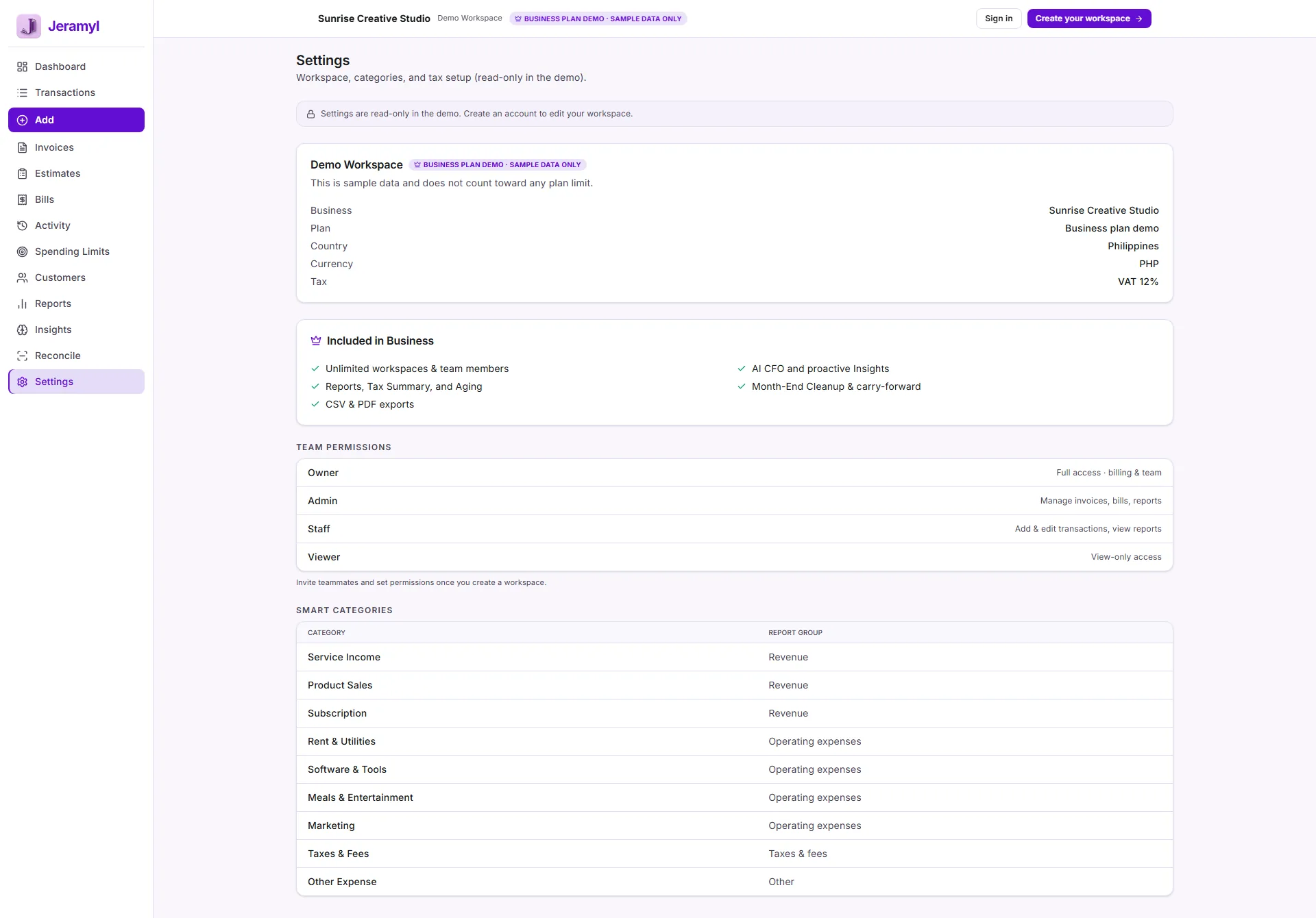
Integration settings are per workspace. If you manage multiple businesses in Jeramyl, check that you are in the correct workspace before connecting or disconnecting any integration.
Connect Google Drive
Once you open Settings and find the integrations area, you can connect Google Drive to enable automatic document backup.
- In Settings, find the Google Drive option under the Data or Integrations section.
- Click Connect Google Drive.
- A Google authorization screen opens. Sign in with the Google account you want to use for this connection. This should be a Google account you own and control.
- Review the permissions Jeramyl is requesting. Jeramyl requests access limited to a specific folder — it does not request access to your full Drive.
- Click Allow (or the equivalent authorization button) to complete the connection.
- Jeramyl confirms the connection. Going forward, receipts and invoice PDFs created in this workspace are backed up to the designated folder in your Drive.
Do not share your Google password with anyone — including Jeramyl support. The connection is made through Google's own authorization screen. Jeramyl never sees or stores your Google password. If anyone asks for your Google password, do not provide it.
Connect Gmail
If your Jeramyl workflow supports it, you can connect a Gmail account to send invoices and customer statements from within Jeramyl using your Gmail address. Check whether Connected Gmail is available for your workspace from Settings.
- In Settings, find the Connected Gmail option.
- Click Connect Gmail.
- A Google authorization screen opens. Sign in with the Gmail address you want to send from. This should be an address you own and use for business correspondence with your customers.
- Review the permissions Jeramyl is requesting. Connected Gmail requests permission to send email on your behalf. It does not request access to read your inbox or existing emails.
- Click Allow to complete the connection.
- Once connected, you can send an invoice or customer statement from within Jeramyl using your Gmail address. Each send is triggered by you — Jeramyl does not send email automatically.
Do not share your Google password with Jeramyl support or with anyone else. The Gmail connection is made through Google's authorization screen only. Jeramyl does not have access to your inbox, past emails, or contacts as part of this connection.
What Jeramyl can use connected data for
After you authorize a Google connection, Jeramyl uses the connected access only for the specific purpose you authorized. It does not use your Google account for anything beyond what is described when you connect.
With Google Drive connected
- Jeramyl saves receipt images and invoice PDFs to the designated Jeramyl folder in your Drive when they are created or uploaded in the app.
- Jeramyl does not read, modify, move, or delete files outside the designated folder.
- Jeramyl does not access your existing Drive files, documents, spreadsheets, or other content.
With Connected Gmail
- Jeramyl sends the invoice or customer statement email you compose and trigger from within the app.
- Jeramyl does not read your inbox, access past emails, scan for financial data from email, or send email without your action.
- Each email sent via Connected Gmail is initiated by you — Jeramyl does not send email automatically in the background.
Connected Google access is used only after you authorize the integration. Before you connect, Jeramyl cannot access any Google Drive or Gmail data. After you connect, access is limited to the scope described above. You can disconnect at any time from Settings.
Receipt and document backup
One of the most practical uses of the Google Drive connection is automatic receipt and document backup. When you upload a receipt or generate an invoice PDF in Jeramyl, a copy is saved to a dedicated folder in your Google Drive.
What gets backed up
- Receipt images uploaded to Jeramyl — uploaded directly or captured via the receipt scanner.
- Invoice PDFs generated from invoices you create in Jeramyl.
Where files go
Jeramyl creates a designated folder in your Google Drive when you connect. Files are saved to that folder. The folder name is set by Jeramyl — you can find it in your Drive by looking for a folder named after the integration.
What this backup is for
The Drive backup gives you a copy of your financial documents in a storage location you control and can access independently of Jeramyl. It is useful as a secondary copy alongside your records in the app, and makes it easy to share documents with your accountant or bookkeeper using Drive's sharing features.
The Drive backup saves new documents as they are created or uploaded. It does not retroactively back up documents that existed before you connected Google Drive. If you need older documents, you can download them directly from Jeramyl.
Review connected account permissions
Before connecting a Google integration, and periodically afterward, it is good practice to review what permissions the connection has. You can do this both within Jeramyl Settings and directly in your Google Account.
Review from Jeramyl Settings
In Settings under the integrations section, you can see which Google integrations are currently connected. The status shows whether each connection is active, and from there you can disconnect if needed.
Review from your Google Account
- Go to myaccount.google.com/permissions (or navigate to Google Account → Security → Third-party apps with account access).
- Find Jeramyl in the list of connected apps.
- Click on the Jeramyl entry to see the specific permissions it has been granted.
- Review the permission scope. For Google Drive, it should be limited to a specific folder. For Gmail, it should be limited to sending on your behalf.
- If you want to remove Jeramyl's Google access from outside the app, you can revoke it here. Note that revoking access from Google without disconnecting in Jeramyl may cause the integration to stop working — disconnect from Jeramyl Settings as well.
Reviewing third-party app permissions in your Google Account is a useful security habit regardless of Jeramyl. Periodic review of all third-party apps connected to your Google Account helps you stay in control of who has access to your Google data.
Disconnect Google integrations
You can disconnect either Google integration at any time from Jeramyl Settings. Disconnecting stops Jeramyl from using that connection going forward — it does not delete documents that were already backed up to Drive or remove emails that were already sent.
How to disconnect from Jeramyl Settings
- Go to Settings in Jeramyl.
- Find the Data or Integrations section.
- Locate the Google Drive or Connected Gmail connection you want to remove.
- Click Disconnect (or the equivalent button for that integration).
- Confirm the disconnection if prompted.
What happens after disconnecting
- Google Drive: Jeramyl stops saving new documents to Drive. Documents already saved to your Drive folder remain there and are not deleted by Jeramyl. You retain full access to them in your Drive.
- Connected Gmail: The option to send via Gmail within Jeramyl becomes unavailable. You can still download invoice PDFs and send them manually from your own email. Emails already sent are not affected.
If you want to fully remove Jeramyl's access to your Google account, disconnect from Jeramyl Settings and also revoke access from Google Account → Security → Third-party apps. Both steps together ensure the connection is fully removed on both sides.
Troubleshooting connection issues
If a Google integration is not working as expected, the issue is usually related to the connected Google account, browser permissions, revoked access, or workspace settings. Work through these checks before contacting support.
Check the connected Google account
- Confirm the integration is connected to the Google account you intended. If you have multiple Google accounts, it is possible the wrong one was authorized.
- Make sure the connected Google account is active and you can log into it normally at google.com.
- If you changed your Google password recently, the connection may have been interrupted. Try disconnecting and reconnecting the integration from Settings.
Check for revoked access
- Go to your Google Account → Security → Third-party apps and confirm Jeramyl still appears with its permissions. If Jeramyl is no longer listed, the access may have been revoked — reconnect from Settings.
- Some Google Workspace (business) accounts may have administrator policies that restrict third-party app access. If your Google account is managed by an organization, check with your Google Workspace administrator.
Check browser permissions
- The Google authorization flow opens in your browser. Make sure pop-ups are not blocked — some browsers block the Google authorization window. Allow pop-ups from Jeramyl if prompted.
- Try the authorization flow in a different browser or in an incognito window if it fails in your usual setup.
Check workspace settings
- Integration settings are per workspace in Jeramyl. If you manage multiple businesses, confirm you are in the correct workspace when checking the integration status.
- If you recently switched workspaces or transferred ownership, the integration may need to be reconnected for the current workspace.
If the issue persists after working through these checks, contact support@jeramyl.com with details of which integration is failing, what step it fails at, and what the error message or behavior is. The support team can help identify the cause.
What Google connections do not do
- Google connections are not required. You can use all core Jeramyl features — invoices, bills, receipts, expense tracking, reports, and AI assistance — without connecting Google Drive or Gmail.
- Jeramyl does not access Google data without authorization. Before you connect an integration and authorize it through Google's own screen, Jeramyl has no access to your Google Drive or Gmail data. Access is only established after you explicitly authorize it.
- Jeramyl does not read your Gmail inbox. Connected Gmail is limited to sending email on your behalf — outbound only, per message, when you choose to send. Jeramyl does not scan, read, import, or process your existing inbox or received emails.
- Jeramyl does not change or delete Google Drive or Gmail data automatically. Google Drive backup is additive — Jeramyl saves new files to the designated folder. It does not modify, move, rename, or delete your existing Drive files. Gmail sending is per message and user-triggered — Jeramyl does not send, delete, or archive emails automatically.
- Jeramyl does not have access to your full Google Drive. The Drive connection is scoped to a specific folder. Files outside that folder are not visible to or accessible by Jeramyl.
- Connecting Google does not replace your Jeramyl records. The Drive backup supplements your Jeramyl records — it does not replace them. Jeramyl remains the source of truth for your financial records regardless of whether Drive backup is enabled.
- Do not share your Google password with Jeramyl support or anyone else. The integration is authorized through Google's own secure screen. Jeramyl support will never ask for your Google password. If anyone claiming to be Jeramyl asks for your Google password, do not provide it.
Best practices
- Before connecting any integration, review the permissions it requests on the Google authorization screen. Make sure you understand what access is being granted before clicking Allow.
- Use a business Google account for the integrations rather than a personal account if your Jeramyl workspace is for business use. Keep business and personal Google access separate.
- Periodically review third-party app permissions in your Google Account (Google Account → Security → Third-party apps) to confirm connected apps still have the access you intended.
- If you no longer need a Google integration, disconnect it from Jeramyl Settings and revoke its access from your Google Account. Both steps together ensure clean removal.
- Do not share your Google password with anyone — Jeramyl support, team members, or third parties. The integration is authorized through Google's own screen and does not require your password to be shared.
- If your Google Workspace account is managed by an organization, check with your administrator before connecting third-party integrations — some policies restrict which apps can access your Google data.
- Treat the Drive backup as a convenient supplement to your Jeramyl records, not a replacement for them. Continue managing your receipts, invoices, and transactions from within Jeramyl as your primary workflow.
FAQ
No. Both integrations are completely optional. All core Jeramyl features — invoices, bills, receipt scanning, expense tracking, reports, bank reconciliation, and AI assistance — work without any Google connection. You can add Google integrations later from Settings if you decide you want them.
No. Connected Gmail is limited to sending email on your behalf. Jeramyl does not read your inbox, access past emails, import email data, or process incoming messages. The only Gmail access Jeramyl uses is sending the invoice or customer statement email that you compose and trigger from within the app.
No. The Google Drive connection is scoped to a specific folder that Jeramyl creates in your Drive. Jeramyl does not have access to other files, folders, or documents in your Drive. Files outside the designated Jeramyl folder are not visible to or accessible by the integration.
Files already saved to your Drive folder remain there after disconnecting. Jeramyl does not delete them. You retain full access to those files in your Google Drive. Disconnecting simply stops Jeramyl from saving new documents to Drive going forward.
Do not provide it. Jeramyl integrations are authorized through Google's own secure authorization screen — Jeramyl never sees or stores your Google password. If you receive a request for your Google password — from a support message, chat, or any other source claiming to be Jeramyl — treat it as suspicious and do not comply. Contact support@jeramyl.com to report it.
First, confirm the connected Google account is active and that you can log in to it at google.com. Then check Google Account → Security → Third-party apps to confirm Jeramyl's access has not been revoked. Also check that Jeramyl is connected to the correct workspace in Settings. If you changed your Google password recently, try disconnecting and reconnecting the integration. If the issue persists, contact support@jeramyl.com with the details.
Yes. The Google account you use for Drive or Gmail connections does not need to be the same as your Jeramyl login. For example, you might log in to Jeramyl with an email address and connect a separate business Gmail account for invoice sending. The connection is managed from Settings and authorized through Google's own screen.