What reports are for
Reports in Jeramyl aggregate your recorded transactions, invoices, and bills into financial summaries — profit and loss, expense breakdown, A/R aging, A/P aging, and Tax Summary. They give you a structured view of your financial position over any period you choose.
Reports are most useful for reviewing performance at a glance, preparing for accountant conversations, estimating tax obligations, and exporting data for external review or bookkeeping tools.
Reports depend on the accuracy of your recorded transactions, categories, invoices, bills, and date ranges. A report is only as reliable as the records behind it. Review your records before relying on or sharing any report.
When to use reports
- At month-end, to review your net profit, expense breakdown, and outstanding invoices for the period.
- At quarter-end, to prepare a financial summary for your accountant or to estimate quarterly tax obligations.
- Before a business decision — reviewing the expense breakdown can help you understand cost trends before committing to new spending.
- When a client, investor, or lender asks for a financial summary — export the relevant report as a CSV or PDF.
- When preparing for tax season — the Tax Summary report provides an estimate of taxable income and deductible expenses.
- When reviewing outstanding customer balances — the A/R aging report shows which invoices are overdue and by how long.
- When reviewing what you owe vendors — the A/P aging report shows outstanding bills by age.
Open Reports
- Sign in at app.jeramyl.com.
- Confirm the workspace selector shows the correct business. Reports are per workspace.
- Navigate to Reports in the sidebar.
- Choose the report type you want to review from the available list.
- Set the date range — month, quarter, year, or custom — to scope the report to the period you need.
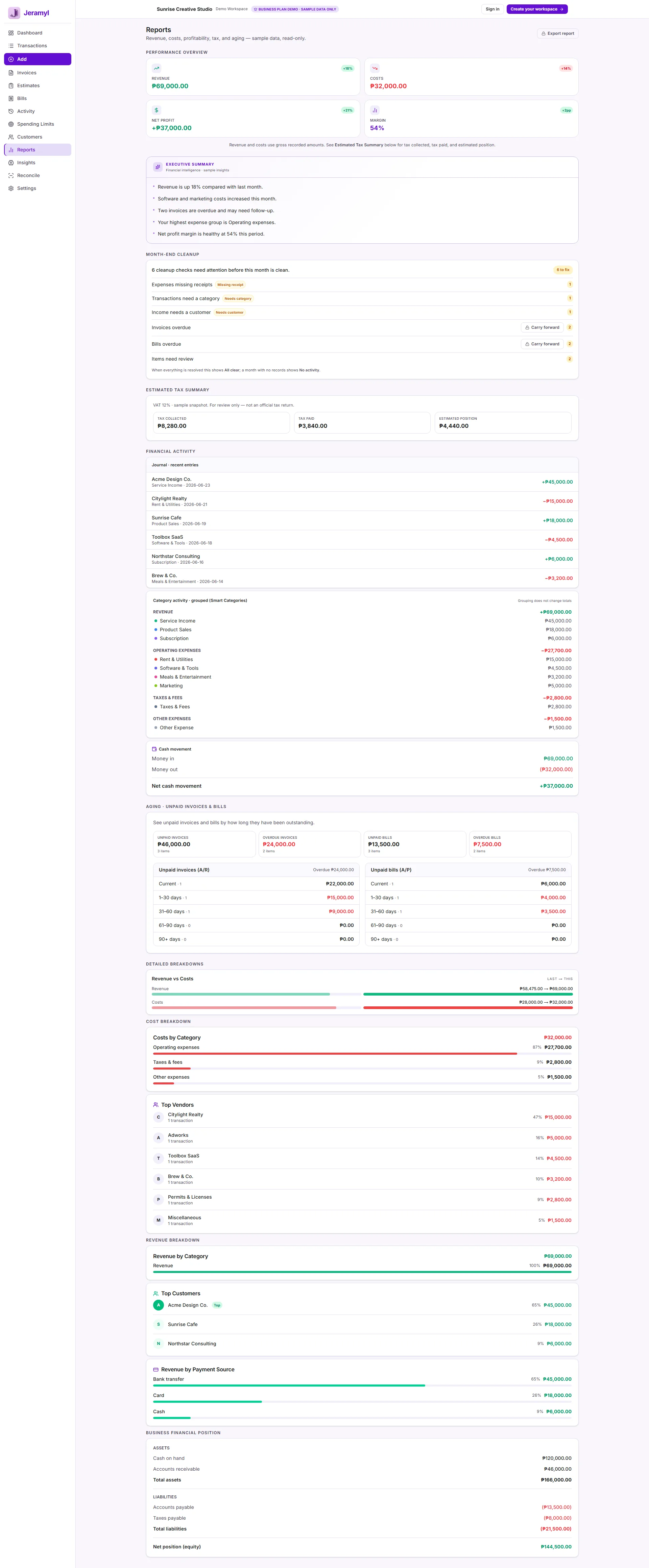
Reports are based on the transactions, invoices, and bills recorded in Jeramyl for the selected date range and workspace. Changing the date range will update all report totals to match the selected period.
Review financial reports
The main financial reports in Jeramyl give you a structured view of income and expenses over a selected period.
Profit and Loss (P&L)
The P&L shows total income minus total expenses for the period. The result is your net profit (if income exceeds expenses) or net loss (if expenses exceed income). Line items in the P&L reflect the categories assigned to your transactions and the invoices recorded as income.
Expense breakdown
The expense breakdown groups your recorded expenses by category, so you can see at a glance where spending is going. Categories with unexpectedly high totals are worth clicking through to the underlying transactions to verify.
Income summary
The income summary shows recorded income by source or category for the period — useful for reviewing which income streams are performing and whether invoiced amounts match recorded payments.
If a report total looks unexpected, drill down to the transactions behind it. Report totals are the sum of recorded transactions in that category and period — a single miscategorized or misdated transaction can shift a total significantly.
Review A/R aging
The Accounts Receivable (A/R) aging report shows outstanding customer invoices grouped by how long they have been unpaid — current, 1–30 days, 31–60 days, 61–90 days, and 90+ days overdue.
How to use A/R aging
- Identify which customers have the oldest outstanding balances — these are the priority follow-ups.
- Check whether any invoice due dates are incorrect. An invoice that appears in the 90+ day bucket may simply have a wrong due date rather than genuinely being that overdue.
- For invoices where payment has been received but not recorded in Jeramyl, open each invoice and link the payment to clear it from the aging report.
- Use the A/R aging report alongside the Customer Statements guide to prepare statements for customers with significant outstanding balances.
A/R aging reflects invoices recorded in Jeramyl. If an invoice has not been entered yet, it will not appear in the report. Keep your invoices up to date so the aging report gives you an accurate picture of outstanding receivables.
Review A/P aging
The Accounts Payable (A/P) aging report shows outstanding vendor bills grouped by age — current, 1–30 days, 31–60 days, 61–90 days, and 90+ days overdue. This helps you understand what you owe and how urgent each payment is.
How to use A/P aging
- Identify bills in the oldest age buckets — these may already be past due and worth contacting the vendor about if payment has not been made.
- Confirm that each bill listed is genuinely outstanding. Bills that have been paid but not recorded as paid in Jeramyl will continue to appear in the aging report.
- For each paid bill, open the bill and link it to the corresponding expense transaction to clear it from the A/P aging report.
- Use the A/P aging report as part of your cash flow review — knowing the age of outstanding payables helps you plan upcoming payments alongside your cash runway.
A/P aging reflects bills recorded in Jeramyl. Bills that have not been entered will not appear. Keep your bills list current so the aging report is a reliable view of outstanding payables.
Review Tax Summary
The Tax Summary provides an estimate of taxable income and potentially deductible expenses based on the transactions and categories you have recorded in Jeramyl for the selected period.
What the Tax Summary shows
- Total income: All recorded income for the period — from invoices marked paid and income transactions.
- Total expenses: All recorded expenses for the period, broken down by category.
- Estimated net taxable income: An estimated figure based on income minus expenses. This is a starting point for tax preparation — not a confirmed tax figure.
The Tax Summary is an estimate based on the records you have entered in Jeramyl. It is not tax advice, a tax filing, or a confirmed tax calculation. Tax rules vary by jurisdiction, business type, and individual circumstances. Always confirm your tax position with a qualified accountant or tax professional before filing — do not rely solely on Jeramyl's Tax Summary for any tax decision.
For a detailed walkthrough of the Tax Summary, see the Tax Summary guide.
Export CSV or PDF files
Most reports in Jeramyl can be exported as a CSV file for use in spreadsheets or external accounting tools. Some reports also offer PDF export for sharing or printing.
How to export
- Open the report you want to export.
- Set the date range and any filters to scope the report correctly before exporting.
- Click the Export or Download button in the report header or toolbar.
- Choose the format — CSV or PDF — if both are available.
- The file downloads to your device. Open it in your spreadsheet app or share it directly.
What CSV exports contain
CSV exports from transaction reports typically include the date, description, amount, category, and status of each recorded item. P&L and summary exports include the aggregated totals by category and period. The exact columns depend on the report type.
Before exporting, confirm your date range is set correctly and that the report data looks as expected. An export from an incorrect date range or with uncategorized transactions will reflect those issues in the exported file.
Check records before exporting
The most common cause of a report looking wrong is an issue with the underlying records — miscategorized transactions, incorrect dates, duplicate entries, or invoices not yet marked as paid. Before relying on or sharing any report, run through these checks.
Pre-export checklist
- Confirm the date range is set to the period you intend. A report for the wrong period will show incorrect totals.
- Check that major transactions — large expenses, significant income — are present and correctly categorized.
- Review whether any transactions are still uncategorized. Uncategorized items do not appear in category-level breakdowns and will create gaps in your expense and P&L reports.
- Confirm invoices for the period are recorded and any that have been paid are marked as paid. Unpaid invoices may not appear in income totals depending on your workflow.
- Check bills for the period are recorded and any that have been paid are linked to the corresponding expense transaction.
- Run Month-end Cleanup for the period if it has not been completed. A clean Cleanup Queue means fewer issues in the exported report.
What reports do not do
- Reports are not tax filings. The Tax Summary is an estimate based on your recorded data. It is not a tax return, tax assessment, or confirmed tax liability. File your taxes with a qualified accountant or tax professional — do not use Jeramyl reports as a substitute for proper tax advice or filing.
- Reports do not guarantee accounting accuracy. Report totals reflect the records entered in Jeramyl. If records are missing, miscategorized, or incorrectly dated, reports will reflect those errors. Report accuracy depends on the accuracy of your underlying records.
- Exported reports do not replace accountant review. A CSV or PDF export from Jeramyl is a starting point for review — not a final accounting output. Your accountant may identify issues, reclassify items, or adjust figures that are not apparent from the exported data alone.
- Reports do not provide tax, legal, or financial advice. Jeramyl reports show summaries of your recorded data. They do not advise on tax strategy, deductibility, legal compliance, or financial decisions. For any of these, consult a qualified professional.
Best practices
- Run Month-end Cleanup before reviewing or exporting reports for any period. Clean records produce accurate reports.
- Always confirm the date range before exporting. A common mistake is exporting a report for the wrong period — double-check before sharing.
- Review major line items in any report before sharing it. Unexpected totals in a category usually trace back to a miscategorized or misdated transaction.
- Keep categories consistent across your transactions. Inconsistent categorization makes expense breakdowns and P&L comparisons across periods harder to read.
- When sharing reports with your accountant, include a note about any items you are unsure about — unusual expenses, transactions you could not categorize confidently, or invoices in dispute.
- Use the Tax Summary as a starting point for tax season preparation, not as a final number. Confirm your tax position with your accountant before filing.
FAQ
No. The Tax Summary is an estimate based on the records you have entered in Jeramyl. It is not a tax return or a confirmed tax liability. Tax rules vary by jurisdiction, business structure, and circumstances. Always work with a qualified accountant or tax professional to prepare and file your tax return — do not rely solely on Jeramyl's Tax Summary for any tax decision.
Start by confirming the date range is correct. Then check for uncategorized transactions — they may not be included in the correct category total. Look at the largest expense and income categories and click through to the underlying transactions to verify the amounts and dates. A single large misdated transaction can shift a period total significantly. Fix the underlying records and the P&L will update.
Yes. Export the relevant report as a CSV or PDF and share it via email or a shared folder. Before sharing, review the report for obvious errors and run Month-end Cleanup for the period if it has not been completed. Note that exported reports are a starting point for your accountant's review — they may identify adjustments not visible from the exported data alone.
The A/R aging report shows outstanding customer invoices grouped by how long they have been unpaid — current, 1–30 days overdue, 31–60 days, 61–90 days, and 90+ days. It helps you identify which customers to follow up with and how urgent those follow-ups are. It only reflects invoices recorded in Jeramyl — invoices not yet entered will not appear.
No. Reports are per workspace. The reports you see are based on the transactions, invoices, and bills recorded in the currently active workspace. If you manage multiple businesses in Jeramyl, switch to the relevant workspace before running a report for that business. Each workspace's reports are entirely separate.