What spending limits are
Spending limits in Jeramyl let you define a threshold for a category or spending area so you can see when your recorded expenses approach or exceed that amount within a given period. When the total recorded spending in a category reaches or crosses the limit you set, Jeramyl surfaces an alert so you can review it.
This gives you a simple way to stay aware of business costs without having to manually add up transactions every week. Limits work off your transaction records in Jeramyl — the categories, amounts, and dates you have already entered.
Spending limits are a monitoring and review tool. They show you when recorded spending in a category reaches a threshold you set. They do not automatically block purchases, card charges, bank payments, or vendor payments.
When to use spending limits
Spending limits are most useful when you want early visibility into cost areas before they grow unnoticed. Common situations where they help:
- You want to know when spending on a particular category — such as software subscriptions, supplies, or contractor payments — has reached a point where it warrants a review.
- You have a rough monthly budget in mind for a cost area and want a prompt when recorded expenses are close to or beyond that amount.
- You are reviewing costs at the end of a quarter and want to identify which categories came in higher than expected so you can look at the underlying transactions.
- You manage multiple businesses and want to set category-level awareness for each workspace separately.
- You want to share a clear picture of cost control with your accountant — spending alerts give you a starting point for that review conversation.
Spending limits work best when your transaction categories are consistently assigned. Before relying on alerts, make sure transactions in the categories you are monitoring are correctly categorized and that your records are up to date.
Open Spending Limits
- Sign in at app.jeramyl.com.
- Confirm the workspace selector shows the correct business. Each workspace has its own spending limits and alerts.
- Go to Transactions in the sidebar.
- Look for the Spending Limits section or tab within the Transactions area. The exact location may vary depending on the current version of Jeramyl.
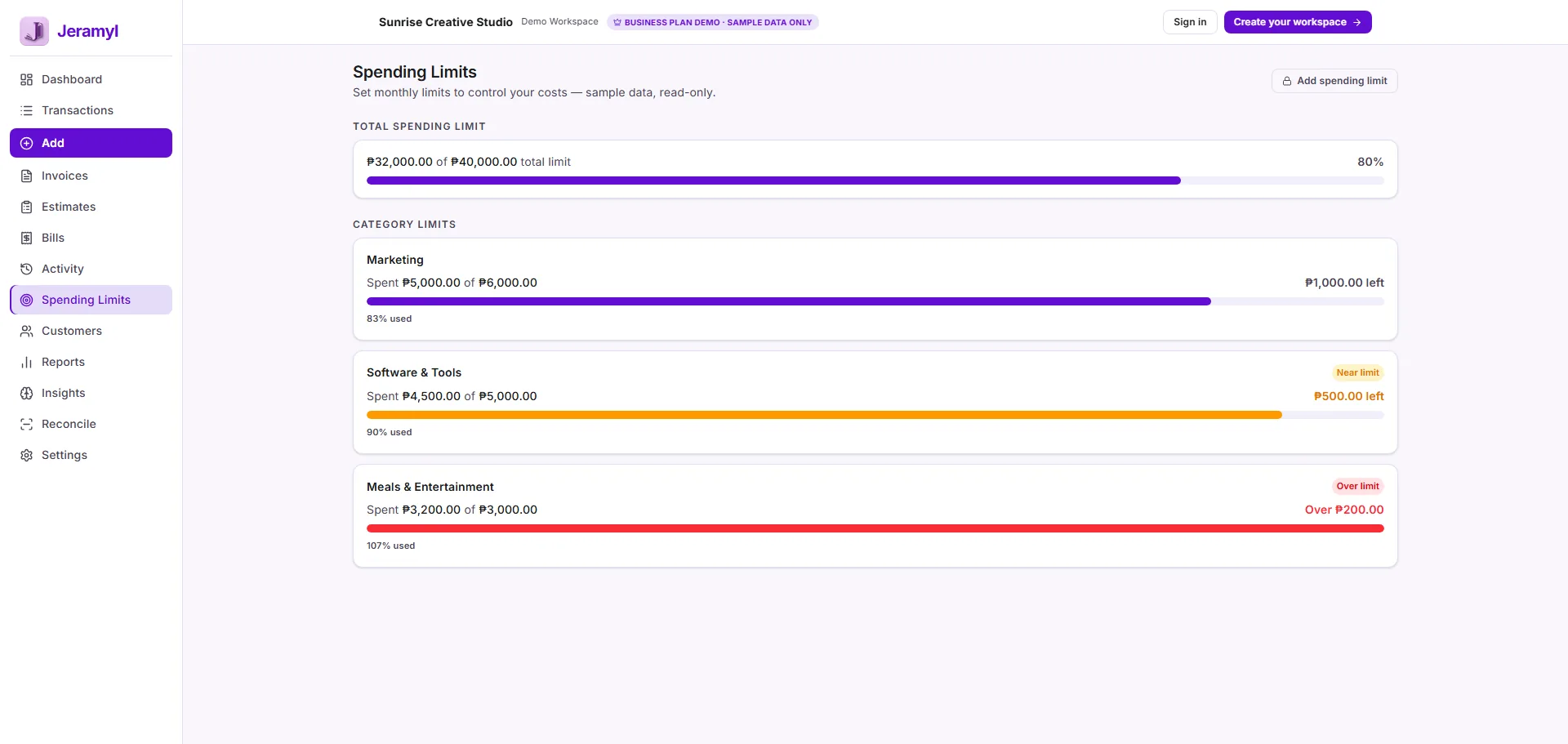
Spending limits are per workspace. If you manage multiple businesses in Jeramyl, make sure you are in the correct workspace before creating or reviewing limits — each workspace tracks its own category spending independently.
Create or review a spending limit
To set a new spending limit or update an existing one, open the Spending Limits section and work through the options for the category you want to monitor.
Create a new limit
- In the Spending Limits section, look for an option to add or create a new limit.
- Choose the category you want to monitor — for example, Software, Supplies, Contractors, or any other category you use in your transactions.
- Enter the limit amount — the threshold at which you want to be alerted.
- Set the period — monthly, quarterly, or another review window depending on what is available.
- Save the limit. Jeramyl begins tracking recorded spending in that category against the threshold you set.
Review or update an existing limit
- Open the Spending Limits section.
- Find the limit you want to update in the list.
- Edit the amount, category, or period as needed.
- Save the change. The updated limit applies to spending recorded from the current period forward.
Start with a small number of limits on your highest-cost categories. Tracking too many categories at once can make it harder to notice the alerts that actually matter. You can add more limits as you get comfortable with the workflow.
Choose categories to monitor
The value of a spending limit depends on the category it monitors being consistently used in your transactions. Before setting a limit on a category, confirm that your recorded expenses are being assigned to it correctly.
Which categories work well for limits
- High-frequency categories: Categories where you record expenses regularly — such as software subscriptions, office supplies, or fuel — are good candidates because the totals accumulate quickly and are easy to lose track of.
- Variable-cost categories: Categories where spending can fluctuate — such as contractor payments, advertising, or travel — benefit from a limit because unexpected increases are worth a prompt review.
- Categories tied to business decisions: If you are watching a particular cost area because of a budget decision or a conversation with your accountant, setting a limit on that category gives you ongoing visibility without having to run a manual report each time.
Categories to use with care
- Categories that are rarely used, or used inconsistently across your transactions, will produce unreliable alerts. Fix the categorization first, then set the limit.
- A single broad category — such as "Other expenses" — may catch many unrelated items. Consider whether splitting it into more specific categories would give you better visibility before setting a limit on it.
Spending alerts depend on the categories assigned to your recorded transactions. If a transaction is in the wrong category, it will affect the spending total for that category — and the alert may fire too early, too late, or not at all. Review your categories before relying on spending alerts for any business decision.
Set a period or review window
When you create a spending limit, you choose a period that determines which recorded transactions count toward the total. The period controls how Jeramyl calculates spending against your limit.
Common period options
- Monthly: Spending resets each calendar month. Useful for categories where you expect recurring costs each month — subscriptions, utilities, or regular supplier payments.
- Quarterly: Spending is tracked across a three-month period. Useful for categories where costs are less predictable month to month but matter over a longer window — such as one-off purchases or irregular contractor work.
Choosing the right period
Match the period to how often you review that category in practice. If you review costs monthly, a monthly period gives you an alert when you need it. If a cost area is seasonal or irregular, a quarterly period may give you more meaningful totals to review.
Spending alerts are based on the recorded transaction dates within your workspace. Transactions with incorrect dates — for example, an expense posted to the wrong month — can cause alerts to fire in the wrong period. If an alert looks wrong, check the dates on the underlying transactions as well as their categories.
Review spending alerts
When recorded spending in a category reaches or exceeds the limit you set, Jeramyl surfaces a spending alert. Alerts appear in the Spending Limits section and may also be visible on the Dashboard depending on the current version of the app.
What an alert tells you
- Category: Which spending category has reached or exceeded the limit.
- Recorded total: The total amount of transactions in that category within the period.
- Limit: The threshold you set for that category.
- Period: The time window the spending total covers — monthly, quarterly, or another period you chose.
What to do with an alert
An alert is a prompt to review — not a final verdict. When you see one, the first step is to open the transactions behind it and confirm the total makes sense before drawing any conclusion about your spending.
Spending alerts depend on recorded transaction data, categories, dates, and workspace records. An alert may reflect genuine overspend — or it may reflect a categorization error, a duplicate transaction, or a date issue. Always check the transactions behind an alert before acting on it.
Check transactions behind an alert
When an alert fires, open the underlying transactions to understand what is contributing to the total. This is the most important step before deciding whether the alert reflects real overspend or a data issue.
- Open the Spending Limits section and find the alert.
- Click through to the transactions for that category and period — most alerts link directly to the transaction list filtered by that category and date range.
- Review each transaction: check the amount, the date, the category assigned, and whether a receipt is attached.
- Confirm that each transaction belongs in this category. If any are miscategorized, update the category — the spending total will recalculate.
- Check the dates on the transactions. A transaction dated in the wrong month can inflate a period total. Correct any incorrect dates.
- Look for duplicates — two records for the same purchase in the same period can cause an alert to fire when spending is actually within expectations.
- Once you have confirmed the transactions are correct, decide whether the total represents genuine spending that warrants a business decision or conversation with your accountant.
If the transactions look correct and the total is genuinely higher than expected, that is useful information — it tells you where money is going. Use it as a starting point for a conversation with your accountant or bookkeeper, not as a basis for an immediate decision on its own.
Fix wrong categories or missing records
If an alert looks wrong — the total seems too high, too low, or the category does not match what you expect — the most common causes are miscategorized transactions, missing records, or incorrect dates. Work through these checks to clean up the underlying data.
Wrong category on a transaction
- Go to Transactions and find the transaction with the incorrect category.
- Open the transaction and change the category to the correct one.
- Save the change. The spending totals for both the old and new categories update automatically.
Missing transactions
If a category total looks lower than expected, you may have missing transactions — expenses that have not been recorded yet. Add the missing transactions and assign the correct category. The spending total for that category updates once the transactions are saved.
Incorrect transaction dates
A transaction dated in the wrong period — for example, a December expense recorded with a January date — will appear in the wrong month's spending total. Open the transaction, correct the date, and save. The spending totals for the affected periods recalculate.
Duplicate transactions
Two records for the same purchase double the amount in the spending total. If you find a duplicate, delete the extra record. If you are unsure which is the original, check the receipt or bank record before removing either entry.
After making category or date corrections, return to the Spending Limits section to confirm the alert has updated. If the total is now within the limit after fixing the data, the alert may clear automatically. If it remains, the spending total reflects the corrected records.
How spending limits connect to reports
Spending limits and Jeramyl's reports draw from the same source — your recorded transactions and their categories. This means a spending alert and your expense breakdown report should tell a consistent story about the same category.
Using reports alongside alerts
- When a spending alert fires, you can cross-check it against the Expense Breakdown report for the same period to see how that category compares to your total expenses.
- The Profit and Loss report shows total income minus total expenses — if a category is running high, it will show up in the expense side of your P&L.
- Reviewing reports after resolving an alert helps you confirm the corrected data is reflected across all your financial summaries.
Both spending alerts and reports reflect the transaction records in your workspace. If a transaction is miscategorized, both the alert and the report will reflect that error. Fix the underlying transaction, and both will update. For a full picture of your financial performance, use reports alongside spending alerts — not as a substitute for reviewing the underlying records.
How spending limits connect to cash flow
Spending limits help you stay aware of costs at the category level — and category-level costs feed directly into your overall cash flow picture. When expenses in a category run higher than expected, that affects your net cash position for the period.
Using alerts to protect cash runway
- A spending alert in a high-cost category is an early signal that outflows in that area may be higher than anticipated. Reviewing the alert before the period ends gives you time to understand the cause before it affects your month-end position.
- If an alert reflects genuine overspend — not a data error — it is useful context when reviewing your Dashboard cash runway and upcoming bills together.
- For categories tied to recurring expenses — such as monthly subscriptions or regular supplier invoices — a spending alert that fires early in the month may indicate an unexpected additional charge worth investigating.
Spending limits are a monitoring tool — they help you notice cost patterns and prompt a review. They do not predict future cash flow or guarantee that your business will stay within a budget. For cash flow planning and major spending decisions, review your full Dashboard alongside your reports, and consult your accountant, bookkeeper, or financial advisor.
What spending limits do not do
- Spending limits do not automatically block purchases, card charges, bank payments, or vendor payments. A spending alert tells you that recorded spending in a category has reached a threshold — it does not stop any transaction from occurring. Payments, purchases, and bank transfers happen outside Jeramyl, and Jeramyl cannot intervene in them.
- Spending limits do not guarantee cost savings. Setting a limit creates awareness — it does not change your spending behavior automatically. Whether a limit leads to a cost reduction depends entirely on how you respond to alerts and what actions you take as a result.
- Spending limits are not financial advice. An alert that a category has reached a threshold does not tell you whether that spending level is good or bad for your business. For budget decisions, cost control strategies, or major financial choices, consult your accountant, bookkeeper, or financial advisor.
- Spending alerts may not be complete. Alerts depend on the transaction records, categories, dates, and workspace data in Jeramyl. Transactions that have not been recorded yet, categories assigned incorrectly, or dates entered in the wrong period can all affect what an alert shows. Always check the underlying transactions before acting on an alert.
- Spending limits do not replace reviewing your transactions. A clean spending alert relies on clean records. Category errors, duplicate entries, and missing receipts all affect the accuracy of spending totals. Regular transaction review is what makes spending limit data meaningful.
- Jeramyl does not replace an accountant, bookkeeper, or financial advisor. Spending limits support your awareness of costs — but major budget decisions, tax planning, and cash flow strategy should involve a qualified professional who knows your full financial picture.
Best practices
- Before setting a spending limit on a category, confirm that the transactions in that category are correctly assigned. An alert based on miscategorized transactions is misleading — clean the records first.
- Start with limits on a small number of categories — typically the ones where you spend the most or where costs are most variable. This makes alerts actionable rather than overwhelming.
- When an alert fires, check the transactions behind it before drawing any conclusions. Most alerts are worth investigating, but not all of them reflect real overspend.
- Set limits at amounts that are realistic for your business costs — not aspirational targets that will fire alerts constantly. A limit that fires every month without actionable cause trains you to ignore it.
- Review your spending limits periodically — quarterly or when your cost structure changes. A limit that made sense six months ago may no longer reflect your current business.
- Use spending alerts as a starting point for conversations with your accountant or bookkeeper, not as a basis for immediate decisions. Bring the alert, the underlying transactions, and the period total to that conversation.
- Keep your transactions up to date. Spending limits are only as accurate as the records behind them. Transactions recorded weeks after the fact, or with incorrect dates, can cause alerts to misfire.
FAQ
No. Spending limits are a monitoring tool — they surface an alert when recorded spending in a category reaches a threshold. They do not block purchases, card charges, bank transfers, or vendor payments. Those happen outside Jeramyl, and Jeramyl cannot intervene in them. The alert tells you to review what has been recorded; it does not control your actual payments.
Start with the transactions behind the alert — open them and check the amount, date, and category on each one. Common causes of an incorrect total include a miscategorized transaction, an expense dated in the wrong period, or a duplicate record. Fix any errors in the transactions and the spending total will recalculate. If the total still looks wrong after correcting the data, contact support@jeramyl.com with the details.
Spending alerts depend on the transaction records, categories, dates, and workspace data in Jeramyl. The total for a spending alert is the sum of recorded transactions in a given category within the period you set. If transactions are missing, incorrectly categorized, or dated in the wrong period, the alert total may not reflect your actual spending. Keeping your records accurate and up to date is what makes spending alerts reliable.
You can set limits on the categories available in your Jeramyl workspace. For a limit to be useful, the category should be used consistently across your transactions — a category with mixed or infrequent use will produce totals that are hard to interpret. If a category you want to monitor is not giving you meaningful totals, review the transactions in that category first and make sure they are all correctly assigned.
No. Spending limits help you monitor recorded expenses by category — they are a bookkeeping awareness tool, not financial advice. Whether a particular spending level is appropriate for your business depends on your full financial picture, business goals, and circumstances. For budget decisions, cost control strategy, or any major financial decision, consult your accountant, bookkeeper, or financial advisor.
Review your limits when something changes — when your business costs shift significantly, when you take on new recurring expenses, or when you notice that limits are firing too frequently or not at all. As a general habit, a quarterly check of your spending limits keeps them calibrated to your current business. You can also review them as part of your month-end cleanup routine.
Yes. When you correct a transaction's category, Jeramyl recalculates the spending total for the affected categories. If the correction brings the total back below your limit, the alert should update accordingly. Return to the Spending Limits section after making changes to confirm the totals have updated.