What cash flow means
Cash flow is the movement of money into and out of your business over a period of time. In Jeramyl, cash flow helps you understand the difference between what is coming in — income from customers, payments received on invoices — and what is going out — expenses, vendor payments, bills paid.
A positive cash flow means more money has come into the business than has gone out over the period. A negative cash flow means more has gone out than has come in. Neither is automatically good or bad — it depends on context, timing, and the nature of your business — but understanding the direction and size of the gap helps you stay informed about your financial position.
Cash flow in Jeramyl is based on the transactions, invoices, and bills you have recorded. It reflects what is in your records — not your actual bank balance. For an accurate view, keep your records up to date and reconcile them against your bank statement regularly.
What cash runway means
Cash runway is an estimate of how long your business may be able to continue operating at its current spending rate, based on the cash position recorded in Jeramyl. It gives you a rough sense of how much time you may have before your available cash runs out, given what you have spent and earned according to your records.
Jeramyl derives the runway estimate from recorded income and expense transactions. It is not a financial forecast, a bank balance read, or a projection of future revenue. It is an organising signal — a way of surfacing whether the current pace of spending looks sustainable based on the data entered in your workspace.
Cash runway is an estimate based on the records entered in Jeramyl. It does not account for money not yet recorded, future income not yet invoiced, or external accounts Jeramyl cannot see. Do not use the runway figure as the sole basis for a business financial decision. Discuss your actual financial position with an accountant, bookkeeper, or financial advisor.
When to review cash flow and runway
There is no single right interval — the most useful cadence depends on your business. Some businesses check the Dashboard every morning; others review it weekly. A few situations where it is worth checking deliberately:
- Before committing to a significant expense — check whether cash out is already elevated and whether the runway signal has changed.
- After recording a batch of transactions — new income or expenses shift the view and may change the signals you see.
- When invoices are overdue — outstanding invoices affect expected cash in, and overdue ones represent money that has not arrived.
- Before a period with known large bills — bills due this month affect outflow, and reviewing them early helps you plan.
- At month-end alongside your Month-end Cleanup — a clean set of records makes the cash flow and runway view more reliable.
The Dashboard is most useful when your records are current. If you have not recorded transactions for several days or weeks, the signals you see reflect an incomplete picture. Keeping records up to date is what makes the Dashboard actionable.
Open the Dashboard
- Sign in at app.jeramyl.com. The Dashboard is the first screen after signing in.
- If you have multiple workspaces, confirm the workspace selector in the sidebar shows the business you want to review. Each workspace has its own separate records and Dashboard.
- Review the summary cards at the top — these show net cash, overdue invoices, upcoming bills, and alerts.
- Scroll down to see the cash flow chart, recent activity, and any flagged items requiring attention.
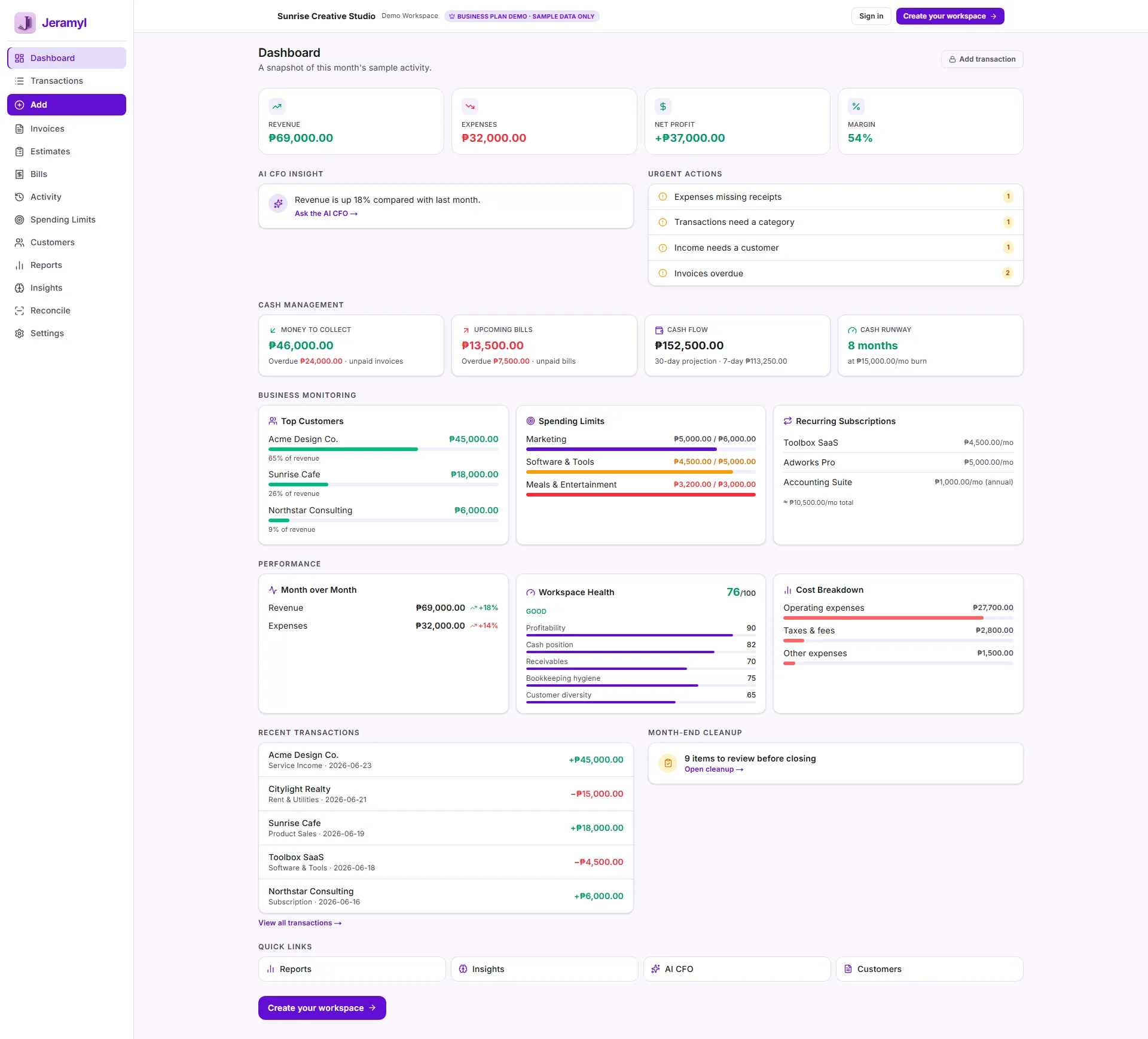
If the Dashboard shows "No activity" for the current period, no transactions have been recorded in Jeramyl for that time range. Start by adding income or expense transactions, or uploading receipts, to populate the view.
Review cash in and cash out
The cash in and cash out summary reflects the total of all income transactions (cash in) and all expense transactions (cash out) recorded in your workspace for the current period. The difference between the two is your net cash position for the period based on recorded data.
What affects cash in
- Income transactions recorded directly in Jeramyl
- Invoice payments recorded as income when an invoice is marked paid
- Any other income events entered as transactions
What affects cash out
- Expense transactions recorded directly in Jeramyl
- Bill payments recorded as expense transactions when a bill is marked paid
- Any other expense events entered as transactions
The cash in and cash out totals reflect only what has been recorded in Jeramyl. Transactions not yet entered — whether income received but not recorded, or expenses paid but not logged — are not included. If the totals look lower or higher than expected, check for missing transactions first.
Review overdue invoices
Overdue invoices are invoices that have passed their due date without a payment being recorded. They represent money that is owed to your business but has not yet arrived. Overdue invoices affect your expected cash position — money you anticipated receiving has not come in yet.
The Dashboard surfaces overdue invoices as an alert. The count reflects how many invoices are past due, not the total amount. To see the full list and amounts:
- From the Dashboard, click the overdue invoices alert or navigate to Invoices in the sidebar.
- Filter for Overdue status to see only the invoices past their due date.
- Review each invoice — check the customer, amount, and how long it has been overdue.
- If you have followed up with the customer and received payment, open the invoice and click Link payment to record it. The invoice changes to Paid and the income is added to your records.
- If you need to follow up, use Update follow-up on the invoice to set a reminder date.
Recording a payment on an invoice changes the invoice status to Paid — it does not automatically verify that the money has cleared in your bank account. After recording invoice payments, reconcile your records against your bank statement to confirm the amounts match. See the Bank Reconciliation guide.
Review upcoming bills
Upcoming bills are bills recorded in Jeramyl with a due date in the near future. They represent money your business is expected to pay out. Bills due soon affect your cash out — knowing they are coming helps you plan and avoid unexpected shortfalls.
The Dashboard may surface upcoming bills as alerts or summary items. To review them in full:
- Navigate to Bills in the sidebar.
- Review bills with Unpaid status — sort by due date to see the most urgent first.
- Bills past their due date are overdue — these represent spending that has not yet been recorded as paid.
- When you pay a bill, open it and click Link payment. Select or create the corresponding expense transaction. The bill status changes to Paid.
Upcoming bills in Jeramyl are based on the due dates you have entered when recording each bill. If you have not recorded a bill yet — for example, a subscription or vendor invoice that is due but not yet entered — it will not appear here. Keep bills up to date so the Dashboard reflects your actual upcoming obligations.
Review cash runway signals
The cash runway signal in Jeramyl is an estimate of how long the business may continue at its current pace based on the net cash position and spending rate recorded in your workspace. It is intended as an early-warning signal, not a precise forecast.
How to read the runway signal
- A comfortable signal means the current spending rate, based on recorded data, appears sustainable for the foreseeable period — depending on what has been entered.
- An watch signal means the spending rate relative to cash in is elevated enough that it is worth reviewing.
- A low or similar signal means the current pace of spending is significantly outpacing cash in, based on what is recorded — worth investigating promptly.
What affects the runway signal
- The total income transactions recorded for the current period
- The total expense transactions recorded for the current period
- Whether transactions have been kept current and categories are assigned
- Whether bills and invoices are recorded with accurate amounts and dates
The runway signal does not guarantee your actual financial position. It is derived from the records in Jeramyl and cannot account for money not yet recorded, funds in accounts Jeramyl cannot see, or future events. If the signal looks unexpected, check whether your records are complete and current before drawing conclusions. For advice on your actual business financial position, consult a qualified accountant, bookkeeper, or financial advisor.
Check transactions and categories
The cash flow and runway signals in Jeramyl depend entirely on the quality of your transaction records. Uncategorized transactions, transactions recorded in the wrong period, or missing transactions all reduce the accuracy of what the Dashboard shows you.
What to check if numbers look wrong
- Transaction type: Confirm income transactions are recorded as income and expenses as expenses. A payment received recorded as an expense will subtract from cash in instead of adding to it.
- Transaction date: A transaction with the wrong date will appear in the wrong period and affect the cash in/out for that period rather than the correct one.
- Transaction amount: Check that amounts are entered correctly — a transposed digit or extra zero significantly distorts totals.
- Category assigned: Uncategorized transactions are still counted in cash in/out totals, but they will not appear correctly in expense breakdowns and may confuse the picture.
- Business workspace: If you have multiple workspaces, confirm you are viewing the correct one. Transactions recorded in one workspace do not appear in another.
- Missing transactions: Income or expenses that have not been recorded in Jeramyl are invisible to the Dashboard. If cash appears lower than expected, check whether recent income has been entered.
Go to Transactions and filter by the current period to see exactly which income and expense records are contributing to the Dashboard view. Fixing issues at the transaction level updates the Dashboard immediately. See the Transactions and Categories guide for a full walkthrough.
Check missing receipts and cleanup items
The Dashboard surfaces alerts for items that need attention — including expense transactions with missing receipts, income transactions without a linked customer, and uncategorized transactions. These items do not directly change cash in or cash out totals, but they represent gaps in your records that reduce the completeness and usefulness of your bookkeeping.
Types of items flagged
- Missing receipt: An expense transaction exists in Jeramyl but has no receipt or document attached. This creates a gap your accountant may flag when reviewing records.
- Needs category: A transaction has no category assigned. It counts in the totals but does not appear correctly in expense breakdowns or Tax Summary.
- Needs customer: An income transaction has no customer linked to it. This is not a cash flow issue but can affect customer-level reporting and invoice matching.
Working through these items regularly — rather than letting them accumulate — keeps your records clean and reduces the effort required at month-end.
Run Month-end Cleanup at the end of each month to clear remaining flagged items in a single guided workflow. Cleanup and regular transaction review work best together. See also the Upload Receipt guide for attaching receipts to expense transactions.
How cash flow connects to reports
The cash flow view on your Dashboard is a summary of your income and expense transactions for the current period. The same underlying data drives the financial reports available in the Reports section.
- Profit & Loss (P&L): Summarises total income and total expenses for a selected period, showing your net profit or net loss. The same transactions that make up cash in and cash out on the Dashboard contribute to the P&L.
- Expense breakdown: Groups all expense transactions by category. If the cash out on your Dashboard looks higher than expected, the expense breakdown can show which categories are driving the increase.
- Tax Summary: Organises income and categorized expenses to help you estimate your tax position. Accurate categories in your transactions make Tax Summary more useful — and they also make the cash flow view cleaner.
Reports in Jeramyl — including cash flow views, Profit & Loss, and Tax Summary — are based on the records you have entered. They are estimates and organising tools, not audited financial statements. Always review your records for completeness and confirm your actual financial position with a qualified accountant or bookkeeper before making significant business decisions.
What cash flow and runway do not do
- Jeramyl does not guarantee cash flow or runway numbers. All figures are based on the transactions, invoices, and bills recorded in your workspace. Incomplete or incorrect records produce an inaccurate view. You are responsible for keeping records current and reviewing figures before acting on them.
- Jeramyl does not predict the future. Cash runway is an estimate based on current recorded spending and income rates — it is not a financial forecast. Future income, future expenses, seasonal changes, and one-off events are not predicted. The signal reflects historical recorded data only.
- Jeramyl does not read your bank account automatically. Unless you have set up a bank connection, transactions must be entered manually or through receipt upload. Money received or paid that has not been recorded in Jeramyl is not visible to the Dashboard.
- Jeramyl does not replace an accountant, bookkeeper, or financial advisor. For decisions about business spending, cash management, investment, or financial planning, consult a qualified professional. Jeramyl helps you organise your financial records and surface signals — professional advice is needed for business financial decisions.
- Cash flow and runway views are not audited statements. They are record-based organising tools. For formal financial reporting, tax filing, or business valuations, work with a qualified accountant or bookkeeper who can review and verify your records.
Best practices
- Record transactions promptly — income received and expenses paid should be entered in Jeramyl as soon as reasonably possible. Delayed entries create a gap between what happened and what the Dashboard shows.
- Keep invoice due dates accurate. An invoice with the wrong due date will appear in the wrong overdue or upcoming window.
- Keep bill due dates accurate. Bills with incorrect due dates may not surface as upcoming obligations when they should.
- Assign a category to every transaction. Uncategorized transactions count in cash in/out totals but create gaps in expense breakdowns and Tax Summary.
- Review Dashboard alerts regularly — ideally daily or every few days. Working through overdue invoices, missing receipts, and uncategorized transactions in small batches prevents a large backlog.
- If numbers look unexpected, check transactions, invoices, bills, categories, payment status, date ranges, and the business workspace you are viewing before drawing conclusions.
- Reconcile your Jeramyl records against your bank statement each month to confirm that what is recorded matches what has actually moved in and out of your account. See the Bank Reconciliation guide.
- Run Month-end Cleanup at the end of each month to clear remaining flagged items before reviewing reports. Clean records make cash flow and runway signals more reliable.
- For any significant financial decision — spending commitments, hiring, loans, investment — talk to an accountant, bookkeeper, or financial advisor rather than relying solely on Jeramyl's Dashboard signals.
FAQ
The runway estimate is based on the transactions recorded in Jeramyl. If transactions are missing — income not yet entered, expenses not logged, or bills not recorded — the estimate will not reflect your full picture. Check for missing transactions first. If records are current, the figure may still differ from your actual bank position because Jeramyl does not read your bank account directly. Reconcile your records against your bank statement to align them. See the Bank Reconciliation guide.
No. The runway estimate is based on current recorded spending and income rates — it is not a prediction of your future cash position. Future income you have not yet received or invoiced, accounts Jeramyl cannot see, or one-off changes in spending are not included. Treat it as an organising signal, not a guarantee. For a view of your actual financial position, work with a qualified accountant, bookkeeper, or financial advisor.
Cash in reflects only payments recorded in Jeramyl as income transactions or as invoice payments. If you received a payment but have not recorded it in Jeramyl yet — or if the transaction is recorded in a different workspace — it will not appear in the total. Add the missing transaction and the figure will update.
Open the invoice in Jeramyl and click Link payment. Enter the payment date and amount. The invoice status changes to Paid, the income is recorded as a transaction, and the overdue alert clears from the Dashboard. If the payment date was in a previous period, entering it correctly updates the income for that period.
No. The Dashboard cash flow view is a record-based organising summary, not an audited financial statement. For formal financial reporting, tax filings, business loan applications, or any purpose requiring verified financial data, work with a qualified accountant or bookkeeper who can review your records and produce the appropriate documents.
First confirm your records are current and complete — check for missing transactions, review uncategorized items, and make sure recent income and expenses have been entered. If records are current and the signals still look concerning, that is a prompt to discuss the situation with your accountant, bookkeeper, or financial advisor rather than to make immediate changes based solely on the Jeramyl Dashboard. They can review your full financial position and provide appropriate guidance.