What the Workspace Health Engine is
The Workspace Health Engine is the layer inside Jeramyl that continuously reviews your recorded data and surfaces signals about items that may need attention. It feeds the alerts you see on the Dashboard — overdue invoices, missing receipts, uncategorized transactions, and upcoming bills — based on the records in your workspace.
Rather than you having to check each section manually, the Health Engine aggregates open items into a single view so you can start each day knowing what needs review. The alerts update as you add records, resolve issues, and close out months.
Workspace health signals depend on available workspace records — invoices, transactions, bills, receipts, and categories that have been entered in Jeramyl. Signals do not catch issues in records that have not been entered yet. The Health Engine reviews what is recorded, not what may be missing from your books entirely.
When to use it
The Workspace Health Engine is most useful as a daily or weekly check rather than a one-time review. It is designed to be the first thing you look at when you open Jeramyl. Common situations where health signals help:
- You want a quick view of open items without navigating to Invoices, Transactions, and Bills separately.
- You want to catch overdue invoices before they fall too far behind and become harder to collect.
- You want to make sure expense receipts are attached before month-end, when missing documentation is harder to track down.
- You want to confirm your bills list is current so upcoming payments do not catch you off guard.
- You want a signal that uncategorized transactions are piling up before they become a large Month-end Cleanup backlog.
Checking the Dashboard daily and resolving one or two alerts at a time keeps your workspace clean without a large monthly effort. Most alerts take under a minute to resolve when reviewed promptly.
Open the Dashboard
- Sign in at app.jeramyl.com.
- Confirm the workspace selector in the sidebar shows the correct business. Each workspace has its own health signals.
- The Dashboard loads automatically after sign-in. If you are in another section, click Dashboard in the sidebar.
- Review the alert summary at the top of the Dashboard — this shows a count of open items and the current health status.
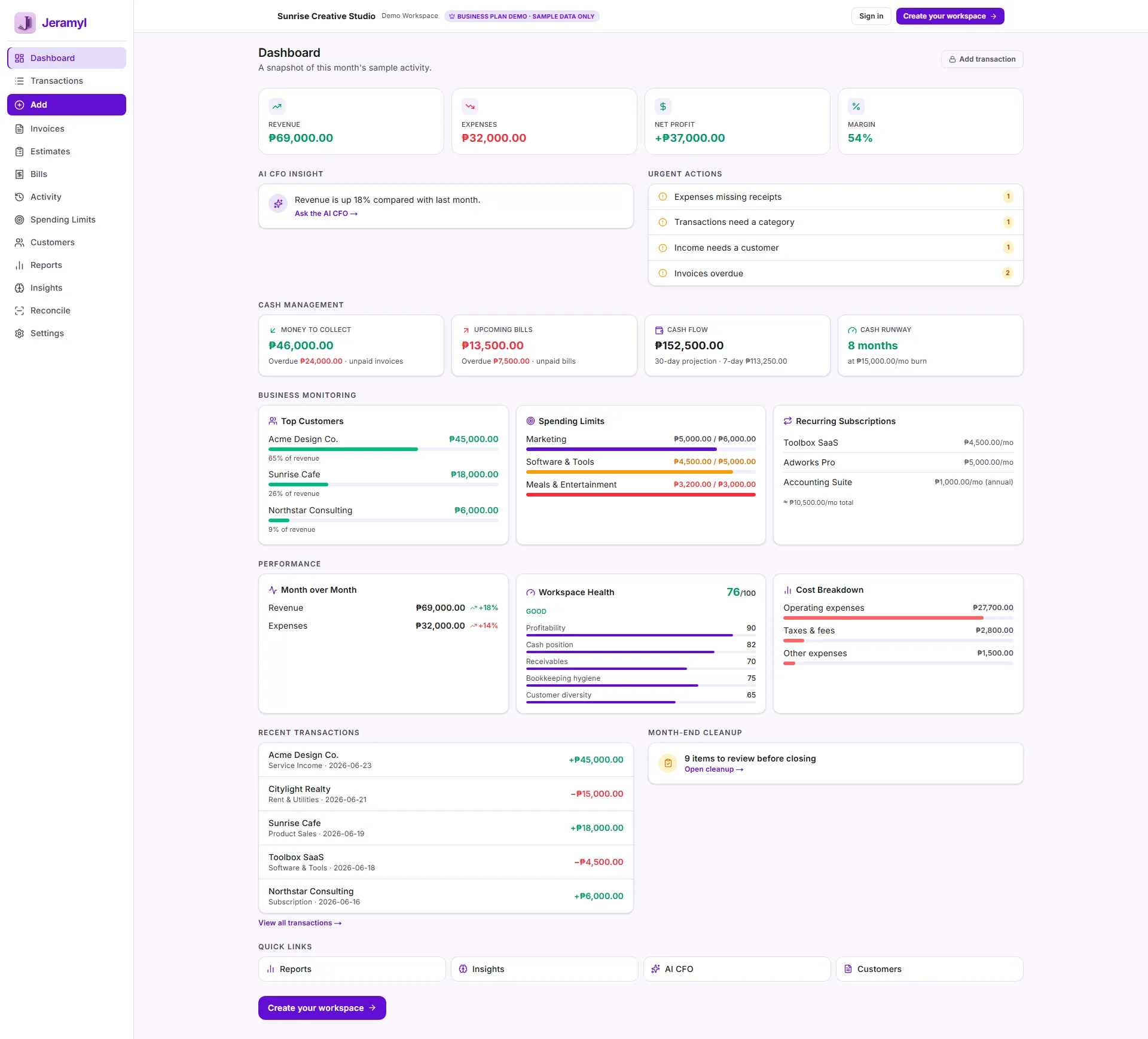
If the Dashboard shows All clear, all currently recorded items are within expected state. This means no open flags in the records Jeramyl is aware of — it does not mean every record has been entered or that all possible issues have been found.
Review overdue invoices
An overdue invoice is one where the payment due date has passed without a recorded payment. Jeramyl flags these on the Dashboard so you can follow up with customers before balances become harder to collect.
How to review and resolve
- Click through to the overdue invoices from the Dashboard alert, or go to Invoices and filter by Overdue.
- For each overdue invoice, confirm the due date is correct. An invoice with a wrong due date may appear overdue when it is not.
- If payment has been received, open the invoice and click Link payment to record it.
- If you are following up with the customer, set a follow-up date using Update follow-up so the reminder stays visible until resolved.
- If an invoice should be cancelled or written off, update or delete it as appropriate for your business workflow.
Overdue invoice alerts depend on the due dates recorded in Jeramyl. If a due date was entered incorrectly, fix it on the invoice itself — the alert will update once the date is corrected. For advice on managing outstanding balances or bad debt, consult your accountant or bookkeeper.
Review missing receipts
Jeramyl flags expense transactions that do not have a receipt attached. Missing receipts can create problems at tax time — documentation of business expenses is important for accurate reporting and potential deductions.
How to review and resolve
- Click through to missing-receipt items from the Dashboard, or go to Transactions and filter for items flagged as missing a receipt.
- For each flagged transaction, check whether you have the receipt — in your email, paper files, or a photo on your phone.
- Upload the receipt by opening the transaction and using the receipt attachment option. Jeramyl reads the receipt image and fills in details where it can.
- If a receipt is genuinely not available, note the reason in the transaction description and confirm the amount and category are correct.
- Once a receipt is attached or the item is reviewed and noted, the missing-receipt flag clears.
Uploading receipts at the time of purchase — rather than later — keeps missing-receipt alerts minimal. Most receipt scanning takes under 30 seconds for a clear photo.
Review uncategorized transactions
Uncategorized transactions are expenses or income items without a category assigned. Category assignments feed your expense reports, Tax Summary, and spending limit totals — leaving transactions uncategorized affects all of these.
How to review and resolve
- Click through to uncategorized items from the Dashboard, or go to Transactions and filter for uncategorized entries.
- For each transaction, review the description and amount to identify what the expense or income was for.
- Choose the most accurate category from the available list. When in doubt about a category, check how you have categorized similar past transactions for consistency.
- Attach a receipt if one is available and has not been added yet.
- Save the category assignment. The transaction moves out of the uncategorized queue.
Category choices affect your reports, Tax Summary, and spending alerts. If you are unsure how to categorize a particular type of expense — such as a mixed personal/business purchase or a capital item — consult your accountant or bookkeeper before assigning a category.
Review bills due
Bills due alerts surface upcoming and overdue vendor bills so you can plan payments before they become late. This keeps your cash flow picture accurate and prevents missed vendor obligations.
How to review and resolve
- Click through to bills due from the Dashboard, or go to Bills and review items with approaching or passed due dates.
- Confirm the due date on each bill is correct. Incorrect due dates can cause bills to appear urgent when they are not.
- If a bill has been paid, open it and record the payment — link it to the corresponding expense transaction.
- If a bill due date has changed — for example, a vendor granted an extension — update the due date on the bill.
- If a bill is no longer owed, delete or void it as appropriate.
Keeping your bills list current means the Dashboard cash runway and bills due signals are more accurate. Bills that have been paid but not recorded as paid will continue to appear as outstanding until the payment is linked.
Review business health signals
Beyond individual alerts, the Dashboard shows broader business health signals — your estimated cash position, cash runway, net profit, and overall alert status. These give you a quick read on the financial state of your business based on recorded data.
What the signals show
- Cash position: Estimated cash on hand based on recorded income and expenses. This reflects what is in your Jeramyl records, not necessarily your live bank balance.
- Cash runway: An estimated number of days your cash position could cover expected expenses based on recent spending patterns. Useful as a directional signal, not a precise forecast.
- Net profit: Total recorded income minus total recorded expenses for the current period.
- Alert summary: A count of open items — N to fix when there are open flags, All clear when all flagged items are resolved.
Health signals are based on the records available in your workspace. Signals are not a guarantee of business health, profitability, or cash position. They reflect recorded data — not future income, uncommitted expenses, external bank movements, or items not yet entered in Jeramyl. For a full financial picture, review your actual bank accounts and consult your accountant or bookkeeper.
Check source records
When a health signal or alert looks wrong — a count that seems too high, a cash figure that does not match your expectations — the next step is always to check the source records behind it.
How to investigate a signal
- Click through from any Dashboard alert to the underlying list — Invoices, Transactions, or Bills — filtered to the items that make up the alert.
- Review each record: check the amount, date, category, and status. A single miscategorized or misdated record can shift a signal significantly.
- If a record looks wrong, correct it in the source section (Invoices, Transactions, or Bills). The Dashboard signals update automatically.
- If multiple records look unexpected, review whether recent data entry — by you or a team member — introduced errors. The Activity Log (Business plan) can help you trace recent changes.
A health signal is only as accurate as the records behind it. Regular transaction review and prompt resolution of alerts keeps health signals meaningful. If signals consistently look wrong after reviewing the source records, contact support@jeramyl.com for help.
Workspace Health and Month-end Cleanup
Workspace health signals and Month-end Cleanup work together. Alerts you resolve daily on the Dashboard are items you do not have to deal with at month-end. A workspace with low daily alert counts typically produces a fast, low-effort Month-end Cleanup.
How they connect
- Uncategorized transactions flagged on the Dashboard are the same items that appear in the Month-end Cleanup Review Queue. Resolving them as they arrive means fewer items carry forward.
- Missing receipts flagged on the Dashboard are also surfaced during Month-end Cleanup. Attaching receipts promptly keeps Month-end clean.
- Overdue invoices and unpaid bills both affect Month-end accuracy — resolving them or recording payments keeps your reports and P&L correct for the period.
Before starting Month-end Cleanup, do a final Dashboard pass to resolve any remaining alerts. This reduces the number of items in the Cleanup Queue and makes the review faster. See the Month-end Cleanup guide for the full workflow.
What the Workspace Health Engine does not do
- The Health Engine does not catch every possible issue. Signals are based on records entered in Jeramyl. Transactions not yet recorded, invoices not yet created, or bills not yet added do not produce alerts. The Health Engine reviews what is there — not what is missing from your books.
- Health alerts are not always complete or perfectly accurate. A signal depends on the data quality of the underlying records. Incorrect dates, wrong categories, or duplicate entries can cause signals to appear when no real issue exists, or suppress a signal that should fire.
- The Workspace Health Engine does not replace an accountant or bookkeeper. It helps you notice open items and record-level issues. For financial advice, tax guidance, business planning, or interpretation of your financial position, consult a qualified accountant, bookkeeper, or financial advisor.
- Workspace Health does not guarantee business health. An All clear status means all currently recorded items are within expected state — it does not mean your business is financially sound or that no problems exist outside of Jeramyl's records.
Best practices
- Check the Dashboard at the start of each working day for a quick health read. Resolve one or two alerts while you are there rather than letting them accumulate.
- Before acting on a health signal, click through to the source records and confirm the underlying data is correct. Signals are prompts to review, not conclusions.
- Keep invoices, transactions, bills, and receipts up to date. The more current your records, the more accurate and useful your health signals are.
- Set a monthly habit of running Month-end Cleanup after daily alert resolution keeps the queue small. See the Month-end Cleanup guide for the step-by-step workflow.
- If a health signal looks consistently wrong even after reviewing the records, check whether a recurring categorization or date entry error is causing it. Fix the root cause, not just the symptom.
- For any financial decision — pricing, investment, cash management — go beyond the Dashboard health signals and review your full reports alongside your accountant or bookkeeper.
FAQ
Workspace health signals only surface issues in records that have been entered in Jeramyl. If a transaction, invoice, or bill has not been recorded yet, no alert will appear for it. Check whether the records you expect to see have been entered — and if not, add them. Once added, the relevant alert will appear.
Click through from the Dashboard alert to the underlying records — invoices, transactions, or bills. Review the amount, date, category, and status of each item. In most cases, an unexpected signal traces back to a misdate, wrong category, or a payment that was not recorded. Fix the source record and the signal updates automatically.
No. "All clear" means all currently recorded items in Jeramyl are within expected state — there are no open overdue invoices, missing receipts, uncategorized transactions, or bills due that the system is aware of. It does not mean your business has no financial challenges, no unrecorded obligations, or no issues outside of what has been entered in Jeramyl.
Health signals update as records change in your workspace — when you add a transaction, record a payment, attach a receipt, or change a due date. There is no fixed update interval; signals reflect the current state of your records in near real time.
Cash runway on the Dashboard is a directional signal based on recorded income, expenses, and recent spending patterns. It is useful for awareness — for example, noticing that runway has shortened significantly in the past two weeks. It is not a precise forecast and does not account for future income, committed spending, bank movements, or items not yet recorded. For cash flow planning, use the Dashboard signal alongside your full reports and a conversation with your accountant or bookkeeper.